Estimated savings
Est. annual savings is QueryGuard's projection of what a negative keyword saves over the next year, worked out from what the matching search terms have already spent.
Overview
Every negative keyword applied through QueryGuard carries an estimated savings figure. It answers one question: if this negative had been in place for the last two months, how much spend would it have blocked — and what does that look like over a full year?
The figure is an estimate, not booked savings. It assumes the next year looks like the last 60 days, so treat it as a way to rank exclusions rather than a promise.
Direct link: Dashboard
Quick Tips
- Sort the Negatives tab by Est. Annual Savings to see which exclusions are carrying your total — see Manage negative keywords.
- If an estimate looks low for a term you know is expensive, check the match type: an Exact negative only counts the term itself, while Broad counts everything it would have caught.
- The estimate counts spend only. It says nothing about the conversions those clicks produced — a term that converts is still worth keeping even if it's expensive. See Add negative keywords for when to accept instead of exclude.
- Watch the estimate when you widen a match type — a much larger Broad figure is a sign the negative catches more than the term you meant to block.
How the estimate is calculated
When you exclude a term, QueryGuard looks back over the last 60 days of search-term data in the campaign the negative is applied to, finds every search term the negative would have matched under the match type you chose, and adds up what those terms cost. That 60-day spend is then multiplied by six to project a year.
| Match type | Spend counted toward the estimate |
|---|---|
| Exact | The term itself, only |
| Phrase | Any term containing the phrase in order, as whole words |
| Broad | Any term containing all of the keyword's words, in any order |
Two things follow from that:
- The estimate is per campaign. Spend on the same term in another campaign isn't counted until you exclude it there too.
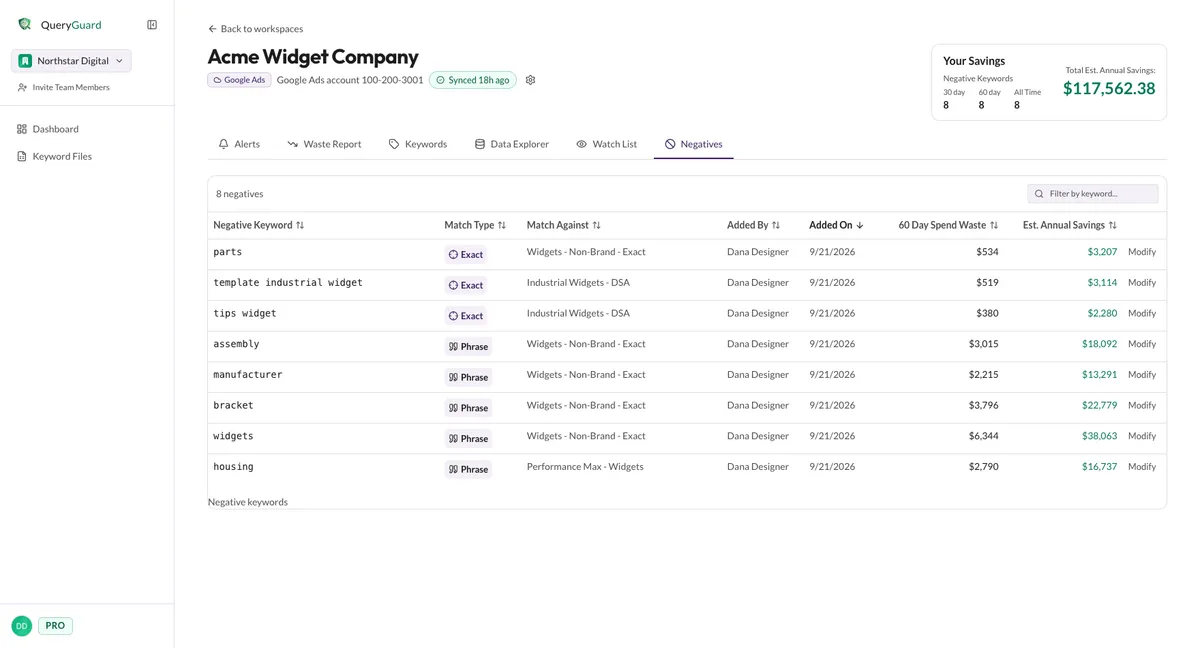
- Phrase and Broad count more than the term you clicked. A phrase negative also catches terms that merely contain it, so the same keyword produces a larger estimate under a wider match type. The 60 Day Spend Waste column on the Negatives tab is that pre-annualized figure; Est. Annual Savings is the same number times six.
Where it shows
The estimate appears in a few places, always built from the same per-negative figures:
| Surface | What you see |
|---|---|
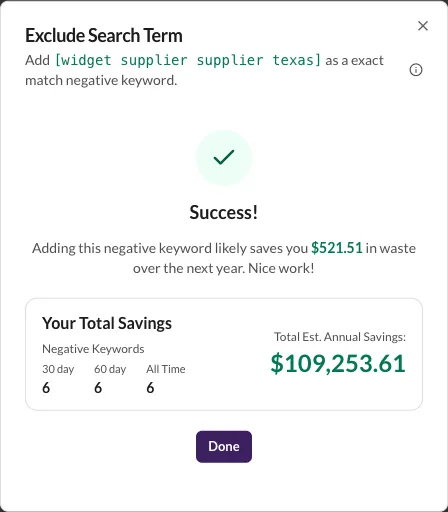
| Exclude window, after Exclude Term | The estimated saving for what you just excluded, plus a Your Total Savings card with the account's running total |
| Negatives tab | 60 Day Spend Waste and Est. Annual Savings columns on each row |
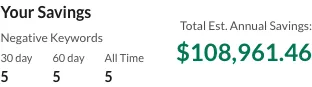
| Account header, on every tab | The Your Savings card — negatives added in the last 30 day / 60 day / All Time, and the Total Est. Annual Savings |
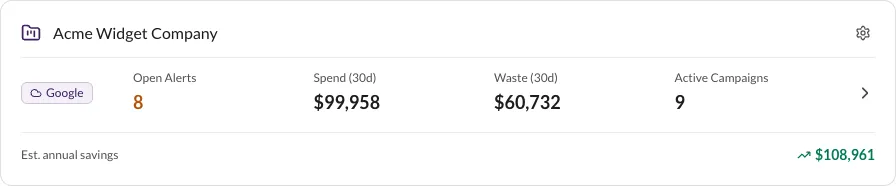
| Dashboard | An Est. annual savings line at the bottom of each workspace card, summed across the accounts in that workspace |
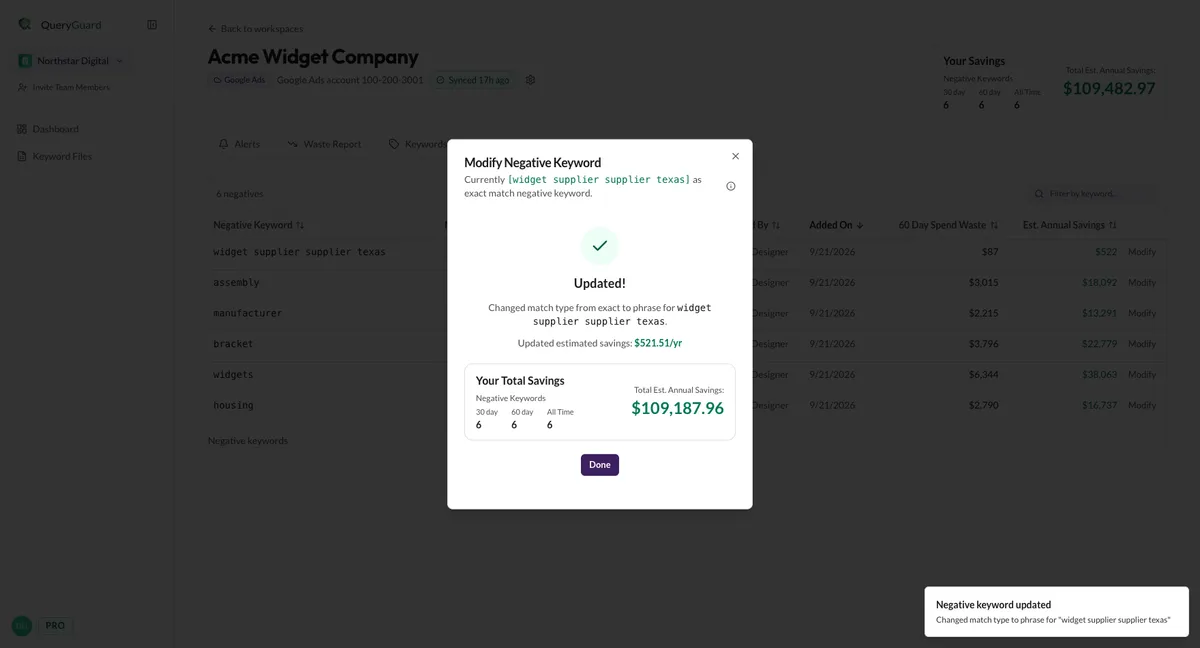
| Modify Negative Keyword window, after saving a match-type change | Updated estimated savings with the revised figure |
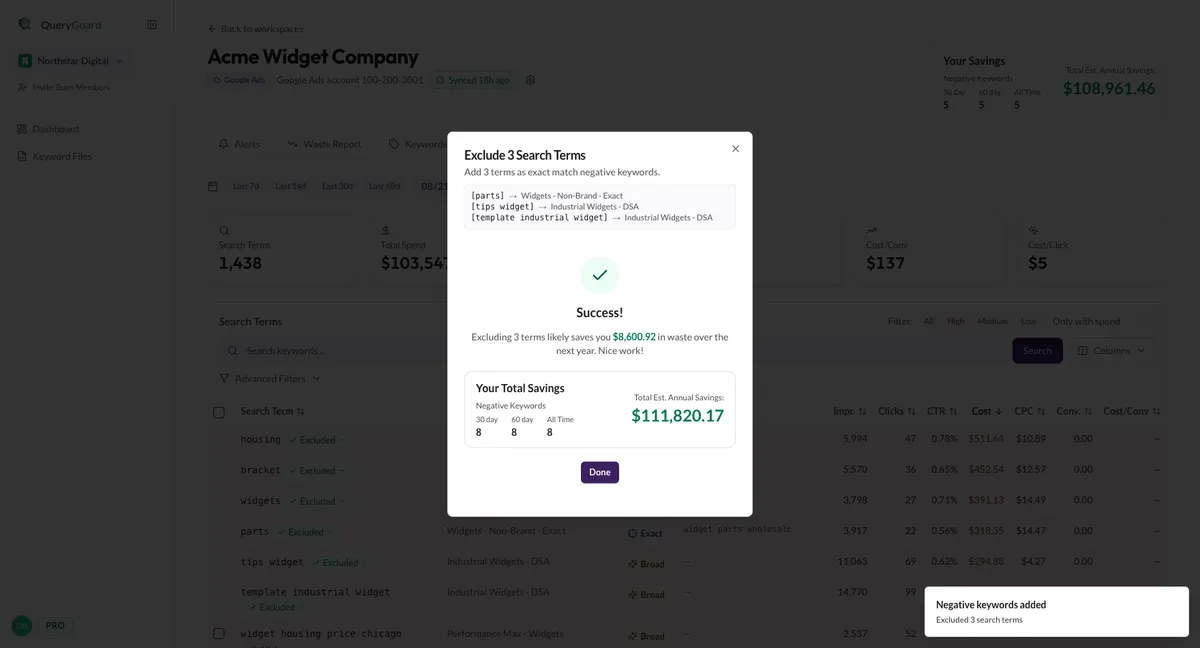
The success view after excluding shows the estimate for the negative you just wrote, with the account's new total below it:
Each negative's own figures live on its Negatives tab row — 60 Day Spend Waste is the spend that fed the estimate, and Est. Annual Savings is the projected year. Those rows are what the header card adds up.
On the account itself, the Your Savings card sits in the header above the tabs. The three counts are how many negatives were applied in each window — not dollar amounts — and the total is the sum of every active negative's estimate.
The dashboard rolls the same figures up to the workspace: each card ends with an Est. annual savings line covering all the accounts in it, so you can compare workspaces at a glance.
What changes the figure
- The estimate is pinned when you exclude. QueryGuard stores the 60-day window the estimate came from, so a row's numbers don't drift as new data syncs.
- Changing the match type recalculates it. The estimate is reworked over that same original window with the new match type, and the Updated! view shows the revised figure. Widening the match type can only widen the set of matched terms, so the estimate grows or stays level — narrowing it does the reverse.
- Removing a negative removes its savings. The row's estimate comes out of the totals straight away — the Your Savings card and the workspace card both drop.
- Totals refresh as you move around. The header card totals update on navigation, so a change you just made may not show on the card until you switch tabs or reload.
Bulk exclusions add up the same way: the success view sums the per-term estimates, and each new negative lands on the Negatives tab with its own figures.