Manage negative keywords
Every negative keyword you add through QueryGuard lands on the account's Negatives tab, where you can change its match type or remove it entirely — both write straight to Google Ads.
Overview
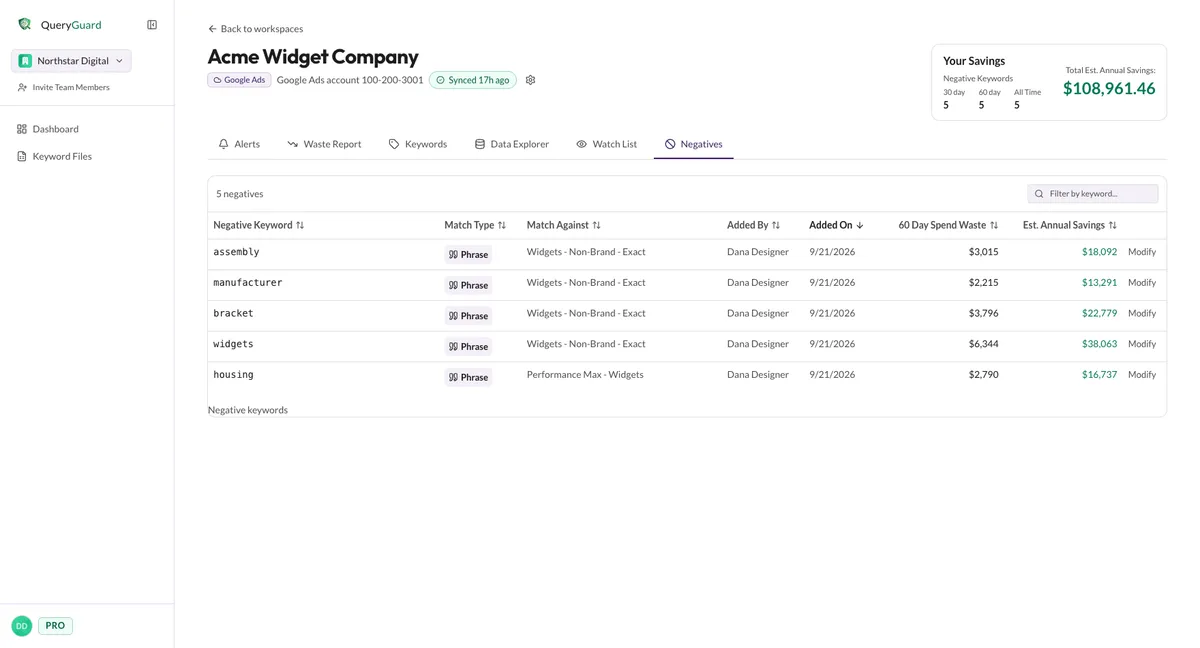
The Negatives tab lists each negative QueryGuard has applied to the account, one row per negative, with the campaign it targets, who added it, and the spend and estimated savings behind it. It shows only negatives applied through QueryGuard — negatives that already exist in the Google Ads account don't appear here.
Quick Tips
- Sort by 60 Day Spend Waste or Est. Annual Savings to review your biggest exclusions first.
- Changing the match type is a rewrite: QueryGuard removes the old negative and creates the new one, so the campaign is never left unprotected mid-change.
- Removal takes effect straight away — matching terms can spend again immediately. If you removed one by mistake, exclude the term again from wherever it appears. See Add negative keywords.
- Give Broad negatives an occasional review. A broad negative added early can quietly block terms you'd want to buy today.
Steps
1. Find the negative
Open the account and choose the Negatives tab. Each column sorts: click a header for descending, click it again to flip the direction. The default order is Added On, newest first.
| Column | What it shows |
|---|---|
| Negative Keyword | The excluded term |
| Match Type | Exact, Phrase, or Broad |
| Match Against | The campaign the negative is applied to |
| Added By | Who excluded it |
| Added On | When it was applied |
| 60 Day Spend Waste | What matching terms spent over the last 60 days |
| Est. Annual Savings | The projected yearly saving from the exclusion |
To narrow the list, type in Filter by keyword — the count switches to "Showing X of N negatives" and an X clears the filter.
2. Change the match type
Choose Modify on the row. The window shows the term wrapped in its current match-type syntax — [term] for exact, "term" for phrase, bare for broad — and the campaign under Applied to.
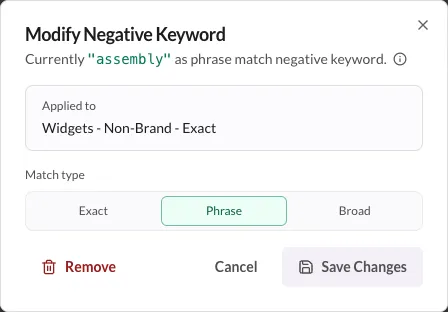
Pick a different Match type. A hint confirms the change, and Save Changes enables — nothing is written until you save.
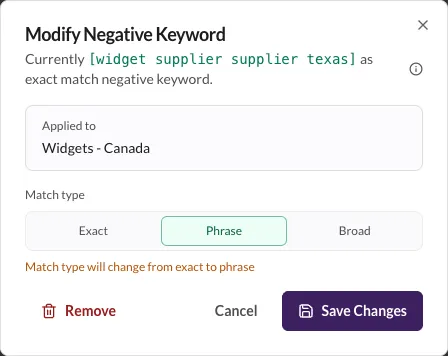
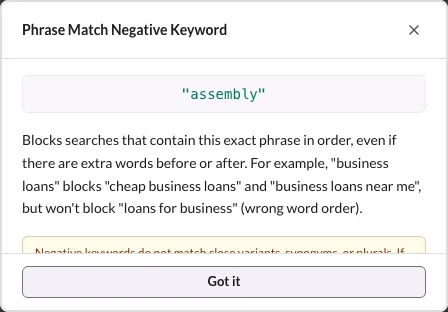
The ⓘ button beside the term explains what the selected match type blocks — including the reminder that negatives never match close variants, synonyms, or plurals.
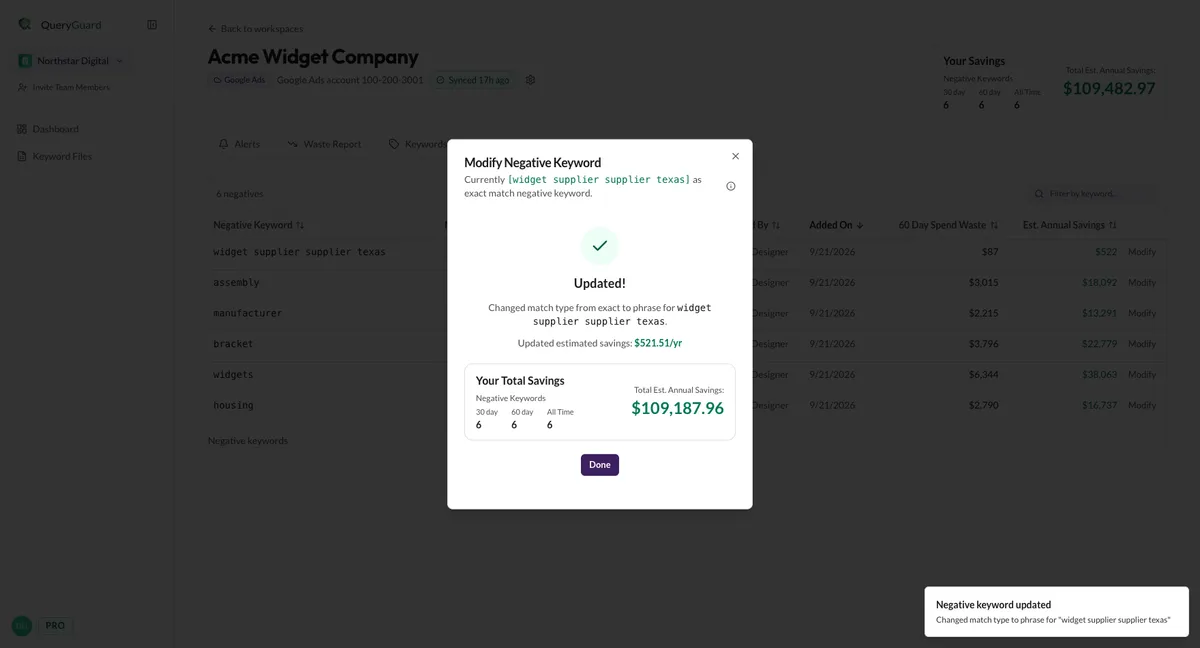
Save Changes rewrites the negative in Google Ads with the new match type and recalculates its estimated savings — the Updated! view shows the revised figure.
3. Remove a negative
In the same window, choose Remove. QueryGuard asks you to confirm, because removing the negative means matching search terms can spend again.
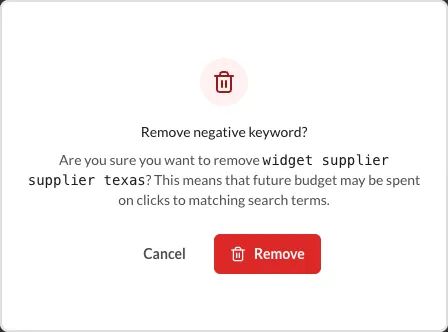
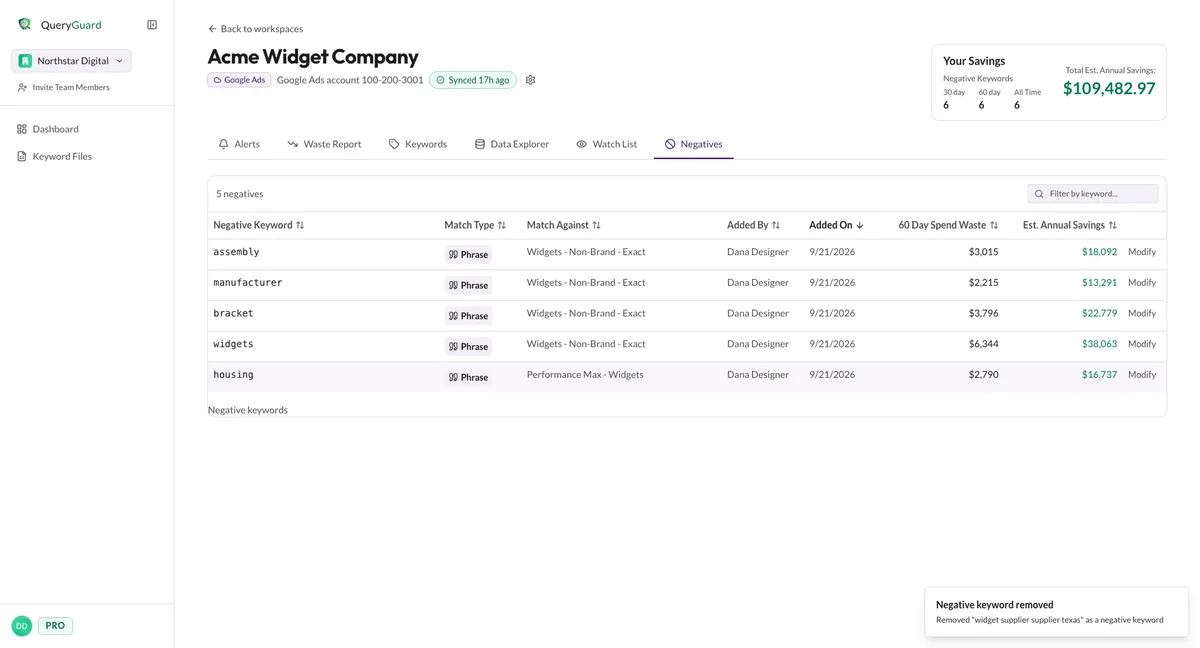
Confirm with Remove. The negative is deleted from the campaign in Google Ads, the row leaves the table, and the term's Excluded marking clears — it goes back to being an ordinary search term you can select and exclude again.
From the Data Explorer
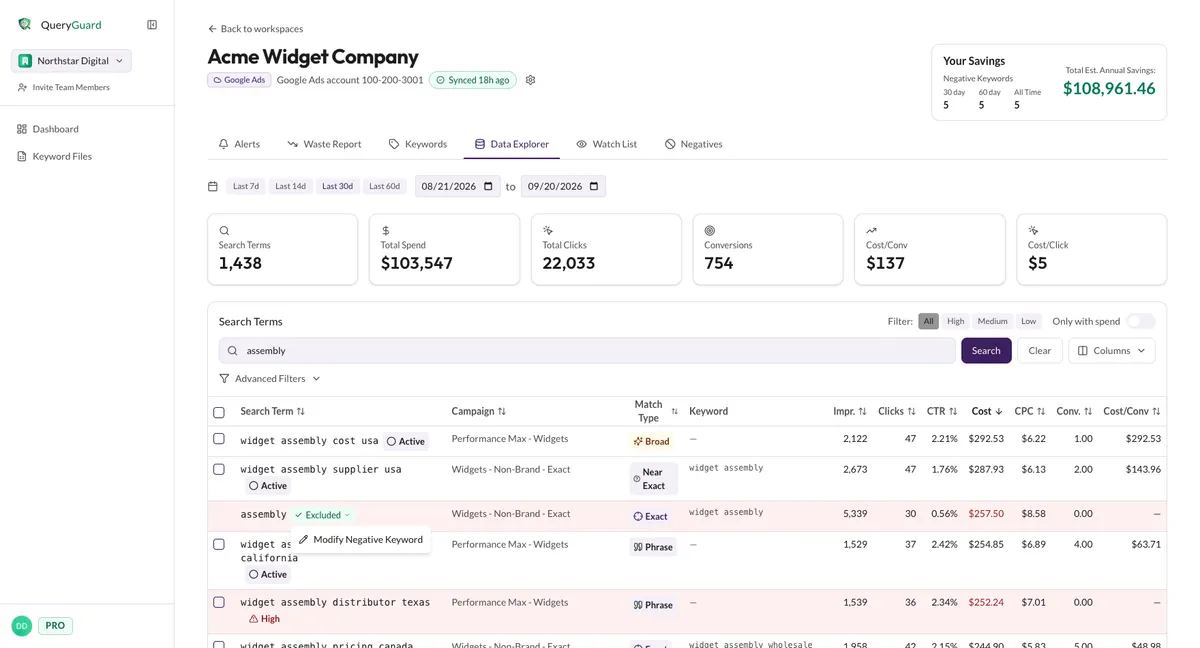
You don't have to go through the Negatives tab. In the Data Explorer, any term that's already excluded shows a green Excluded pill instead of a checkbox. Click the pill and choose Modify Negative Keyword — it opens the same window, so you can change or remove the negative right where you spotted it.