Add negative keywords
Excluding a search term in QueryGuard writes a negative keyword straight to the campaign in Google Ads, so you don't have to switch tools to act on what you just found.
Overview
Every wasteful search term QueryGuard surfaces carries the same action: Add as negative keyword. You choose the match type, QueryGuard writes the negative to the campaign the term came from, and the term is then marked Excluded everywhere it appears.
You can do this from anywhere a search term is listed:
| Where | How |
|---|---|
| Alerts tab | Resolve on the row, then Add as negative keyword |
| Alerts tab, in bulk | Tick several rows, then Resolve N items → Add as negative keywords |
| Data Explorer | Tick rows, then Add Negative Keywords |
| Keywords tab | Expand a keyword, then open one of the terms it triggered |
| Search term detail | Add as Negative Keyword in the term's detail window |
Quick Tips
- Exclusions are written to the campaign that triggered the term, not to the whole account. A term wasting money across several campaigns needs excluding in each one, and the Cross-Campaign Duplicates card in the Waste Report is how you find those.
- Work top-down by spend. The Alerts tab is already ordered so the most expensive terms come first.
- If a term looks wasteful but isn't, use Accept (not wasteful) rather than excluding it — that clears the alert without touching your campaigns, though a term that keeps spending can alert again. See Resolve alerts.
- Estimated annual savings is a projection from recent spend, not a guarantee. Treat it as a way to rank your options, not as revenue.
Steps
1. Find the term and open the Resolve menu
On the Alerts tab, each row ends with a Resolve button. It opens the actions for that one term.
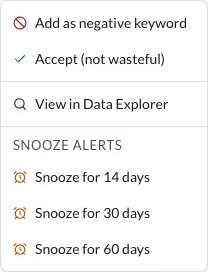
Choose Add as negative keyword.
2. Choose the match type
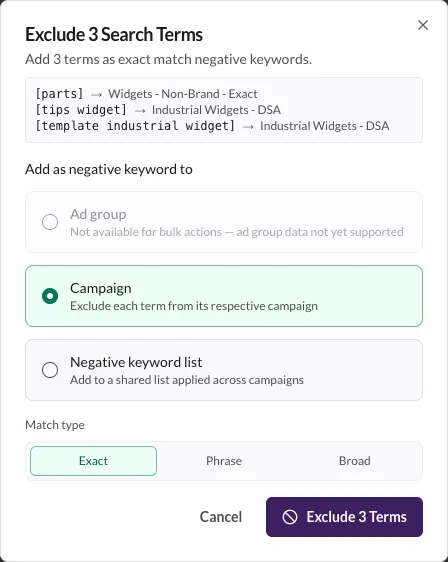
QueryGuard shows you the term it is about to exclude and which campaign the negative will be added to. The Campaign level is selected — the negative is written to the campaign the term came from.
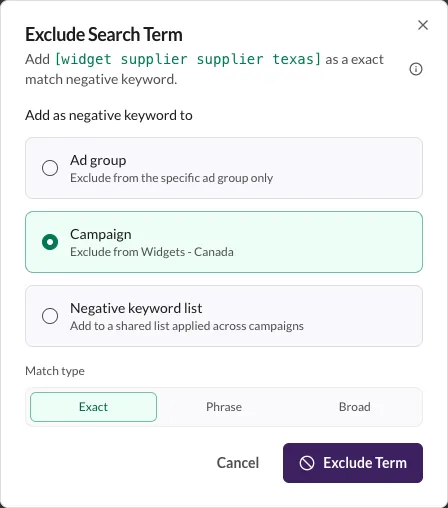
Pick a Match type:
| Match type | Blocks | Use when |
|---|---|---|
| Exact | Only this exact term | The term is a one-off, and close variants are still worth buying |
| Phrase | Any query containing this phrase in order | The wasteful part is a phrase, such as a competitor name or "how to" |
| Broad | Any query containing these words, in any order | The words themselves are the problem, such as "free" or "jobs" |
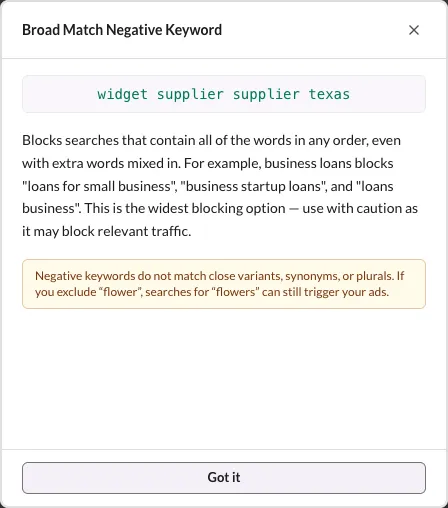
Exact is the default and the safest. Broad is the strongest, and the easiest to regret: check what else it would have blocked before using it on a term with common words. The ⓘ button beside the term explains what the selected match type blocks, with examples — note that negative keywords never match close variants, synonyms, or plurals.
Then choose Exclude Term.
3. Confirm the result
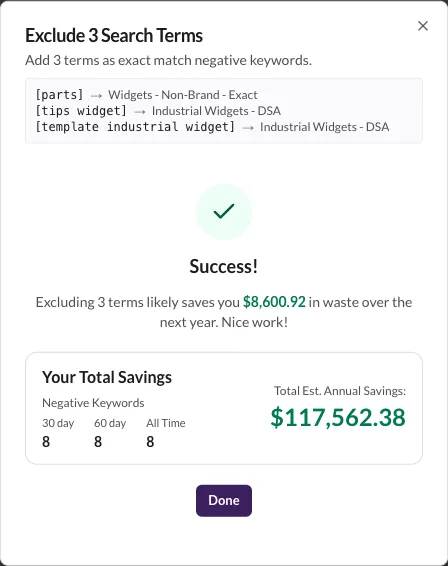
QueryGuard writes the negative keyword and estimates what excluding it saves over the next year, based on what the term has spent recently.
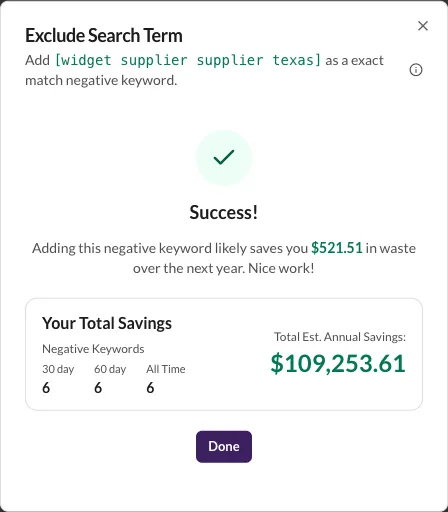
Choose Done. Three things change:
- The alert moves to the Resolved tab with a Negative KW badge.
- The term shows an Excluded pill in the Data Explorer.
- The negative appears on the Negatives tab, where you can change or remove it later.

Excluding several terms at once
In the Data Explorer, tick the terms you want to exclude — a bulk bar appears with an Add Negative Keywords action.
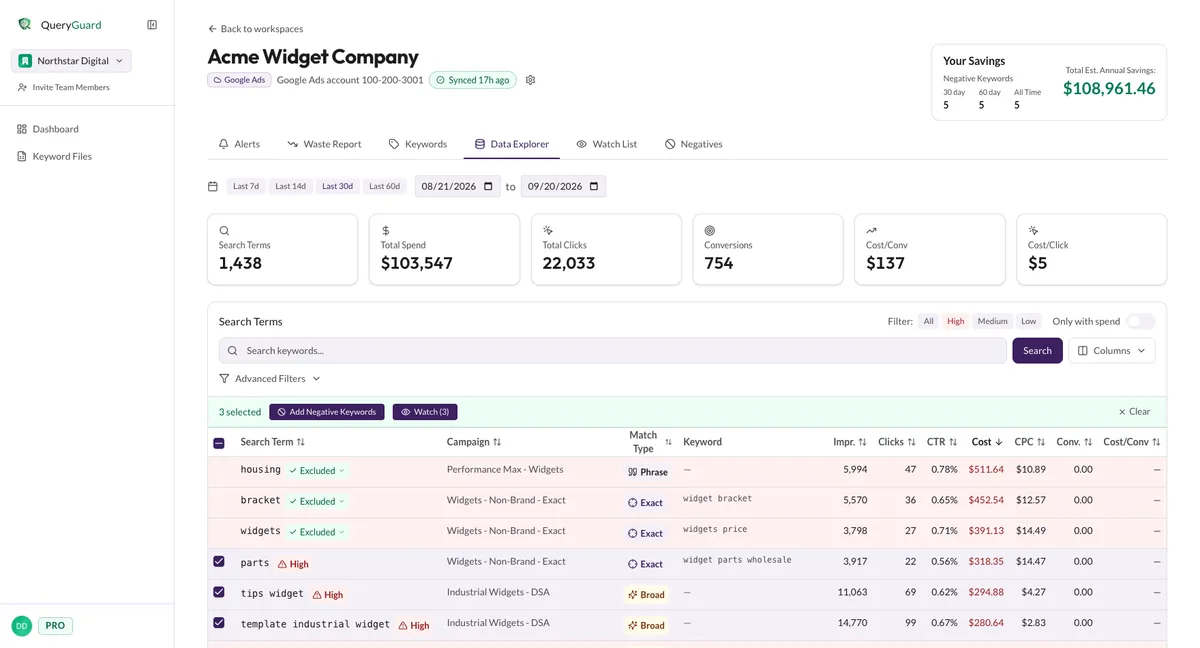
The modal lists each term with the campaign its negative will be written to, so you can check the targeting before confirming with Exclude N Terms. Each term is excluded from its own campaign.
The success view adds up the estimated savings across all selected terms.