
The Waste Report
The Waste Report groups your flagged search terms into twelve waste patterns, each with the spend behind it, so you can see where the budget leaks and open the terms responsible.
Overview
You'll find the report on the Waste Report tab of every connected account, and on every uploaded keyword file. It has two layers:
- The Waste Analysis panel — deduplicated totals across every flagged term.
- Twelve category cards — one per waste pattern, each showing how much that pattern cost and how many terms it caught.
On a connected account, the date range above the report sets the window everything is computed over. A keyword file analyzes the range the upload covers, so it has no picker.
Direct link: Dashboard
The Waste Analysis panel
| Metric | What it means |
|---|---|
| Total flagged spend | Spend on every unique flagged term — counted once per term, even when it appears in several categories |
| Flagged terms | How many distinct terms were flagged |
| Avg cost/conversion | The account's average cost per conversion — the benchmark "inefficient" is measured against |
| Zero-conversion spend | Spend on terms with no conversions |
| Inefficient spend | Spend on terms that do convert, but at 3× or more the account average cost per conversion |
| Zero-conv clicks | The clicks behind the zero-conversion spend |
| Wasteful cost/click | The average cost of a zero-conversion click |
The twelve categories
The pattern categories share a quality bar: a term is only flagged when it has zero conversions, or converts at 3× or more the account average cost per conversion. Terms that convert efficiently are left alone.
| Category | What it catches | Typical action |
|---|---|---|
| Zero-Conversion Spend | Terms with spend but no conversions | Exclude the highest-spend, highest-click terms first |
| Freebie Seekers | Searches containing "free", "cheap", "discount", "coupon" | Exclude — unless discounts or a free tier are part of your offer |
| Job Seekers | Searches containing "jobs", "careers", "hiring", "salary" | Exclude — employment intent is the wrong audience entirely |
| DIY & Tutorials | Searches containing "how to", "DIY", "tutorial", "guide" | Exclude — unless you sell courses or how-to content |
| Comparison Shoppers | Searches containing "vs", "review", "alternative", "comparison" | Review — research-phase traffic; exclude what doesn't convert |
| Question Queries | Searches starting with what, why, how, when, where, who | Review — informational intent; exclude the poor converters |
| Single-Word Queries | One-word searches, usually too broad to carry intent | Exclude |
| Broad Match Bleeders | Terms matched through broad match keywords | Exclude the term, or tighten the keyword's match type |
| Low CTR Terms | CTR below 1% on 100+ impressions | Exclude — searchers see the ad and don't click |
| High CPC Underperformers | Clicks costing more than 2× the account average CPC | Exclude — premium-priced clicks with nothing to show |
| Cross-Campaign Duplicates | The same term triggering ads in two or more campaigns | Consolidate into one campaign, or add negatives to stop competing with yourself |
| Brand Terms | Brand and competitor names picked out by an AI pass over your terms | Review — usually poor converters unless you deliberately target competitor names |
Severity badges
A card's badge is driven by that category's total spend, and the tint covers the whole card:
| Badge | Category spend |
|---|---|
| Critical — red | $500 or more |
| Warning — amber | at least $100, under $500 |
| Caution — blue | under $100 |
A category with nothing to flag shows No issues found instead of a spend figure, and doesn't open.
Terms overlap between categories
A single term can match several patterns — "free widget template" lands in both Freebie Seekers and DIY & Tutorials. Card totals therefore add up to more than Total flagged spend, which counts each term once. The note under the panel and at the bottom of each term list says the same.
Quick Tips
- Trust Total flagged spend over the sum of the cards — it's the deduplicated figure, and the one to quote.
- Work Critical cards first. Severity ranks categories by spend, which is roughly the ranking by opportunity.
- A flagged term isn't necessarily a zero-conversion one — check Conv. in the term list before excluding something that converts, even inefficiently.
- The term list is capped at the top 100 terms by cost, so the sheet always shows the most expensive offenders.
- On keyword files the report is read-only: term names don't open the detail view, and there's no account to write negatives to. Use it to build a list to apply in Google Ads.
Steps
1. Open the report
On a connected account, choose the Waste Report tab. On a keyword file, opening the file lands on the same report.
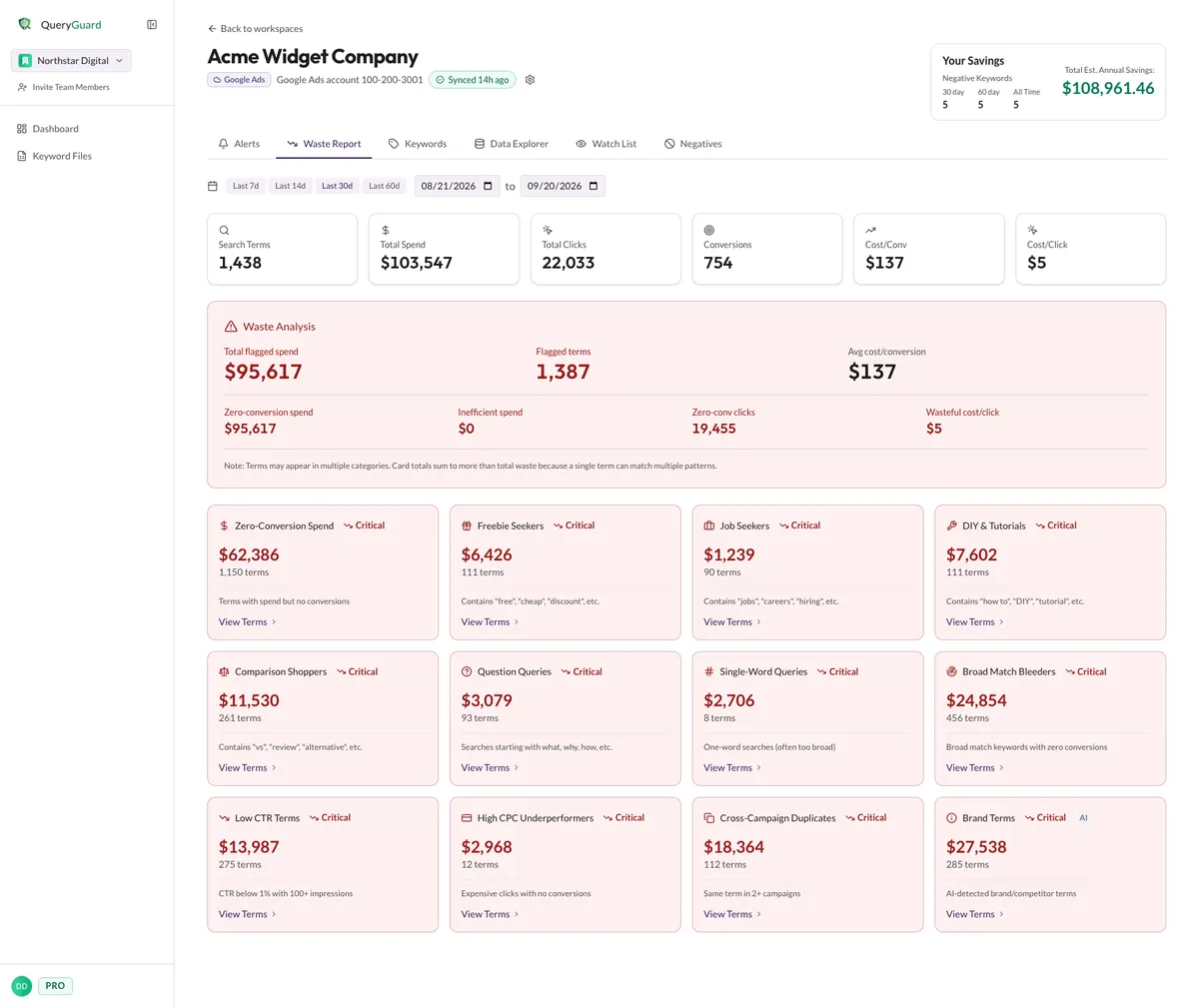
The Last 7d, Last 14d, Last 30d and Last 60d presets — or a custom start and end date — set the window, and the panel, cards and term lists all recalculate over it. See The account view for how the range works.
2. Read the Waste Analysis panel

Start with Total flagged spend and Flagged terms for the size of the problem, then the second row for the shape of it — how much is zero-conversion versus merely inefficient, and what the wasted clicks cost on average.
3. Scan the category cards
Each card is one pattern: title, severity badge, total spend, term count, and a one-line description of what it caught.
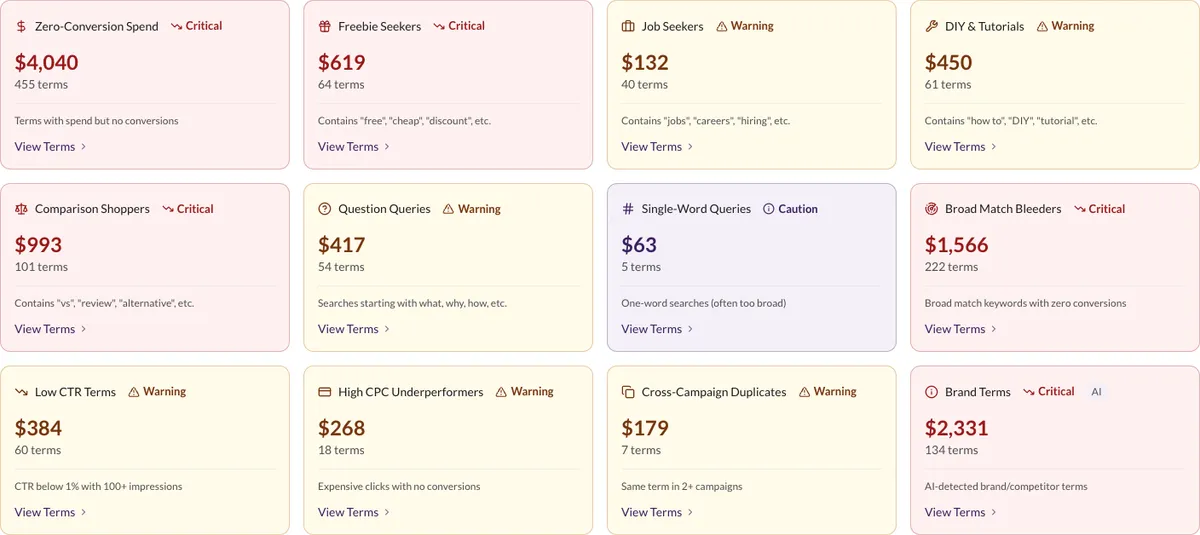
4. Open View Terms
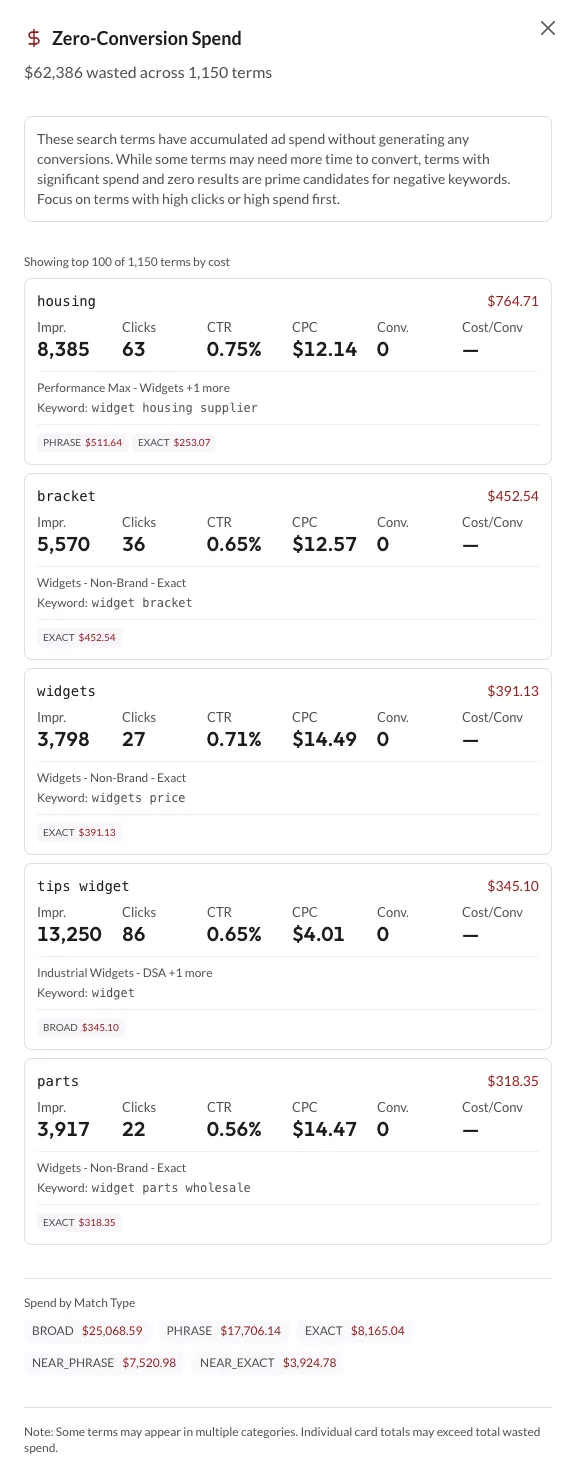
Click a card to slide the term sheet in from the right. Top to bottom:
- The header totals: the spend and term count for that category.
- An explanation of the pattern and what to do about it.
- The terms — up to the top 100 by cost, with a "Showing top 100 of N terms by cost" note when the category has more. Each row shows the precise spend; Impr., Clicks, CTR, CPC, Conv. and Cost/Conv; the campaigns the term appeared in ("+N more" when there's more than one, or a "• N campaigns" marker on Cross-Campaign Duplicates); the Keyword: line naming the keyword that triggered it ("—" for Dynamic Search Ads, AI Max or Performance Max traffic); and the term's spend split by match type, shown in raw form (BROAD, NEAR_EXACT).
- A pinned Spend by Match Type footer splitting the whole category's spend across match types.
5. Open a term
On a connected account, clicking a term opens its detail view — daily cost and conversion trend, the keyword that triggered it, and the actions: Watch and Add as Negative Keyword. See Add negative keywords for the exclusion flow and Estimated annual savings for what the savings figure means.