
Search term details
Clicking a search term anywhere in a connected account opens a detail window with its full history, the keyword that triggered it, and the actions to watch or exclude it.
Overview
The detail window is the same everywhere a term appears, so the view you get from an alert row is identical to the one from the Watch List or the Waste Report.
| Where | How to open it |
|---|---|
| Alerts tab | Click the search term on any row |
| Waste Report | Open a category, then click a term in the terms list |
| Keywords tab | Expand a keyword, then click one of the terms it triggered |
| Data Explorer | Click the search term on any row |
| Watch List | Click the search term on any row |
| Alert email or Slack alert | Click the term link — it opens the Alerts tab with the detail window already open |
The window always shows: the term and its match type and campaign, a period selector, six headline stats, a daily cost chart, the keyword that triggered the term, and a list of related search terms.
Quick Tips
- All covers everything since the term first appeared — the fixed periods start at 30, 60 or 90 days ago regardless.
- The shaded Maturity region marks the most recent days, where conversions may still be arriving. Don't judge a term on its last few days alone.
- Clicking a related term swaps the whole window to that term — the period you picked stays put, so you can compare like for like.
- Watching is silent — there is no confirmation and no notification. The button flipping to Unwatch is the only feedback.
Steps
1. Open the detail window
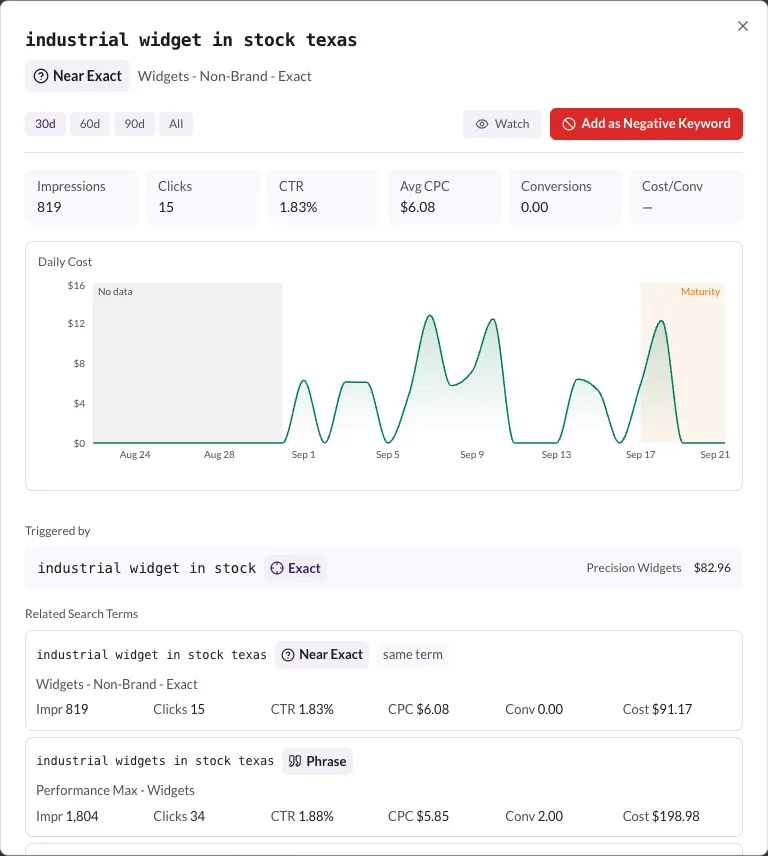
Click any search term shown as a link. The window opens with the term as its title, its match type and campaign below, and the 30d period selected.
2. Read the stats and the Daily Cost chart
The six stats — Impressions, Clicks, CTR, Avg CPC, Conversions, Cost/Conv — total the selected period. Cost/Conv shows — while the term has no conversions.
The chart plots Daily Cost over the period, with two shaded regions:
- No data — days before the term first appeared, on the fixed periods only.
- Maturity — the most recent days, where conversions may still be arriving. This window is the same maturity period your alert thresholds use.
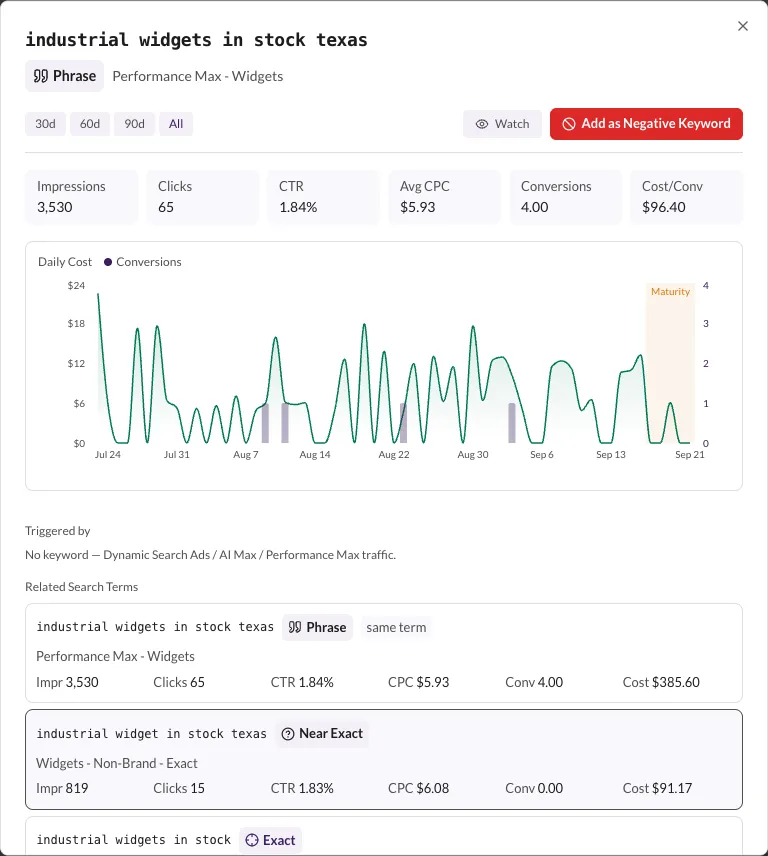
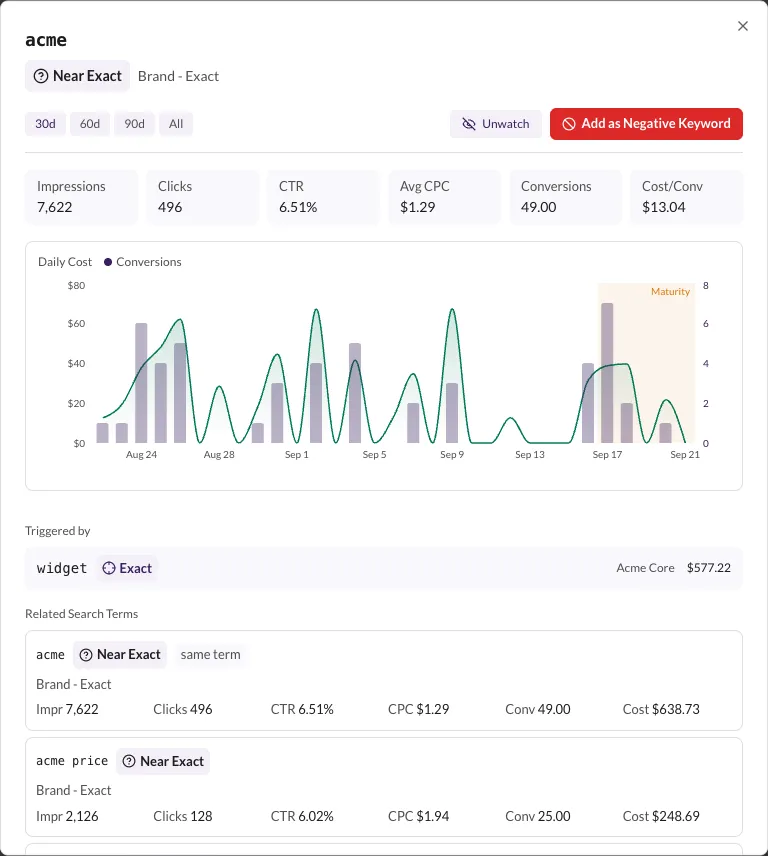
When the term converted in the period, a Conversions bar series and a second axis appear alongside the cost line. Switch between 30d, 60d, 90d and All to recompute the stats, the chart and the related-terms list over that window.
3. Check what triggered it and what else is related
Triggered by lists each keyword that triggered the term, with its match type, ad group and attributed cost. A term with no keyword to attribute — Dynamic Search Ads, AI Max or Performance Max traffic — says so instead of listing keywords.
Related Search Terms lists the same term seen in other campaigns or match types (marked same term) plus similar terms, each with its own stats. Click one to switch the window to it — useful for checking whether a term wastes money in one campaign or across several.
4. Watch or exclude the term
Two actions sit at the top right of the window:
- Watch adds the term to your Watch List and flips to Unwatch. Watched terms get a cost trend on the Watch List tab, and everyone with access to the workspace can see who is watching what.
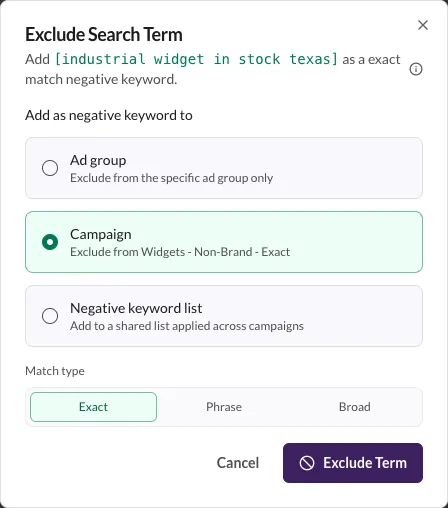
- Add as Negative Keyword opens the Exclude Search Term window on top of this one, with the Campaign level selected — the negative is written to the campaign the term came from. See Add negative keywords for the match-type choice and what happens after you confirm.
If the term is already excluded, the button is replaced by an Excluded pill that opens the modify or remove window instead.
5. Open it straight from an email
Every search term in the daily alert email — and in Slack alerts — links directly to this view. Clicking a term opens the account's Alerts tab with the detail window already open on that term, ready to exclude. The link is a one-time opener: the address bar returns to the normal Alerts URL once the window opens, so bookmarking the page will not re-open the term.