
The Watch List
The Watch List is your team's shared shortlist of search terms to keep an eye on — watch a term wherever it appears, and it lands on the Watch List tab with a daily cost trend and the names of everyone tracking it.
Overview
Watching a term is a bookmark, not an action: it changes nothing in Google Ads and notifies nobody. It's for the terms you don't want to lose track of — an expensive term that converts and mustn't regress, a borderline term you're not ready to exclude, a seasonal term waiting for its window.
Your watch is personal, but the list is shared: everyone with access to the workspace sees every watched term and who is watching it. That makes the Watch List a lightweight way to divide attention — the Watchers column shows at a glance which terms already have someone's eyes on them.
| Watch from | How |
|---|---|
| Alerts tab | Tick alert rows, then Watch (N) on the bulk bar |
| Data Explorer | Tick term rows, then Watch (N) on the bulk bar |
| Term detail window | Click a term name anywhere, then Watch |
Direct link: Dashboard
Quick Tips
- Watching is silent — no confirmation message, and no email or Slack notification to you or your teammates. The button flipping to Unwatch is the only feedback.
- Switch the tab to My Terms to see just the terms you personally watch.
- Unwatch removes only your watch — a term stays on the list until its last watcher unwatches it.
- The same term watched in two campaigns appears as two rows, each with its own metrics and trend.
- You can watch up to 250 terms per account.
Steps
1. Watch terms in bulk from Alerts or the Data Explorer
On the Alerts tab or the Data Explorer, tick the checkbox on each row you want to track. A bulk bar appears above the table — click Watch (N) to add them all at once.
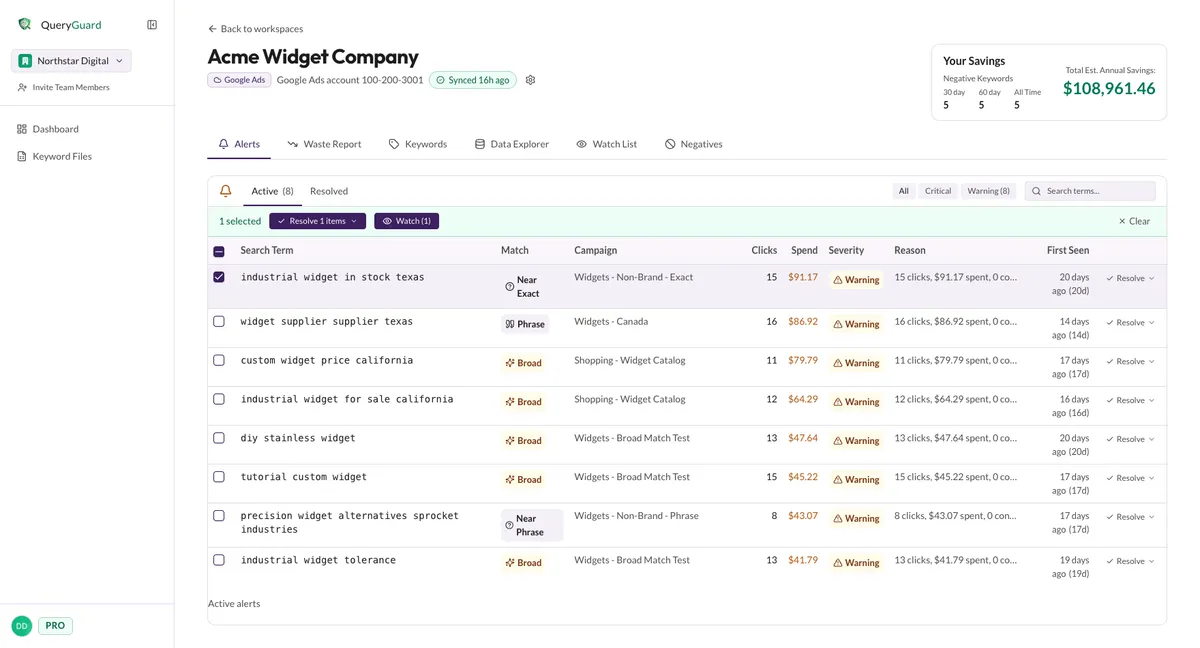
If your selection mixes watched and unwatched terms, the bar shows Watch (N) and Unwatch (N) together, each acting on its share of the selection.
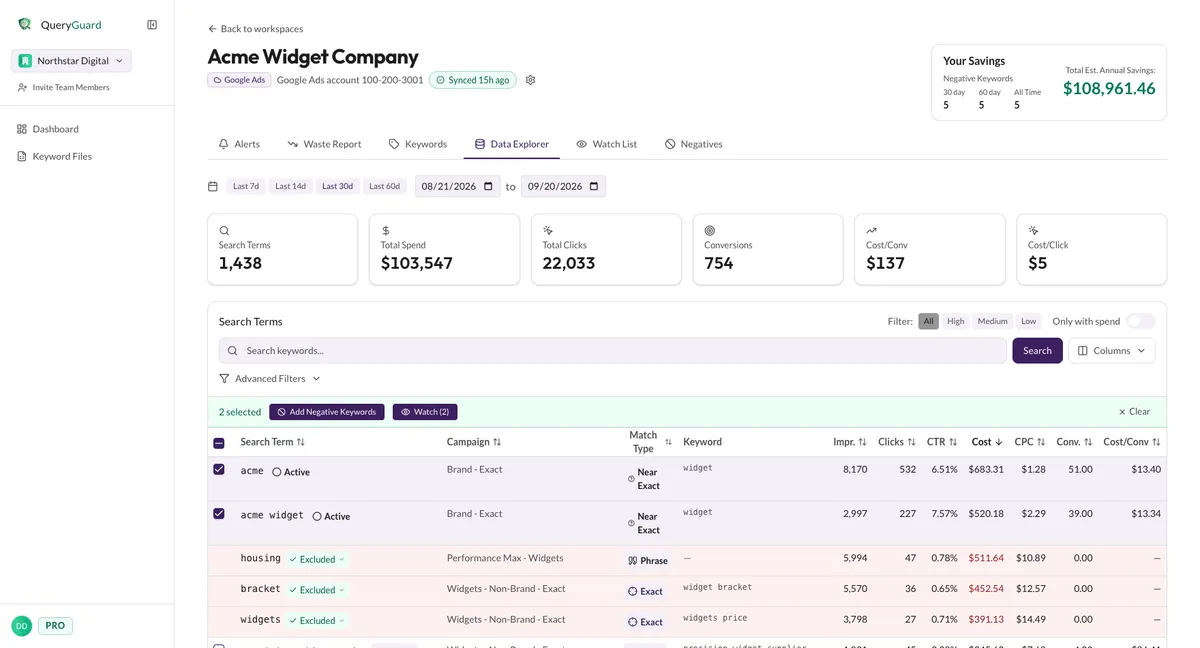
There is no confirmation — the bar disappears and the terms are on the Watch List. See The Data Explorer for the rest of the bulk bar's actions.
2. Watch a single term from its detail window
Click any search term shown as a link — on an alert row, a waste category list, an explorer row or the Watch List itself — to open its detail window, then click Watch at the top right. The button flips to Unwatch.
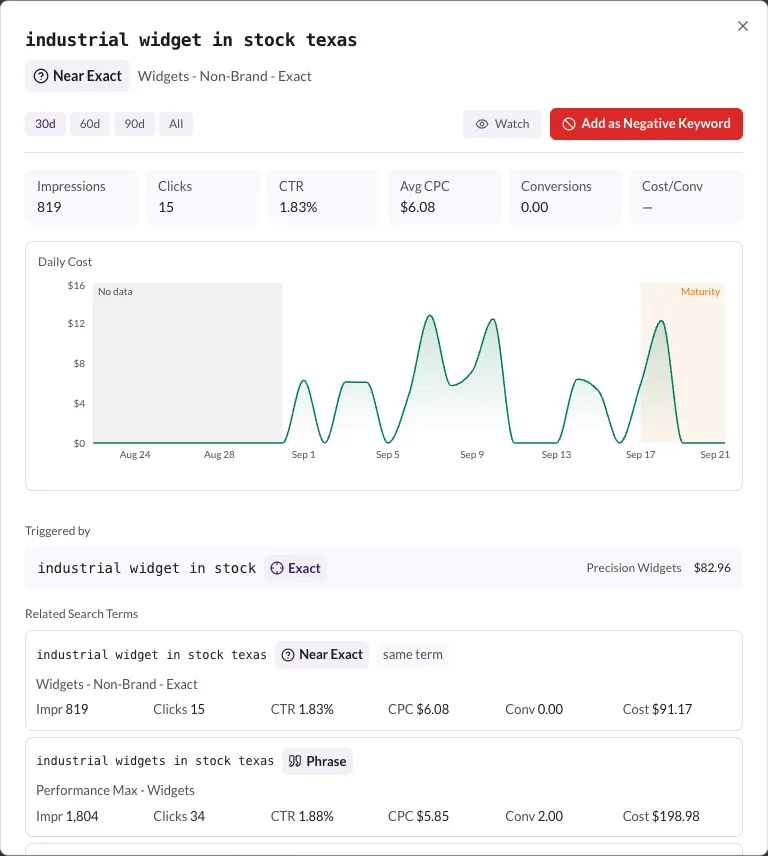
See Search term details for everything else the window shows — the daily chart, the triggering keyword and related terms are the useful context for deciding whether a term is worth watching.
3. Read the Watch List
Open the Watch List tab on the account. The header counts the watched terms, and the table lists each one with its campaign, match type, clicks and cost over the selected period.
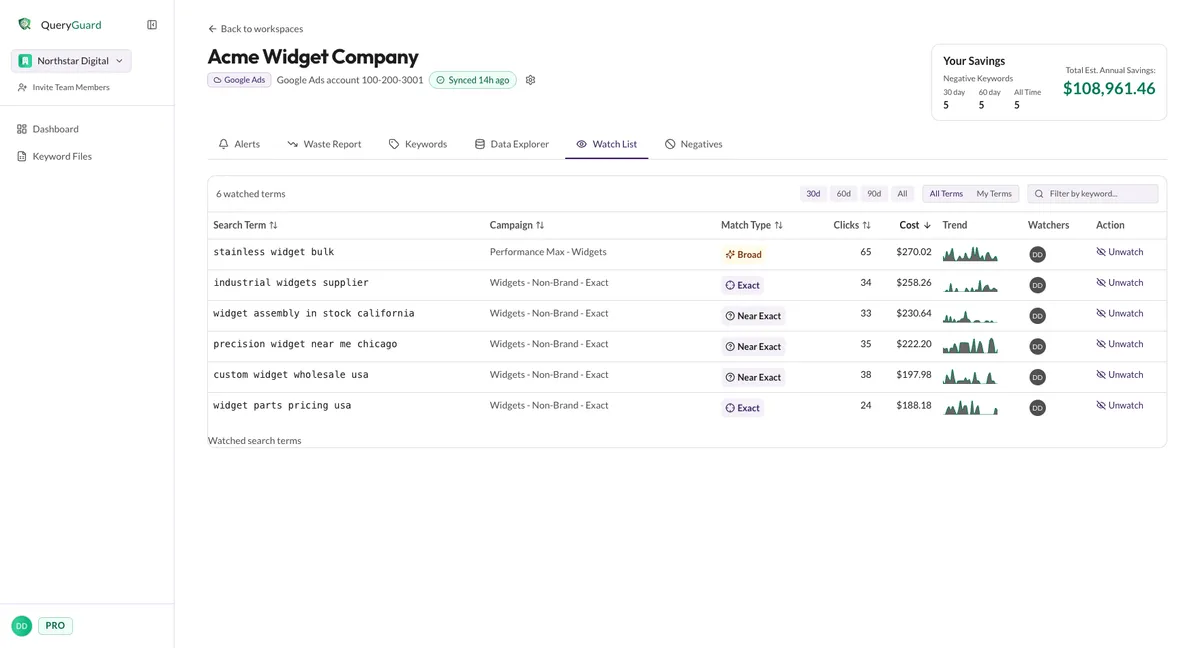
Three columns need a word of explanation:
- Trend — a sparkline of the term's daily cost over the selected period. A climbing line on a term you meant to keep cheap is the early warning you watched it for.
- Watchers — the initials of everyone watching the term. Hover a circle for the full name; when more than three people watch a term, the rest collapse into a +N circle.
- Action — Unwatch on terms you watch, Watch on terms only your teammates watch.
Search Term, Campaign, Match Type, Clicks and Cost are all sortable — click a header to sort, click again to flip the direction. Clicking a term name opens its detail window.
4. Change the period or narrow the list
The controls above the table reshape what you're looking at:
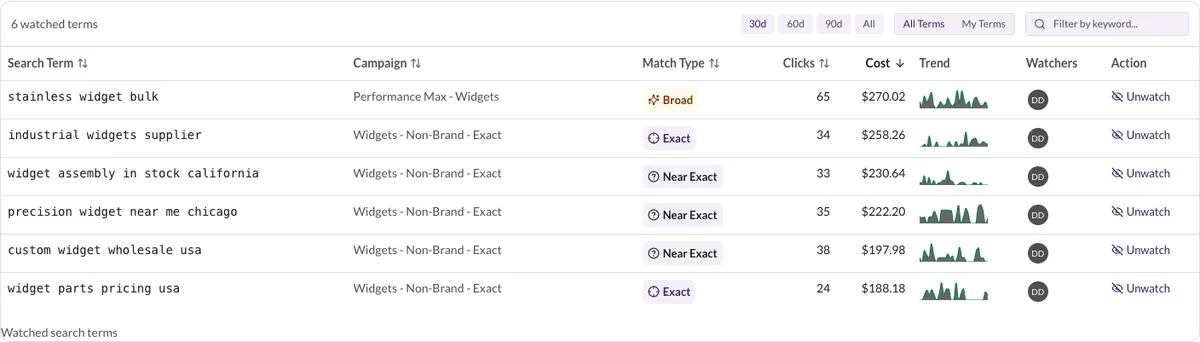
- 30d, 60d, 90d, All — the period buttons recompute the clicks, cost and trend over that window. All covers everything the account has synced.
- All Terms / My Terms — the whole team's watched terms, or only yours.
- The filter box narrows the list to terms matching what you type; the count switches to "Showing N of M watched terms".
None of it is saved — the period, toggle, filter and sort reset when you leave the tab.
5. Unwatch a term
Click Unwatch in a row's Action column — or open the term's detail window and click Unwatch there. There's no confirmation dialog either way.
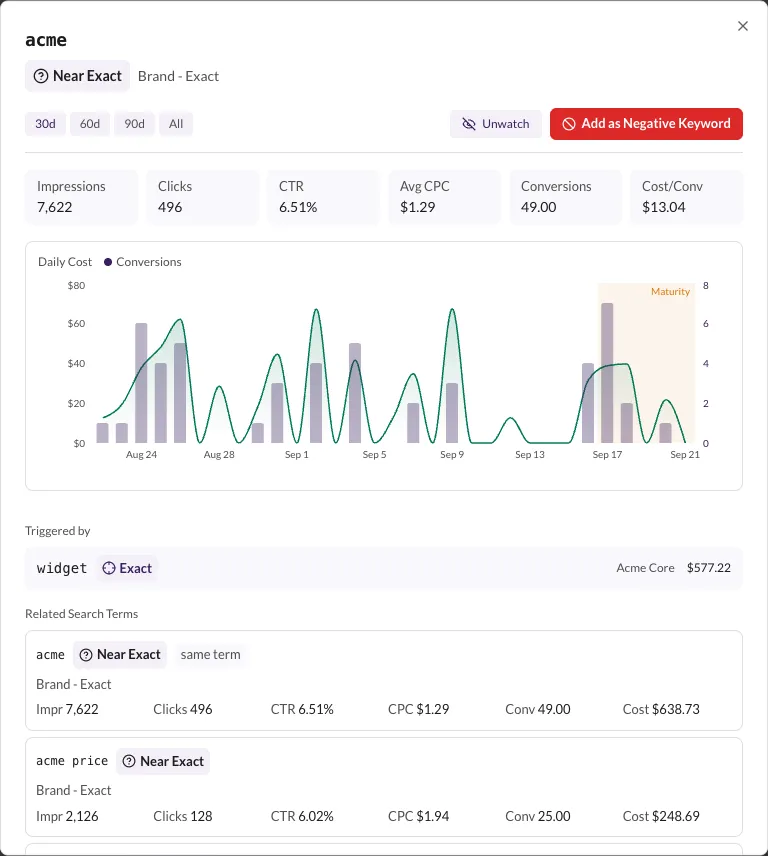
Unwatching removes only your watch. If teammates still watch the term it stays on the list — and your Action cell flips to Watch in case you change your mind. When the last watcher unwatches, the row disappears.