Understanding alerts
An alert is a search term that has spent money without converting — QueryGuard raises one after each nightly sync, once the term crosses your thresholds.
Overview
Each night, after the account's data syncs, QueryGuard scans its search terms. A term becomes an alert when all three are true:
- Zero conversions across the term's whole synced history.
- Past the maturity window — newer terms are ignored so late-arriving conversions don't raise false alarms.
- Over the minimums — at least your Min spend or at least your Min clicks, whichever the term reaches first.
The first sync works the same way against the data it just imported, so a new account can already have a queue of alerts on day one. Thresholds are calibrated from the account's own numbers and adjustable in workspace settings — see Alert thresholds. A term alerts once at a time — while its alert is open or snoozed, later syncs won't raise a duplicate.
Every alert is one of two severities:
| Severity | What it means |
|---|---|
| Warning | Spend is below the Critical threshold — worth a decision. Amber badge. |
| Critical | Spend is at or above the Critical threshold — the biggest drains. Red badge, and the whole row is tinted so it stands out. |
Alert counts surface in three places:
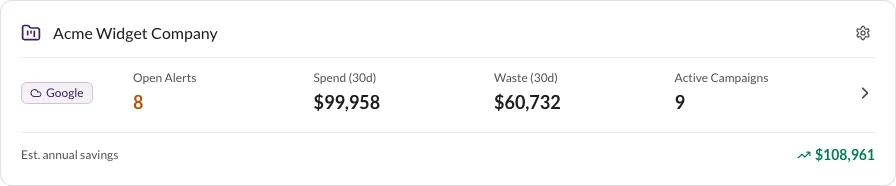
- The Open Alerts stat on each dashboard workspace card — amber as soon as anything needs a decision, and a shortcut straight to the account's Alerts tab.
- The Active (N) and Resolved (N) sub-tabs at the top of the Alerts tab.
- The Critical (N) and Warning (N) filter chips beside them.
Direct link: Dashboard
Quick Tips
- Work top-down: the queue is already ordered Critical first, then highest spend.
- Alerts ignore the account's date range — each one totals the term's whole synced history.
- The queue changes once a day at most: new alerts only appear after a nightly sync.
- Read the Reason before resolving — when the same term converts through a different campaign or match type, the reason says so ("converts via …"), which is a cue to Accept rather than exclude.
- To get new alerts delivered instead of checking the queue, pick a frequency in the account's notification banner or in workspace settings — see Alert notifications.
Steps
1. See which accounts need attention
Each workspace card on the dashboard shows an Open Alerts stat for its connected account. The number turns amber the moment alerts are waiting — click it to land on that account's Alerts tab.
2. Read the Active queue
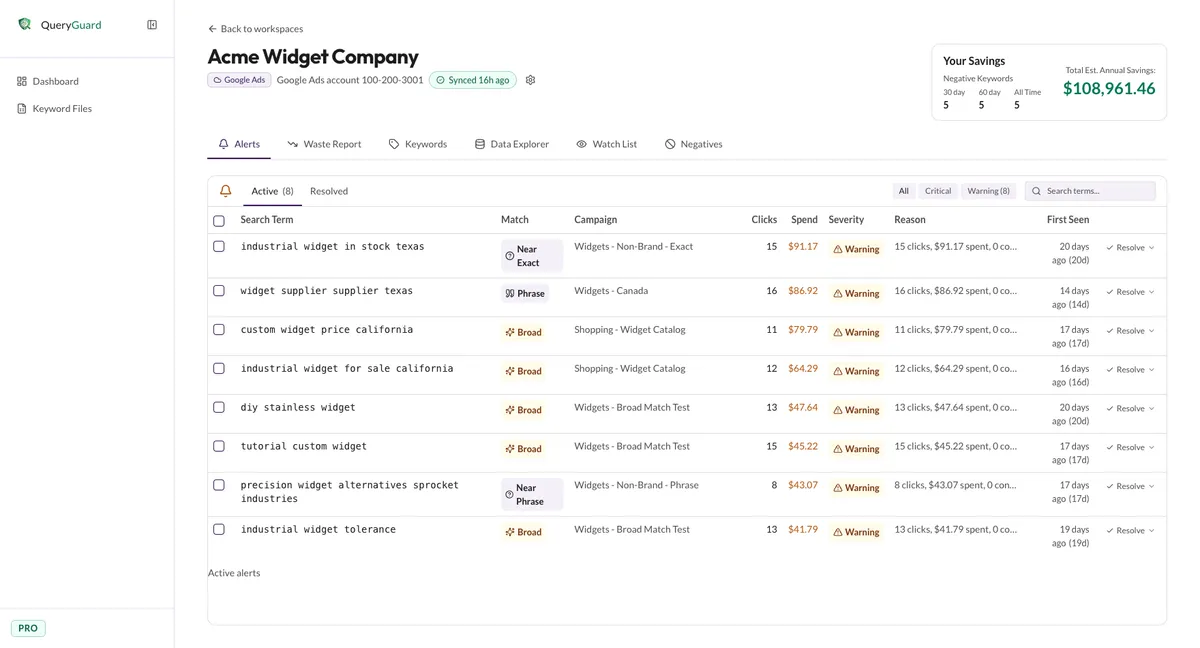
Active lists every alert still waiting for a decision. Each row is one search term:
| Column | What it shows |
|---|---|
| Search Term | The flagged term — click it for its detail window. |
| Match | The match type it arrived through — Exact, Phrase, Broad, or a close variant like Near Exact. |
| Campaign | The campaign the term spent in — where a negative keyword would be written. |
| Clicks | Total clicks the term has collected. |
| Spend | Total zero-conversion spend — amber on Warning rows, red on Critical. |
| Severity | The Warning or Critical badge. |
| Reason | Why it was flagged — clicks, spend and days with no conversions, plus a note when the term converts elsewhere. |
| First Seen | When the term first appeared, with its days active in brackets. |
Use the Critical and Warning chips to filter by severity, or the Search terms… box to find one term.
When the queue is clear, the tab reads "No active alerts for this account."
3. Clear an alert
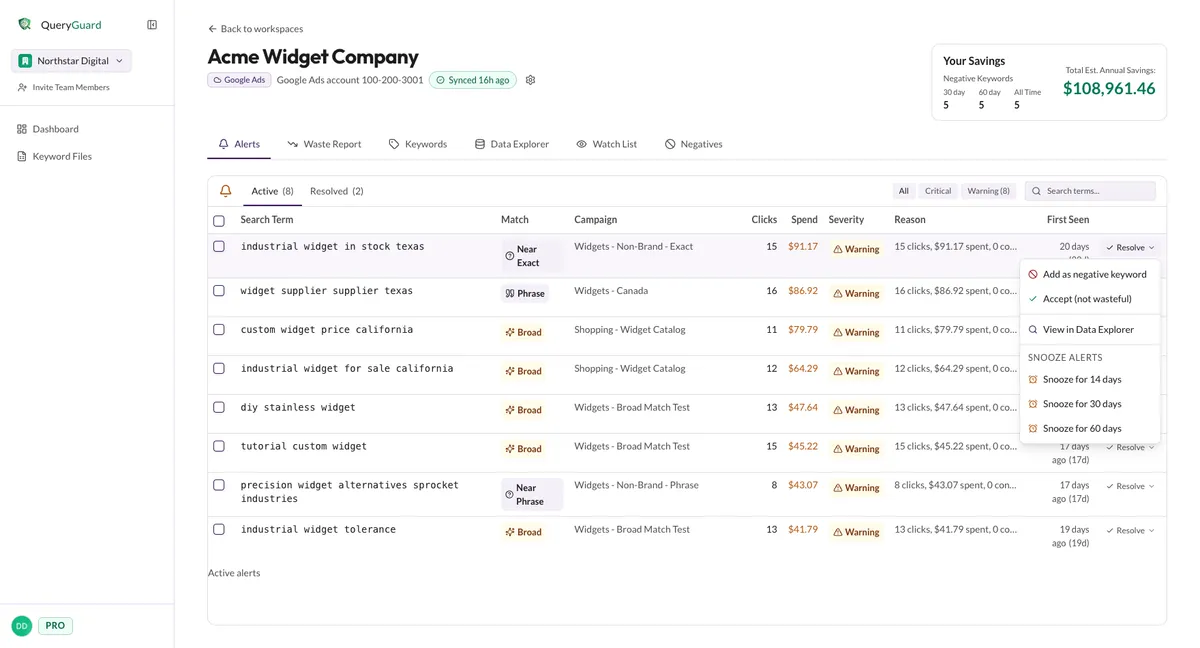
Each row ends in a Resolve menu with the ways to clear it — the full procedure, including bulk resolution and Undo, is in Resolve alerts:
- Add as negative keyword — writes a negative to the campaign so the term stops matching. See Add negative keywords.
- Accept (not wasteful) — dismisses the alert when the term is fine as it is.
- Snooze for 14, 30 or 60 days — parks the alert; the term can alert again once the snooze ends.
View in Data Explorer sits on the same menu — it opens the term in the Data Explorer without resolving anything. Tick several rows for a bulk bar with the same actions.
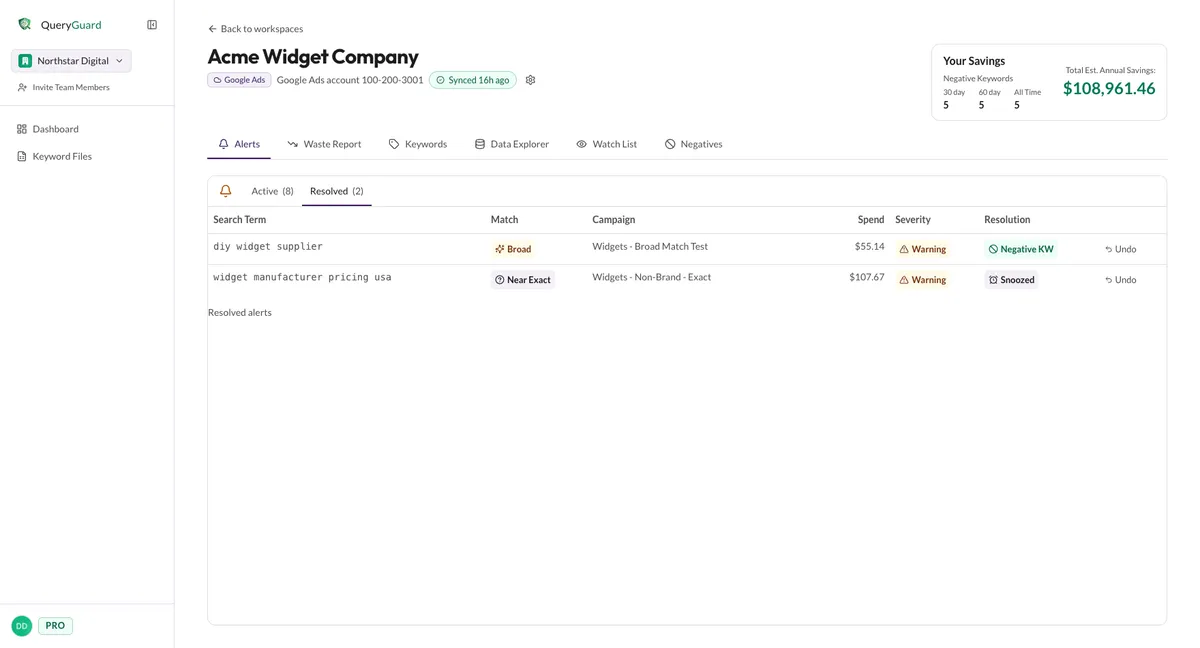
4. Review the Resolved tab
Resolved is the record of what was decided. It repeats the term, match type, campaign, spend and severity, plus two extra columns:
| Column | What it shows |
|---|---|
| Resolution | How the alert was cleared: Negative KW (excluded), Accepted, or Snoozed. |
| Undo | Sends the alert back to Active — for a mistaken click, or a term that needs another look. |