
Alert notifications
QueryGuard sends an alert digest after each nightly sync that raises new alerts — to you at your chosen frequency, to any Team Emails addresses, and to Slack once it's connected.
Overview
After the account syncs each night, QueryGuard collects the new alerts and delivers one digest per account. If nothing new fired, nothing is sent.
| Recipient | What they get |
|---|---|
| Each member individually | The digest email, at the frequency that person set under My Alert Preferences — Daily or Both puts them on the daily send. |
| Team Emails addresses | The same digest email. These people never sign in — the list is delivery only. |
| Slack | The digest posted to the channel the workspace owner picked. See Slack alerts. |
Two surfaces control all of it:
- The account page shows a one-time opt-in banner to anyone who hasn't subscribed yet.
- Workspace settings → Alert settings holds My Alert Preferences (your own frequency) and Delivery Channels (Team Emails and Slack, managed by the workspace owner).
Direct link: Dashboard
Quick Tips
- Alert preferences are per person and per account. Changing yours affects nobody else — set it on each connected account you care about.
- None stops emails to you only. Team Emails and Slack keep delivering either way.
- A Team Emails address gets the digest but no access to QueryGuard. To give someone the account itself, share the workspace instead.
- The banner's X only hides the banner — it doesn't subscribe or unsubscribe you. Manage the frequency under My Alert Preferences.
- What's inside the email — the total, the severity counts, the per-campaign tables — is covered in The alert digest email. For the other emails QueryGuard sends, see Email reference.
Steps
1. Subscribe from the account page
Open an account you haven't subscribed to — or one where you previously chose None — and an amber banner above the tabs asks Get alert notifications for this account? Pick a frequency in the dropdown and choose Subscribe.

The X dismisses the banner for that account. Nothing else changes — it simply won't ask again.
2. Set My Alert Preferences
From the account page, choose Workspace settings (the gear in the header). Under My Alert Preferences, the picker offers Daily, Weekly, Both, and None. Choose Daily to get each day's digest while it's fresh, or None to stop all alert emails for this account.
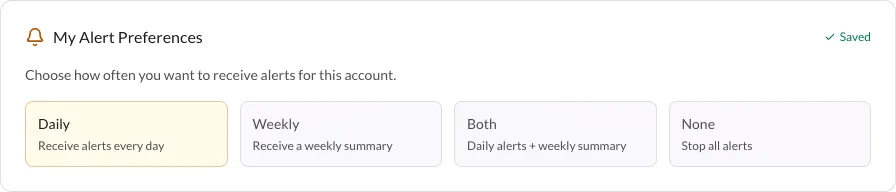
Choosing a card saves immediately — a Saved indicator confirms it, and there is no save button.
3. Add Team Emails
Further down, Delivery Channels holds the shared routes out: Slack Alerts and Team Emails.
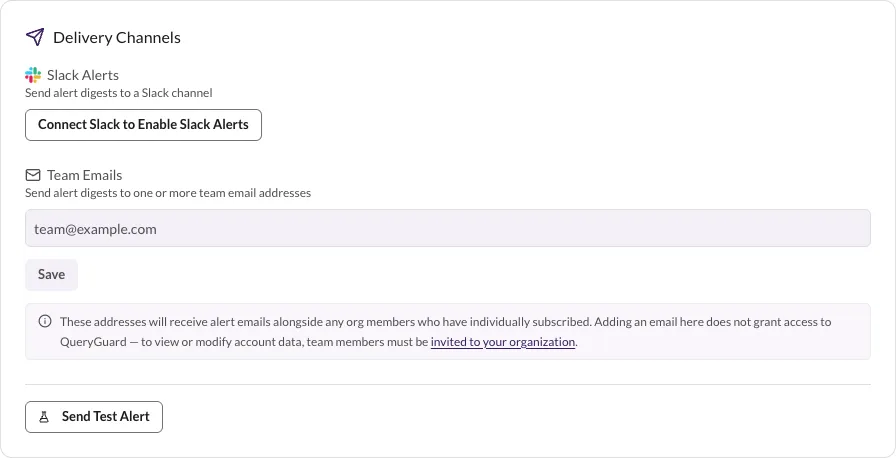
Under Team Emails, type an address and press Enter — it becomes a chip. Add as many as you need, then choose Save. Remove an address with the X on its chip and save again.
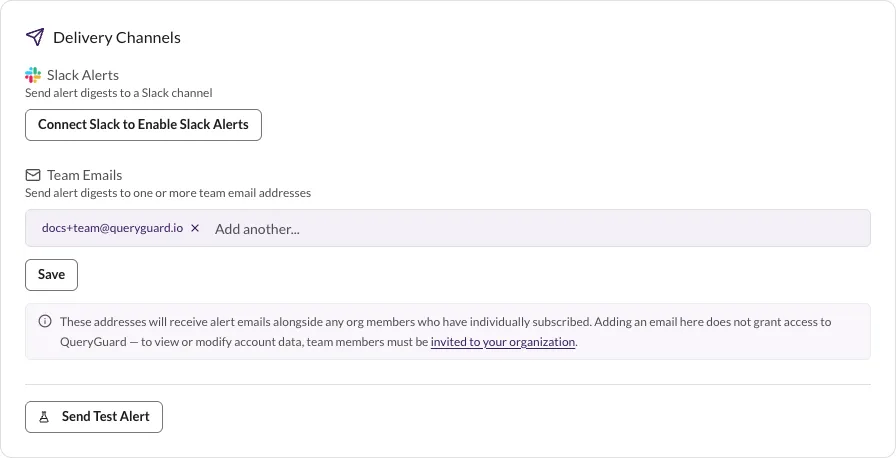
The note under the field says it plainly: these addresses receive alert emails alongside subscribed members, and adding one does not grant access to QueryGuard — teammates who need the account itself must be invited to the organization.
4. Send a test alert
Still in Delivery Channels, choose Send Test Alert. QueryGuard sends a sample digest — clearly marked as a test inside the email — to every active channel and subscriber, then reports the result beside the button.
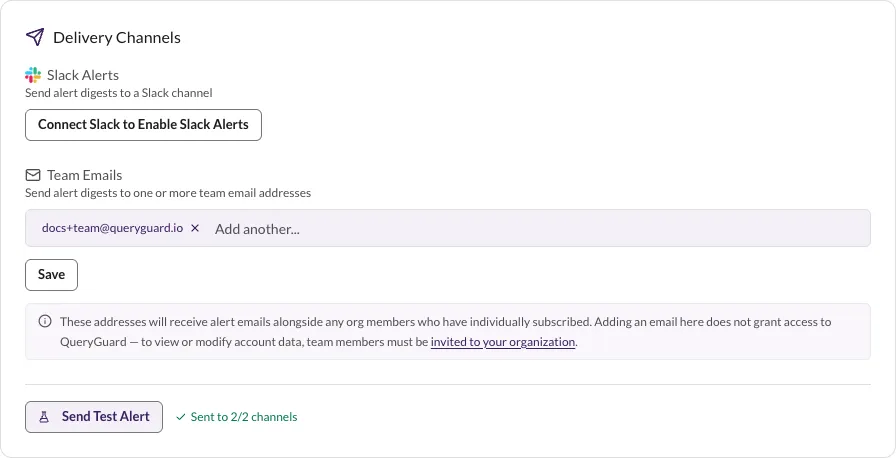
The test uses sample terms, not your real queue — nothing is resolved and no alert is marked sent. If nothing is configured yet it reports No active subscribers or channels configured; subscribe yourself, add a Team Emails address, or set up Slack first.