
Slack alerts
QueryGuard can post each account's alert digest to a Slack channel, so new wasteful search terms land where the team already works.
Overview
Slack connects at one of two levels:
| Level | Where you connect | Scope |
|---|---|---|
| Organization | Account menu → Org Settings → Connect to Slack | One connection every workspace can use |
| Workspace | Workspace settings → Delivery Channels → Connect Slack to Enable Slack Alerts | Just that workspace — it takes precedence over the org connection for that workspace |
Either way, the channel is always chosen per account: after connecting, each workspace's Delivery Channels card picks the channel that account's digest goes to. Different accounts can post to different channels.
Each night's sync that raises new alerts posts one digest per configured channel. The message shows the account name, the total wasted and alert count split by severity, then up to five terms grouped by campaign — each term linked straight to its detail in QueryGuard — plus a View Alerts button back to the account's Alerts tab. If nothing new fired, nothing is posted.
Quick Tips
- Sending to a private channel? Invite @QueryGuard to it in Slack first — it only lists channels the app can see.
- Slack delivery is independent of My Alert Preferences — the channel gets the digest even for members set to None.
- Only the person who ran the Slack connection can disconnect it.
- Send Test Alert posts a sample digest — marked as a test — to the configured channel. See Alert notifications.
- If you cancel the Slack approval prompt you land back on a note saying the authorization was cancelled — nothing was connected, and you can try again anytime.
Steps
1. Connect Slack for the organization
Open the account menu and choose Org Settings. Under Slack Integration, choose Connect to Slack.

Slack opens its approval screen — QueryGuard asks to read the channel list and post messages. Approve it and you return to Org Settings, where the card now shows Connected to your Slack team name and who connected it.
2. Or connect a single workspace
To keep a workspace on its own Slack connection — a client workspace on the client's own Slack, for example — open that account's Workspace settings (the gear in the account header) and find Slack Alerts under Delivery Channels. See Create and manage workspaces for the rest of the settings page.
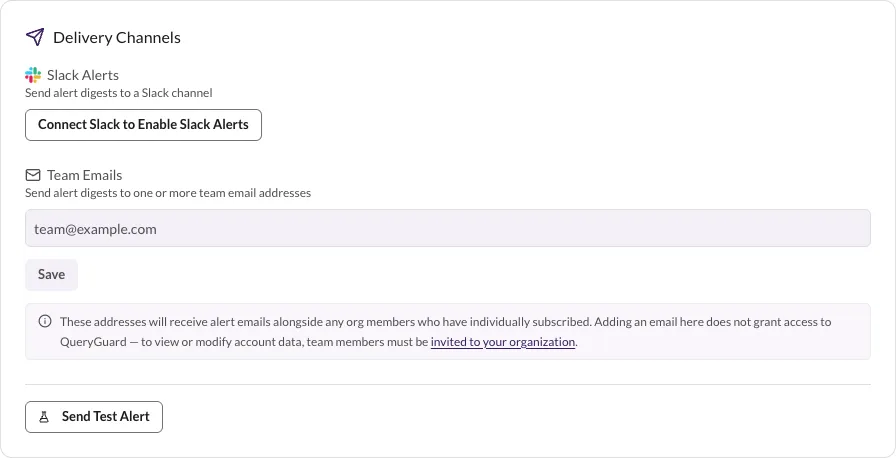
Choose Connect Slack to Enable Slack Alerts and approve in Slack. You return to the workspace settings and the channel picker opens automatically. The footer under Slack Alerts shows which connection is in use: Connected to your team for this workspace, or via your organization's Slack connection when the workspace is riding on the org connection.
3. Choose a channel
The Select a Slack Channel window lists the workspace's channels — public channels with a #, private channels with a lock icon — alphabetically. Pick one and choose Save; the button stays disabled until a channel is selected.
If the private channel you want isn't listed, invite @QueryGuard to it in Slack, then reopen the picker.
Once saved, the card reads Slack Alerts Enabled with Sending to #channel underneath.
4. Change the channel or pause alerts
On the same card, Change Channel reopens the picker. Disable Slack Alerts stops posts to the channel but keeps the configuration — Enable Slack Alerts turns it back on.
5. Disconnect Slack
- A workspace-level connection: on the workspace's Delivery Channels card, choose Disconnect Slack and confirm. The workspace stops posting to that team; if the organization has its own connection, the workspace falls back to it, otherwise no Slack alerts are sent until you reconnect.
- The org connection: in Org Settings, choose Disconnect Slack, then Yes, Disconnect. The confirmation warns that this immediately disables Slack alerts for every account in the organization and clears all configured channels — it cannot be undone. Only the member who connected sees the button; everyone else is told only that person can disconnect.