
Account menu and settings
Everything personal — your profile, the theme, signing out — lives in the Account menu at the bottom of the sidebar; everything organizational lives behind the org switcher at the top and on the Org Settings page.
Overview
Two menus frame the sidebar:
- The org switcher at the top shows the organization you're working in. Open it to switch to another organization you belong to, or choose the gear to manage the current one.
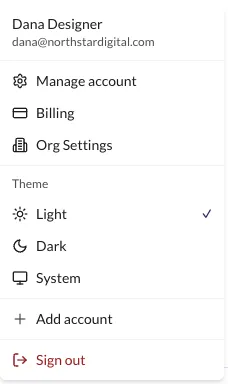
- The Account menu — the avatar at the bottom of the sidebar, next to your plan badge — holds your name and email, links to Billing and Org Settings, the Theme picker, account switching, and Sign out.
| Where | What it holds |
|---|---|
| Org switcher (sidebar top) | Current organization and your role; other organizations; gear for organization settings |
| Account menu (avatar, sidebar bottom) | Manage account, Billing, Org Settings, Theme, Add account, Sign out |
| Billing page | Plan, subscription management — see Plans and billing |
| Org Settings page | The organization-wide Slack Integration |
Direct link: Org Settings
Quick Tips
- Billing and Org Settings are reachable only from the Account menu — there's no sidebar link to them.
- The theme applies immediately and is remembered on this device. System follows your operating system's light or dark setting.
- Members see the same Account menu as admins — the difference shows up on the pages it links to, like Billing.
- Only the person who connected Slack can disconnect it in Org Settings.
Steps
1. Open the Account menu
Choose your avatar at the bottom of the sidebar, next to the plan badge.

The menu opens with your name and email at the top, then Manage account, Billing and Org Settings, the Theme options, and Sign out.
2. Manage your account
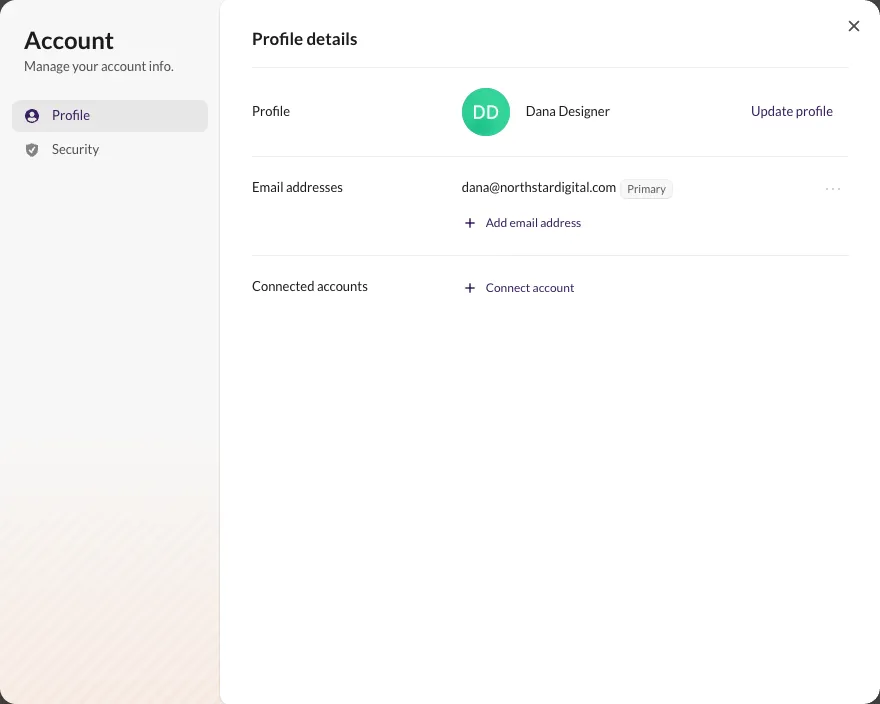
Manage account opens your account profile. The Profile tab covers your name, avatar and email addresses; the Security tab covers your password, active devices and deleting your account.
3. Change the theme
Under Theme, choose Light, Dark or System. A checkmark marks the current choice, and the change takes effect straight away.
4. Switch accounts or sign out
If you sign in to more than one account, each additional one appears in the menu above Add account — choose it to switch without signing out. Add account signs in another account alongside the current one. Sign out ends the session for the account you're using.
5. Switch organizations
Choose the organization name at the top of the sidebar to open the org switcher. It shows the current organization and your role, plus every other organization you belong to — choose one to switch, and you land on that organization's dashboard. Workspaces, connected accounts and billing are per organization, so each org has its own data.

The gear next to the current organization opens the same organization window as Invite Team Members, on the General tab — the organization's name and logo. The Members tab is where admins manage the team; see Invite your team.
6. Connect Slack in Org Settings
Org Settings holds organization-wide integrations. Today that's the Slack Integration card — choose Connect to Slack to link your Slack workspace, which unlocks Slack as a delivery channel for alert notifications on every connected account.
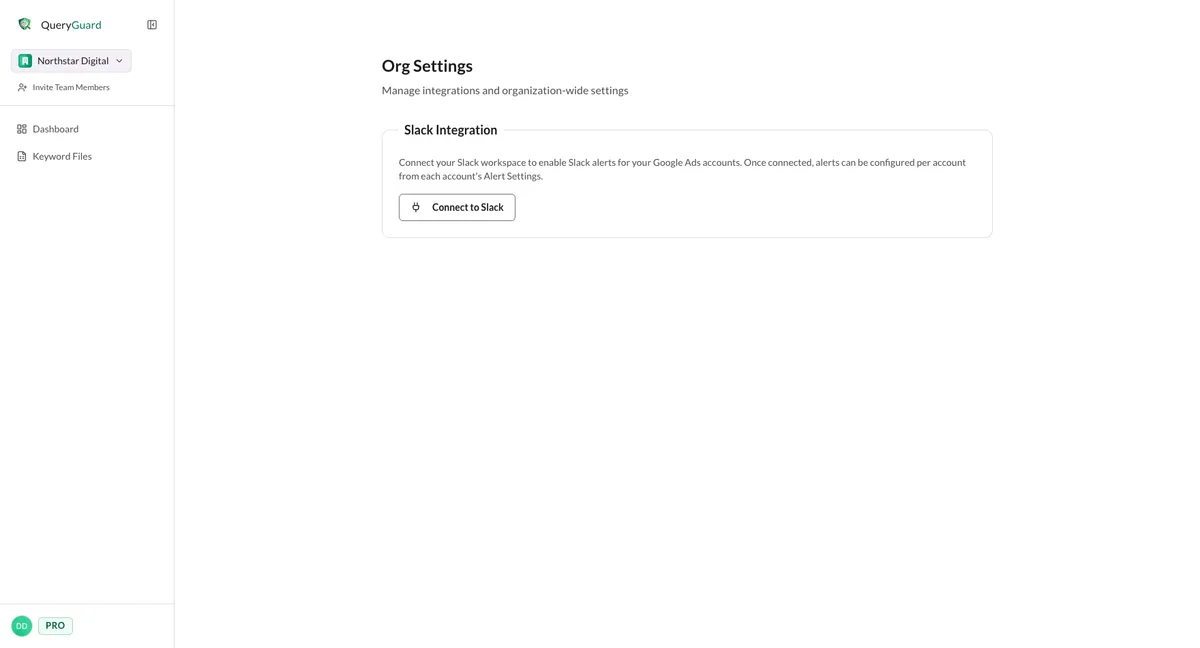
Once connected, the card shows the Slack workspace name, who connected it and when. Per-account Slack channels are then configured from each account's alert settings — see Slack alerts. Disconnecting is reserved for the person who connected it: Disconnect Slack immediately disables Slack alerts for all accounts in the organization and clears the configured channels.