
Invite your team
Everyone who uses QueryGuard joins your organization by email invitation — an org admin sends the invite from the sidebar and picks each person's role before it goes out.
Overview
Teammates hold one of two org roles, chosen at invite time and changeable later in the member list:
- Admin — full control of the organization: inviting and removing members, billing, and managing every workspace's access.
- Member — the default. Members can create workspaces and connect accounts, but can't administer the organization.
Separate from the org role is the workspace owner: whoever connected a workspace's Google Ads account. It isn't assigned — connecting the account makes you that workspace's owner, shown as "Owner · connected this workspace" in its Team access list. An owner can be an admin or a member.
| Capability | Admin | Member |
|---|---|---|
| Invite teammates, change roles, remove members | Yes | — |
| Manage the subscription on the Billing page | Yes | — |
| Create workspaces, connect a Google Ads account | Yes | Yes |
| Share or revoke a workspace's access | Any workspace | Workspaces they own |
| Edit alert thresholds and delivery channels | Workspaces they own | Workspaces they own |
| Disconnect a connected account | Any workspace | Workspaces they own |
| Delete a workspace | Yes | — |
| See a workspace's account data | Once shared, verified, or connected | Once shared, verified, or connected |
Direct link: Dashboard
Quick Tips
- Invite Team Members only appears for org admins — members don't see it.
- Invite as Member unless they need billing or member administration; promote them later from the Role dropdown.
- Inviting grants no account data — share each workspace afterwards. See Share workspace access.
- Admin and workspace owner are different things: thresholds and delivery channels belong to whoever connected the account, even when another admin runs the org.
- Sent invitations wait on the Invitations tab until they're accepted.
Steps
1. Open the member list
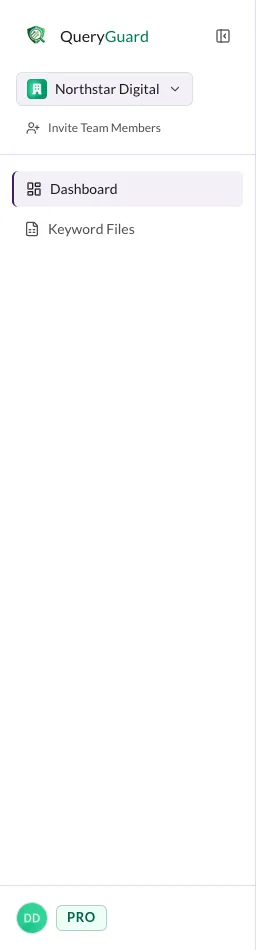
Choose Invite Team Members under the org switcher at the top of the sidebar.
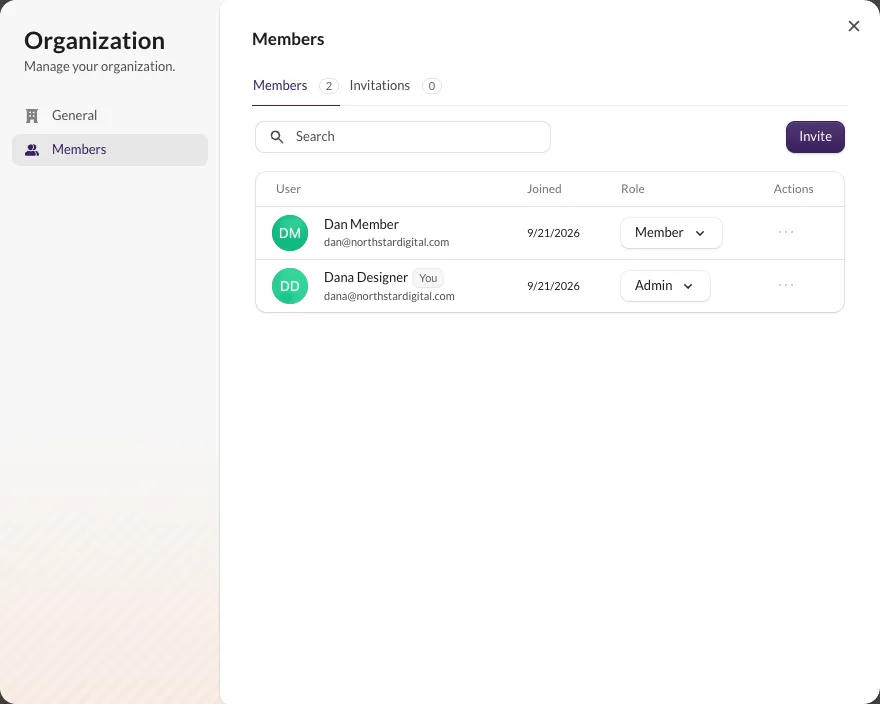
The Organization window opens on the Members tab — everyone in the organization with their join date and role, plus a search box. The Invitations tab alongside it tracks invites that haven't been accepted yet.
2. Send invitations
Choose Invite to open Invite new members. Enter or paste one or more email addresses, separated by spaces or commas, pick the Role — Member or Admin — and choose Send invitations.
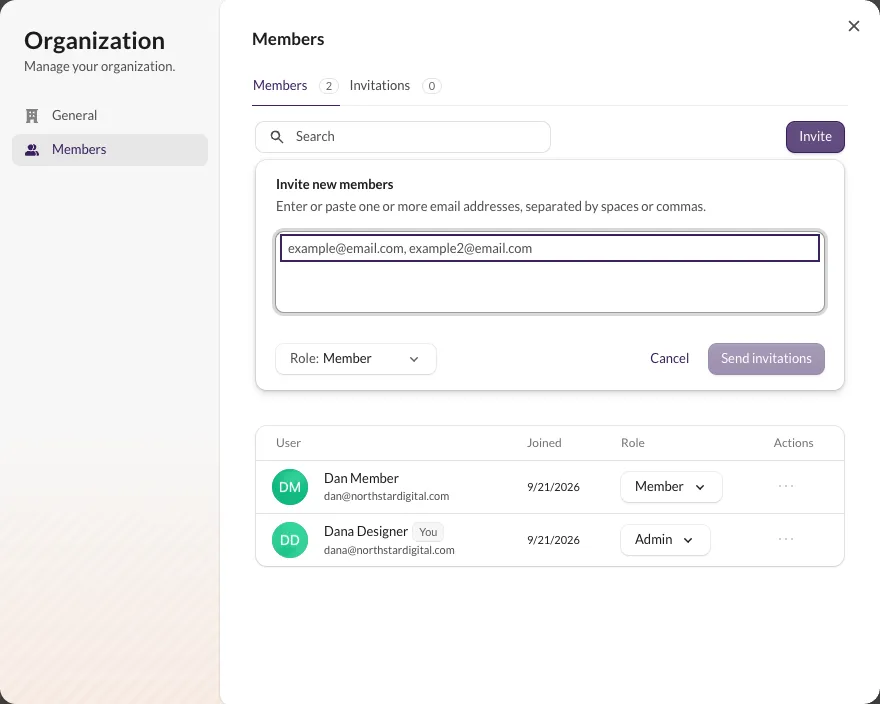
Each address gets an email invitation and can sign in as soon as they accept it.
3. Change a role or remove a member
Roles change from the member list itself: open the dropdown in a row's Role column and switch between Member and Admin. It applies immediately.
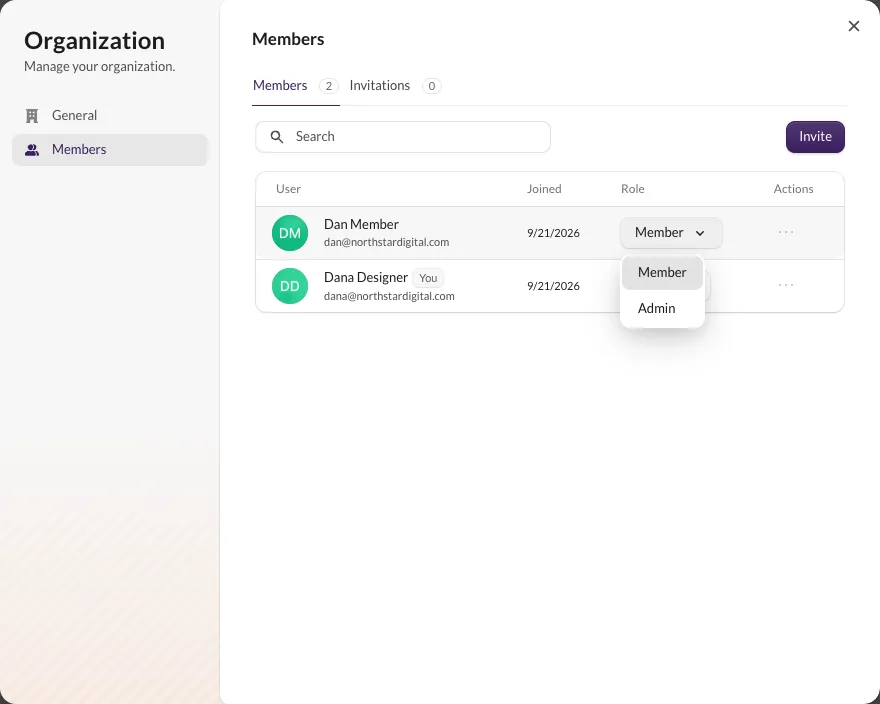
To remove a teammate, open the menu at the end of their row and choose Remove member. They leave the organization and lose access to every workspace.
4. Share account data
A new member can sign in straight away, but every workspace's account data stays locked until it's shared. Open the workspace's settings and use Team access → Share with a teammate, or let the member self-serve with Verify access when their Google account already sees the account in Google Ads.
Share workspace access covers both paths and what a shared member can and cannot change.