
Share workspace access
Joining your organization doesn't give a teammate access to account data — each workspace's data is limited to the person who connected it and the members it's been shared with.
Overview
Access in QueryGuard is granted per workspace. A member of your organization sees the workspace on the dashboard — its name, its account and its Est. annual savings — but the account's data is locked behind a "You're not authorized to see this account's data yet." callout, and the account page itself shows the same message instead of its tabs and reports.
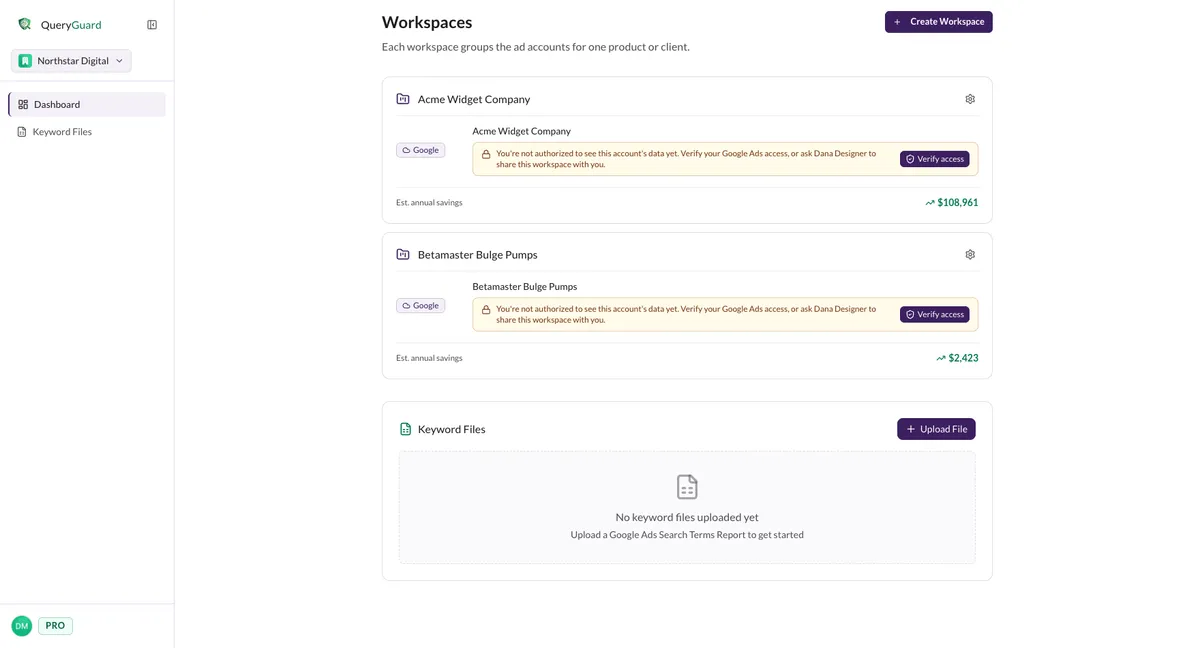
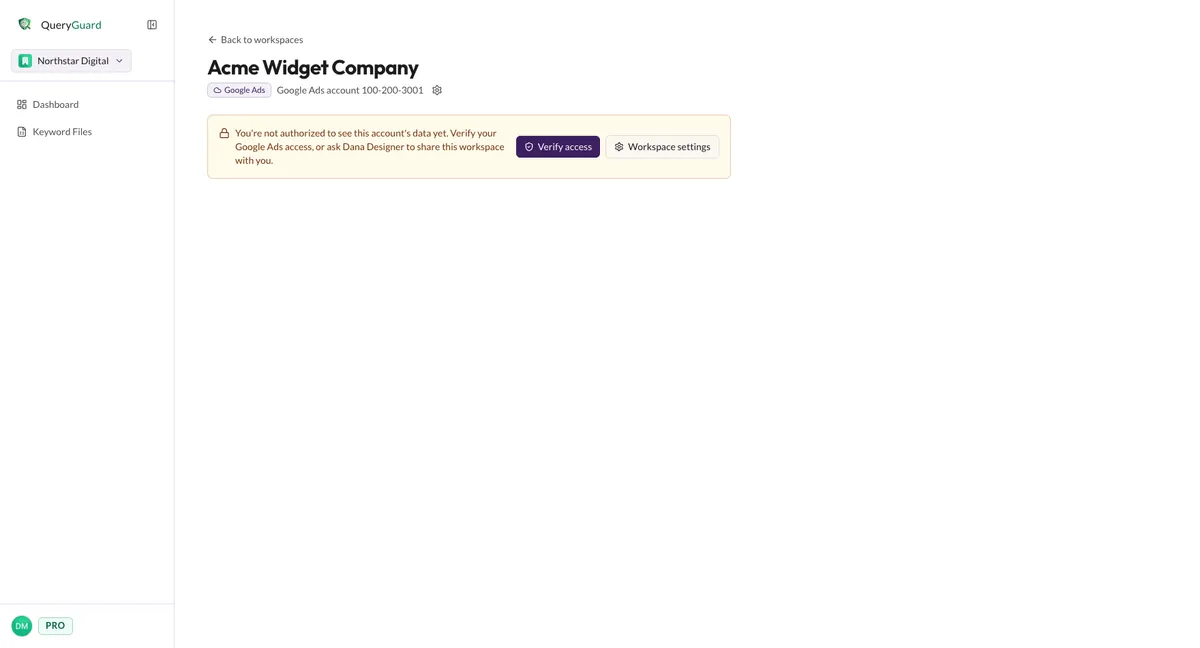
There are two ways in, and both end at the same access grant:
| Path | Who uses it | How it works |
|---|---|---|
| Verify access | The member, self-serve | Proves their own Google sign-in can already see the account in Google Ads |
| Share with a teammate | The workspace owner or an org admin | Grants access from the workspace's Team access settings |
Sharing is managed from the workspace's settings page, in the Team access section. It appears once an account is connected — see Create and manage workspaces for a tour of the page.
Direct link: Dashboard
Quick Tips
- Access is per workspace — sharing one workspace doesn't share any of the others.
- Verify access only succeeds when the member's Google account already has access to that customer ID in Google Ads. If it doesn't, they need a share.
- The person who connected the account can't be removed from its workspace, and you can't revoke your own access.
- The teammate must already belong to your organization — admins invite new members with Invite Team Members in the sidebar. See Invite your team.
Steps
1. Verify your own access
If you already have access to the account in Google Ads, you don't need to wait for a share.
In the not-authorized callout — on the dashboard card or on the account page — choose Verify access. You'll sign in to Google; sign in with the Google account you use for Google Ads, not necessarily the one you use for QueryGuard.
If that Google account can see the customer ID, you're returned with "Access verified! You now have full access to this account." If it can't, you'll see "Your Google account does not have access to this Google Ads account." — in that case, ask the workspace owner or an admin to share it instead.
2. Share the workspace with a teammate
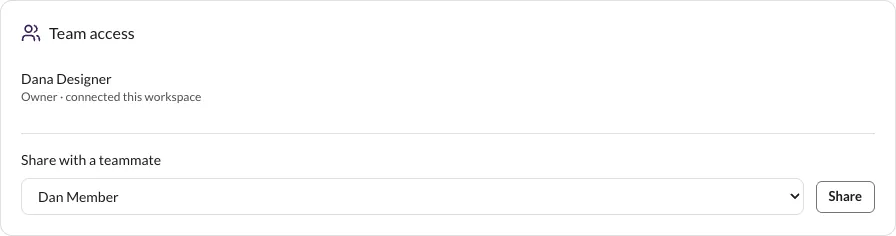
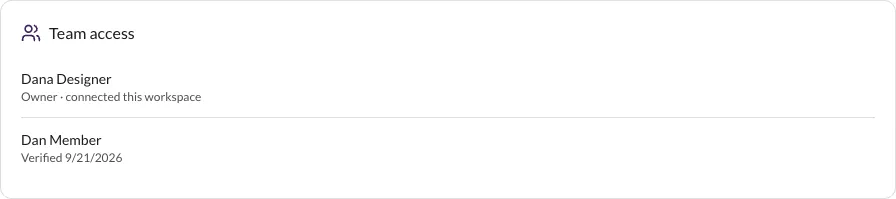
On the workspace's settings page, the Team access section lists everyone who can see the account's data. The person who connected the account shows "Owner · connected this workspace"; everyone else shows Has access, or Verified with a date once they've been in.
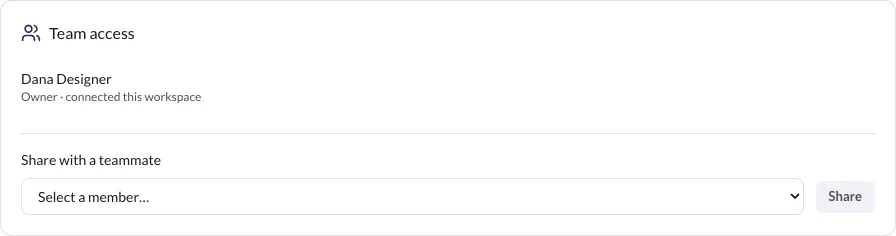
Under Share with a teammate, pick a member of your organization from the list — only members who don't already have access appear — then choose Share.
The teammate appears in the list immediately, with a Revoke button beside their name. Once every member of your organization has access, the picker is replaced by "Everyone in your organization already has access."
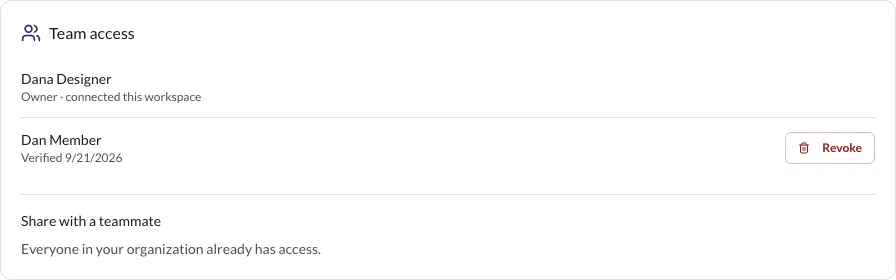
There's no invitation step — the next time they open the account, its data is simply there.
3. What a shared member can and cannot change
A shared member gets the full account view: the savings card, all six tabs, and the Resolve actions on every alert row — they can triage and act on alerts like the owner can.
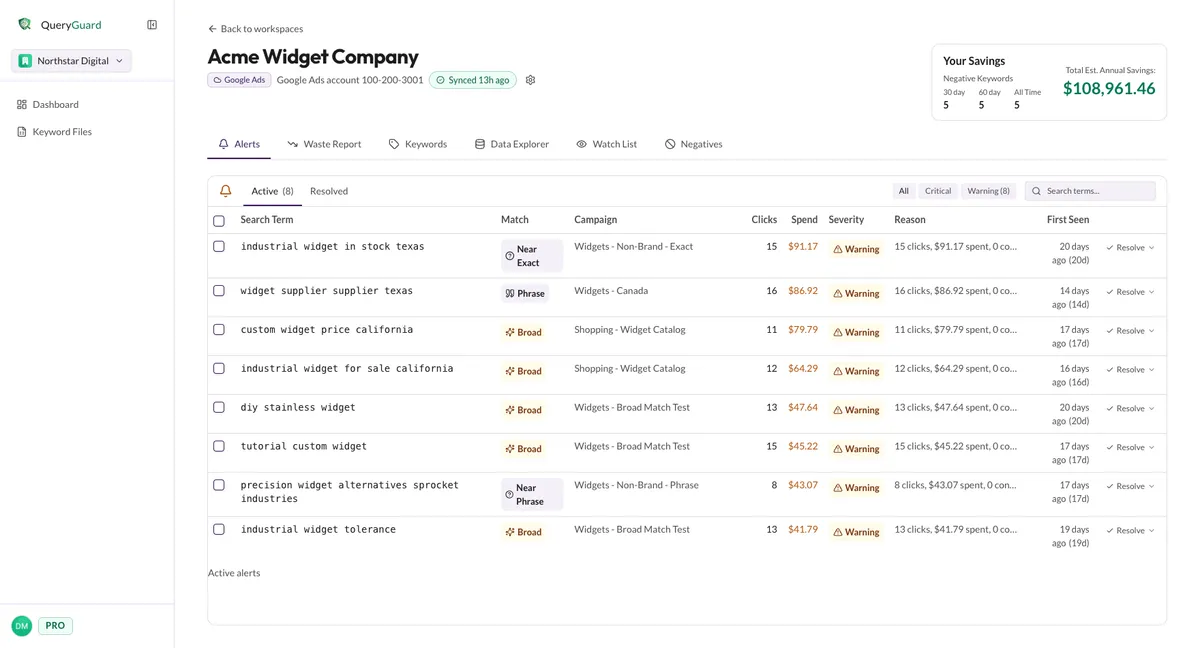
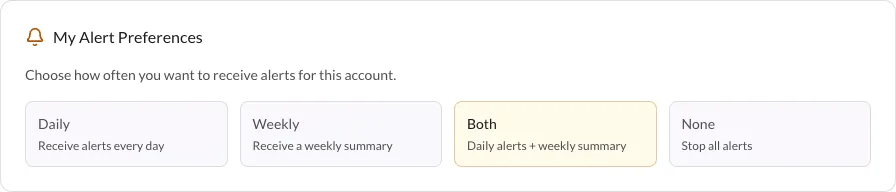
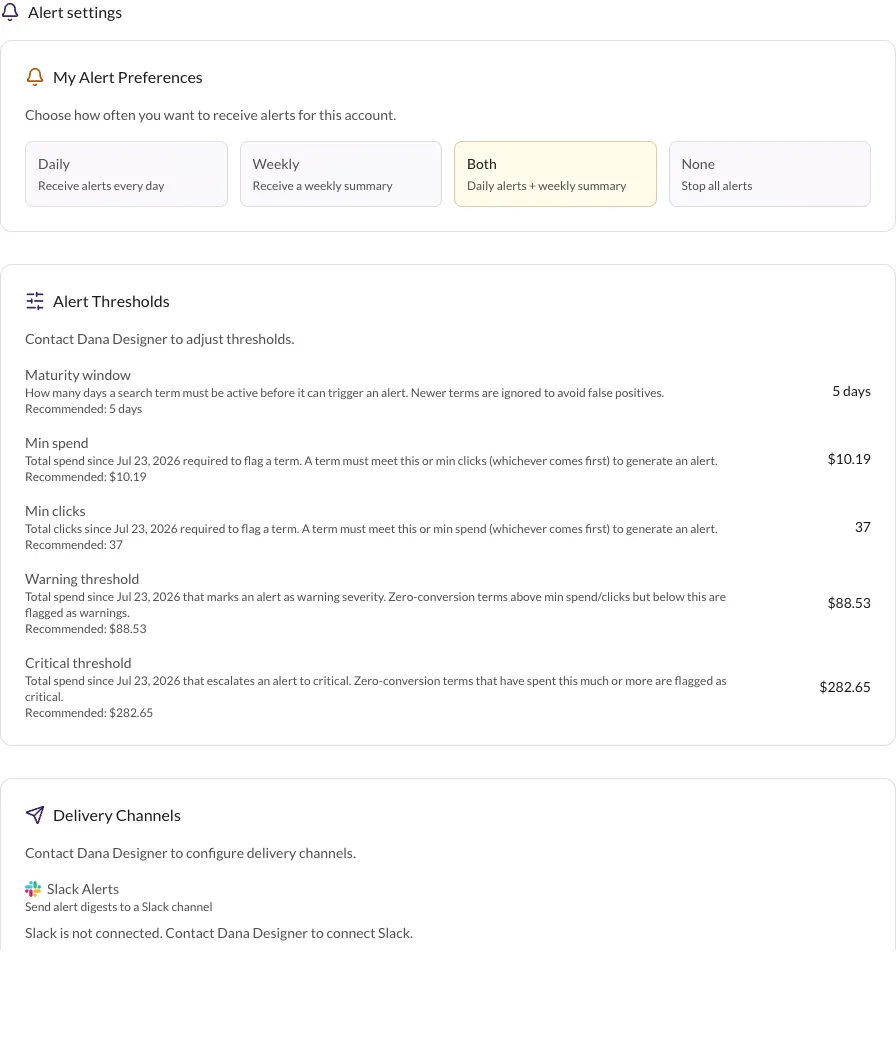
Workspace settings, though, are read-only for them. The same page renders, but every section except My Alert Preferences is locked:
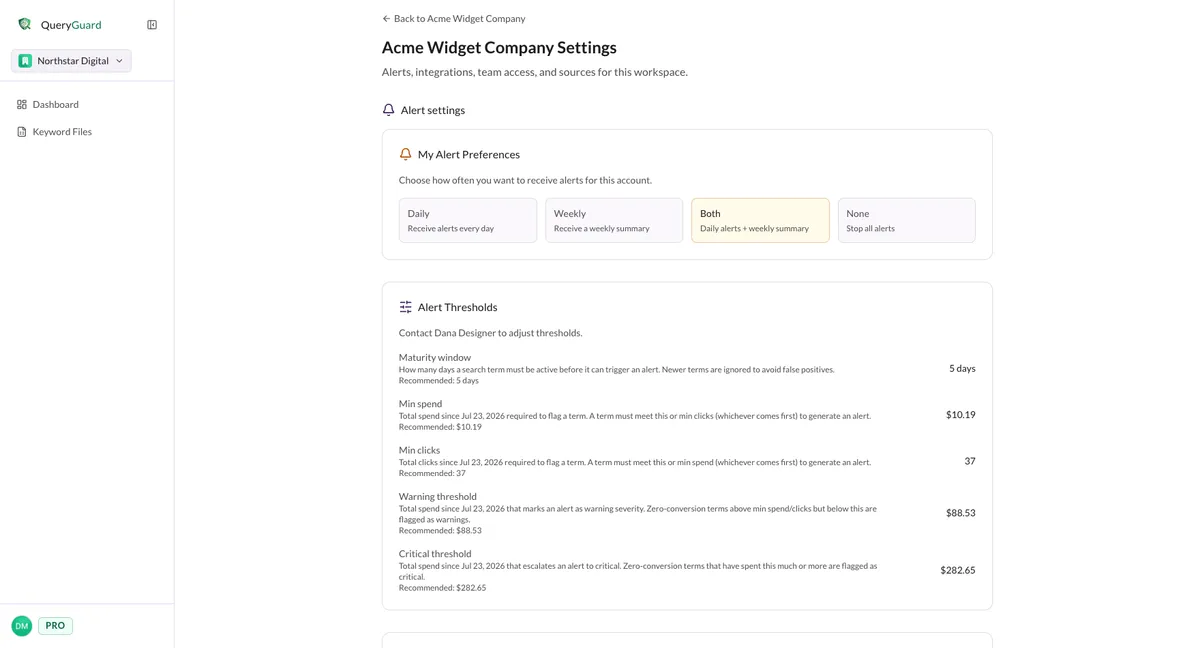
| Setting | What a shared member gets |
|---|---|
| My Alert Preferences | Fully editable — their own alert frequency for this account |
| Alert Thresholds | Read-only values, with Contact <owner> to adjust thresholds. |
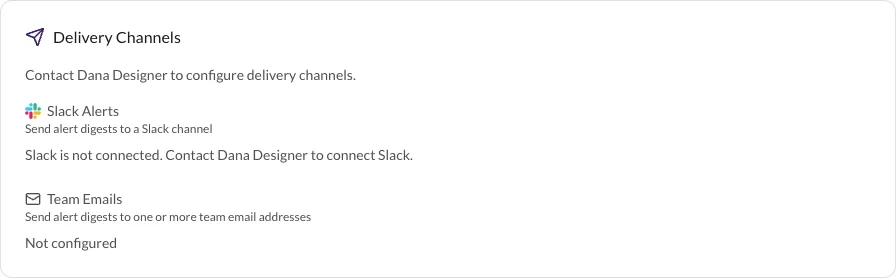
| Delivery Channels | Read-only — Slack and Team Emails show Contact <owner> to configure delivery channels. |
| Team access | The member list only — no Share picker, no Revoke buttons |
| Sources | The connected account row, without the Disconnect button |
| Danger zone | Not shown at all |
4. Revoke access
The workspace owner or an org admin can remove a shared member at any time.
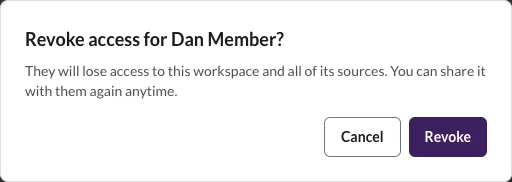
In Team access, choose Revoke beside the member's name, then confirm the Revoke access for <name>? dialog — it warns that they'll lose access to the workspace and all of its sources, and that you can share it again anytime.
The member disappears from the list and becomes selectable in the Share with a teammate picker again. Their alerts stop immediately and the account returns to its locked state on their dashboard.
Two revokes aren't allowed: you can't remove yourself, and the person who connected the account can't be removed — they stay listed as Owner until the account itself is disconnected.