
Create and manage workspaces
A workspace groups everything QueryGuard tracks for one product or client — a connected Google Ads account, its alert settings, and which teammates can see the data.
Overview
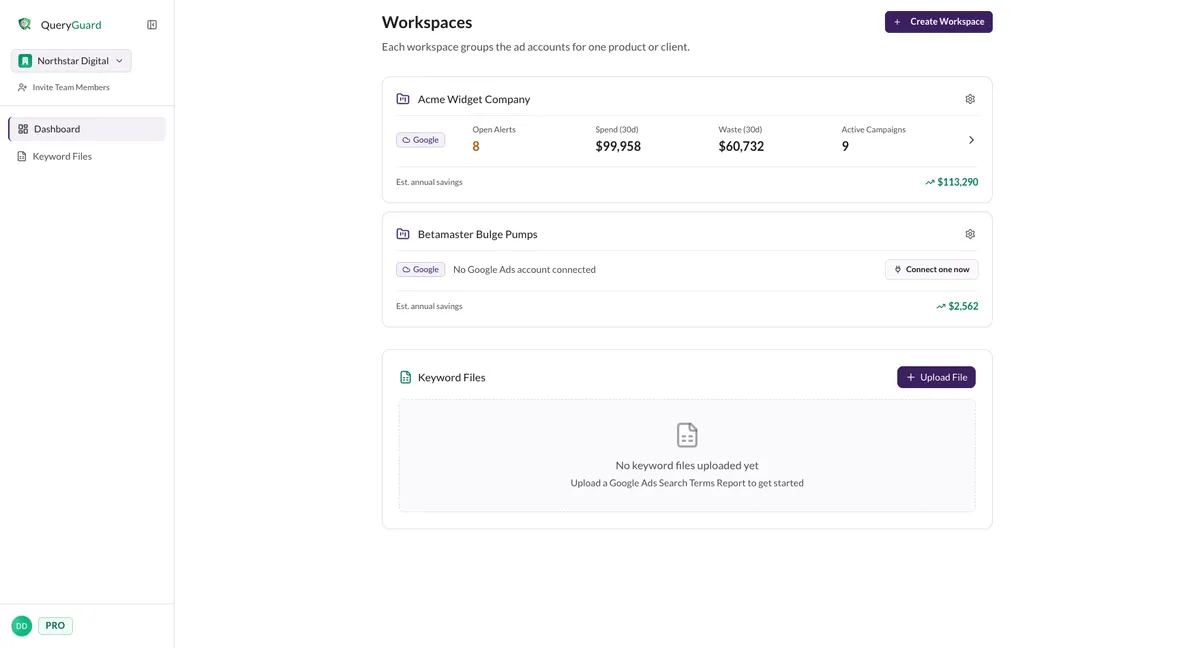
Every connected Google Ads account lives inside a workspace, and a workspace holds exactly one. The dashboard lists your workspaces as cards; each card links into the account's data and reports its open alerts, 30-day spend and waste, active campaigns, and Est. annual savings. See Navigate the dashboard for the full card anatomy.
Keeping each brand or client in its own workspace is what gives each one its own alert thresholds, delivery channels and team access. All of it is managed from the workspace's settings page, reached from the gear icon on the card.
| Section | What it covers |
|---|---|
| Alert settings | Your alert frequency, the thresholds that decide when a term becomes an alert, and where alerts are delivered. Appears once an account is connected. |
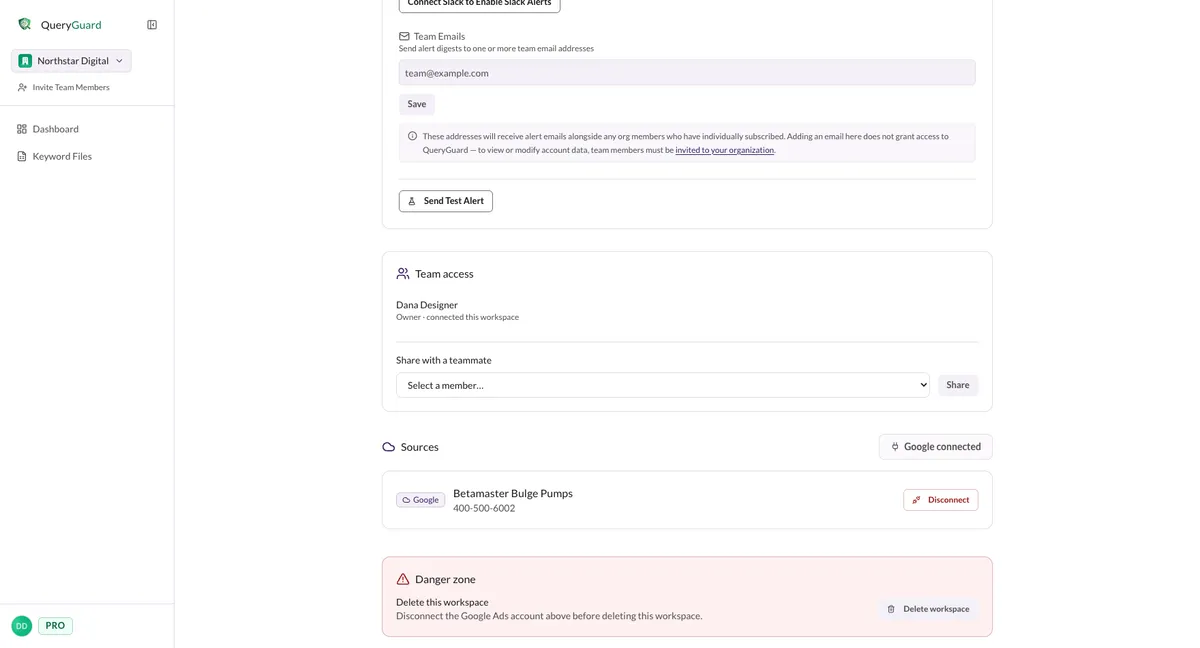
| Team access | Which members of your organization can see the account's data, with share controls for the owner and admins. Appears once an account is connected. |
| Sources | The Google Ads account attached to the workspace — including disconnected ones, kept for history. |
| Danger zone | Workspace deletion. Visible to org admins only. |
Direct link: Dashboard
Quick Tips
- Name the workspace after the product or client it tracks — the name is set at creation and can't be changed later.
- Every workspace uses a slot on your plan, even before an account is connected. Deleting a workspace frees the slot.
- One Google Ads account per workspace — to add a second account, create another workspace.
- Disconnecting an account keeps its search-term history and savings. Deleting a workspace removes its team access and Slack settings.
Steps
1. Create a workspace
On the Dashboard, choose Create Workspace at the top right.

A prompt asks "Name this workspace (e.g. a product or client):". Enter a name and confirm — you land directly on the new workspace's settings page.
Back on the dashboard, the workspace sits at the bottom of the list showing "No Google Ads account connected" with a Connect one now link, and Est. annual savings of $0 until an account is attached.

If your organization has no workspaces yet, the dashboard shows a "Create your first workspace" panel instead — Create empty workspace there does the same thing.
Two errors can come back: a name that's already taken ("A workspace with that name already exists.") and a plan at capacity ("You have reached the workspace limit for your plan.").
2. Tour the settings page
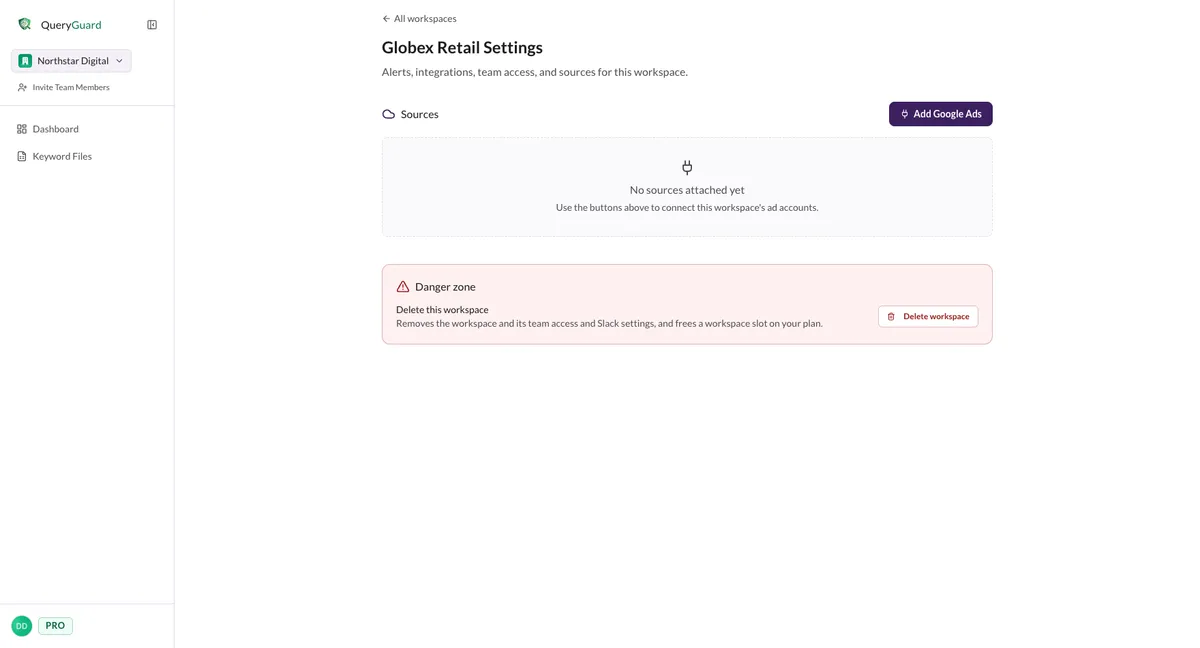
Open a workspace's settings from the gear icon on its card, or the Workspace settings link on the account page. The page is titled <workspace name> Settings.
- Back link — reads
Back to <workspace name>and opens the account page when the workspace has an account you can view; otherwise it's All workspaces, back to the dashboard. - Alert settings — your own alert frequency, the thresholds behind the alerts, and delivery channels (Slack and team emails).
- Team access — who in your organization can see the account's data, and the controls for sharing it.
- Sources — covered in the next step.
- Danger zone — workspace deletion, org admins only.
A brand-new workspace shows only Sources and the Danger zone — Alert settings and Team access appear once an account is connected.
3. Add or disconnect a source
Sources lists every account ever attached to the workspace, including disconnected ones.
- Add Google Ads starts the connect flow scoped to this workspace — see Connect Google Ads. While an account is connected, the button becomes a disabled Google connected pill; attach the next account in a different workspace.
- The account row links to its account view. Disconnect at the right end of the row is available to the person who connected the account and to org admins.
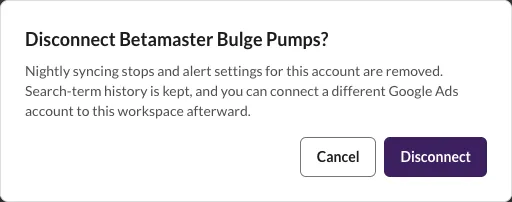
Disconnect opens a confirmation — Disconnect <account name>? — that spells out what happens: nightly syncing stops and the account's alert settings are removed, but its search-term history is kept, and you can connect a different Google Ads account to the workspace afterward.
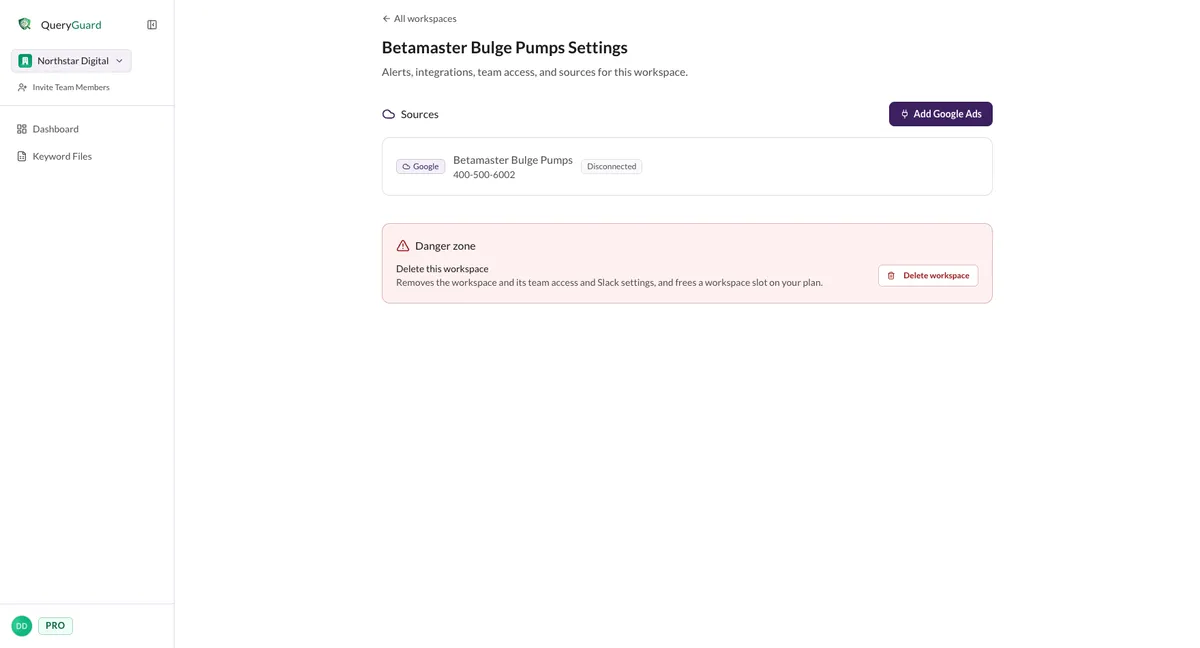
After confirming, the account stays listed with a Disconnected badge — no longer a link — and Add Google Ads is available again. Alert settings and Team access are hidden until a new account is connected.

On the dashboard, the card returns to the empty "No Google Ads account connected" state — but its Est. annual savings is preserved, since that history survives the disconnect.

4. Delete a workspace
Deleting a workspace is available to org admins only — the Danger zone doesn't render for anyone else.
A workspace can't be deleted while an account is still connected: the Delete workspace button stays disabled with the hint "Disconnect the Google Ads account above before deleting this workspace." Disconnect the source first (step 3), then:
- In the Danger zone, choose Delete workspace.

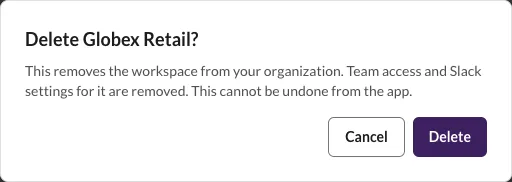
- Confirm the
Delete <workspace name>?dialog — it warns that team access and Slack settings for the workspace are removed and that this cannot be undone from the app.
The workspace disappears from the dashboard and its plan slot is freed.