
Alert thresholds
Alert thresholds decide when a zero-conversion search term becomes an alert and how severe it is. Each workspace's thresholds are calibrated from its own account data, and the workspace owner can adjust them.
Overview
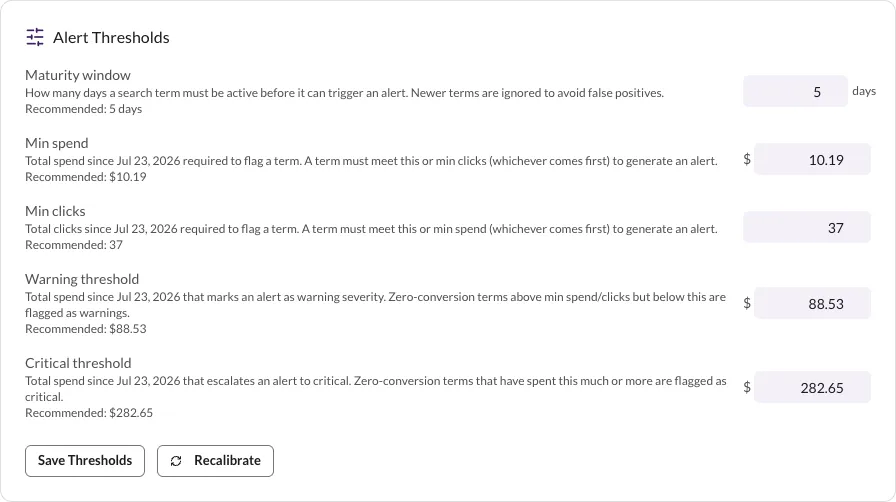
Each night after sync, a search term raises an alert when it has zero conversions, is older than the maturity window, and has reached Min spend or Min clicks — whichever comes first. Its severity is then set by spend: at or above the Critical threshold it's Critical; anything under it is a Warning.
The five fields live on the workspace's settings page, under Alert settings → Alert Thresholds:
| Field | What it protects against |
|---|---|
| Maturity window | False positives from conversion lag. A term must be active this many days before it can alert, so searches that convert late aren't flagged prematurely. |
| Min spend | Noise from cheap terms. A term needs this much total spend — or the Min clicks count — before it's worth a decision. |
| Min clicks | Noise from low-traffic terms. The other half of the minimums — a term with enough clicks alerts even on modest spend. |
| Warning threshold | The lower severity line. Qualifying terms at this spend level are flagged as Warning. |
| Critical threshold | The line that separates routine flags from the biggest drains. Terms at or above this spend are Critical — red badge, tinted row, sorted to the top of the queue. |
Spend and clicks are counted since the date shown under each field — the day the account's data was first imported, not a rolling window.
Recommended values. Under each field, a "Recommended:" line shows the value QueryGuard computed for the account. Calibration runs automatically during the first data sync and is based on the account's own numbers — its conversion lag, average CPC, and the spend and click spread of its zero-conversion terms — so the suggestions scale with the account rather than following a fixed default. Until that first sync completes, the card reads "Thresholds will be auto-calibrated after the first data sync."
Thresholds are scoped to the workspace. If a workspace ever holds more than one connected account, the same thresholds apply to all of them — the page notes this above the first Alert settings block.
Direct link: Dashboard
Quick Tips
- Threshold changes apply from the next nightly sync. Alerts already in the queue keep the severity they were raised with.
- Save Thresholds stores all five fields, not just the ones you edited. Once saved, your values are overrides that win over the recommendations.
- Don't shorten the maturity window below the account's real conversion lag — the calibration already lands near it. Cutting it further mostly adds false alarms on terms that were about to convert.
- Only the workspace owner — the person who connected the account — can edit thresholds. Everyone else sees the same values read-only, with
Contact <owner> to adjust thresholds.See Share workspace access for the member view.
Steps
1. Open Alert Thresholds
From the account page, choose the Workspace settings gear in the header — or open the workspace card's settings from the dashboard. The Alert Thresholds card sits in the Alert settings section, between My Alert Preferences and Delivery Channels.
2. Adjust the fields
Edit any field against its "Recommended:" line. If you're raising the minimums because the queue feels noisy, adjust Min spend or Min clicks — either one reaching its floor is enough to flag a term, so raise both to tighten the queue.
3. Save Thresholds
Choose Save Thresholds. A "Saved" indicator appears beside the card title and the new values take effect at the next sync.
4. Recalibrate
Recalibrate recomputes the recommended values from the account's latest data and refreshes the "Recommended:" lines, which flash green to confirm. It isn't a preview — the recommendations update immediately — but your saved values stay in place. To follow a new recommendation, copy it into the field and Save Thresholds.
5. Check who can edit
Threshold editing is limited to the workspace owner. In the Team access section further down the same page, the owner is the member marked "Owner · connected this workspace."
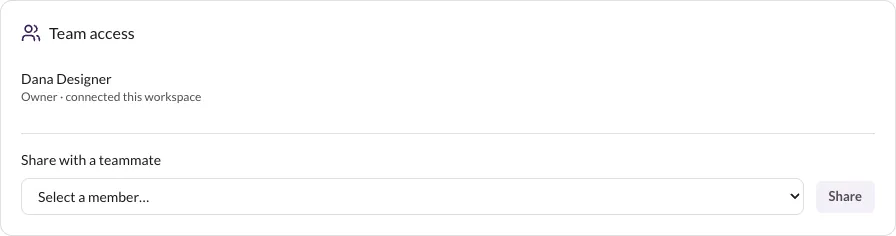
If you need different thresholds and you're not the owner, ask the owner to make the change — even org admins see the read-only view. The owner role also controls delivery channels and test alerts.