
Connect Google Ads
Connecting a Google Ads account gives QueryGuard access to its search terms, so it can flag wasted spend and write negative keywords back to the account.
Overview
Each connected Google Ads account lives inside a workspace, and a workspace holds exactly one. You can start the connection from three places:
| Start from | Control | Result |
|---|---|---|
| Dashboard, before any workspace exists | Connect Google Ads | A workspace is created for each account you pick, named after the account |
| Dashboard, on a workspace card with no account | Connect one now | The account attaches to that workspace |
| Workspace settings → Sources | Add Google Ads | The account attaches to that workspace |
All three open the same flow: you authorize QueryGuard with Google, then pick which of your accessible ad accounts to connect on the Select Accounts to Connect page.
Direct link: Dashboard
Quick Tips
- Sign in with the Google identity that can see the accounts in Google Ads — for most agencies that's a manager account. Accounts reached through a manager are grouped under it in the picker.
- Your plan caps connected accounts: 1 on In House, up to 10 on Pro, unlimited on Enterprise — see Plans and billing. Starter has none — connecting there returns "Upgrade to a paid plan to connect Google Ads accounts."
- Connect each brand or client to its own workspace rather than trying to fit several accounts into one.
- The person who connects an account becomes the workspace owner and is subscribed to its alert emails automatically.
Steps
1. Start the connection
On the Dashboard, a workspace with no source shows "No Google Ads account connected" and a Connect one now link on its card.

From inside a workspace, open Workspace settings (the gear on its card) and use Add Google Ads in the Sources section.
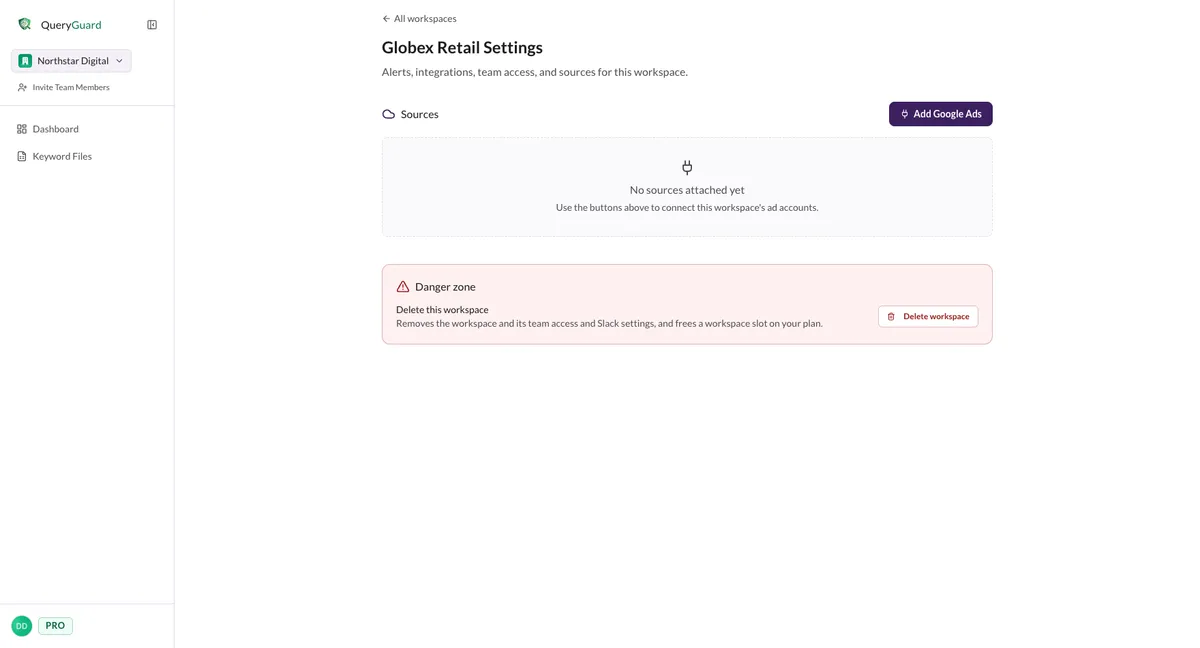
If your organization has no workspaces yet, the dashboard shows a "Create your first workspace" panel instead, with a Connect Google Ads button — plus Create empty workspace if you want to set up the workspace first.
Once a workspace has a Google Ads account, its Add Google Ads button becomes a disabled Google connected pill. Connect the next account in a different workspace.
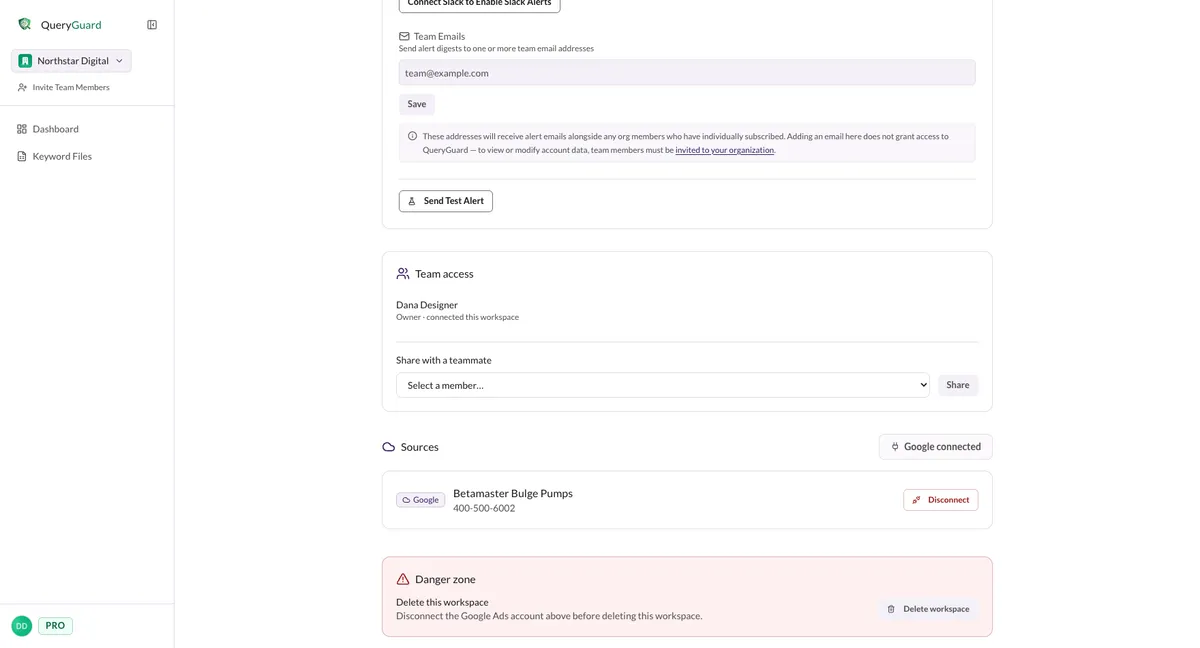
2. Sign in with Google
QueryGuard hands you to Google to choose an identity and authorize access. Pick the Google account that can see the ad accounts you want — through a manager account if you use one.
Two outcomes land you back without connecting:
- Cancelling or denying returns "Authorization was cancelled or denied."
- A Google account with no ad accounts returns "No ad accounts were found for the account you signed in with." Sign in again with the right identity.
3. Choose accounts on Select Accounts to Connect
After authorization you land on the Select Accounts to Connect page. It lists every Google Ads account your sign-in can reach, and the header shows your remaining capacity — "8 of 10 account slots available on your Pro plan", for example.
- Search — the "Search accounts by name or ID…" box filters by account name or customer ID.
- Grouping — accounts under a manager are grouped under the manager's name with a Manager badge; everything else sits under Directly accessible.
- Select all — on each group, selects every selectable account in it, capped at your remaining slots.
- Already connected — rows already in your organization are disabled and badged; when every account is connected the page says "All your Google Ads accounts are already connected."
- Over the limit — selecting more than your remaining slots shows "You selected N accounts but only have M slots remaining. Deselect some accounts or upgrade your plan." and blocks the connect button.
When you started from a workspace, the picker is single-select — a banner reminds you "A workspace holds one Google Ads account. Selecting another replaces your choice." — and the button reads Add to workspace instead.
Choose Connect Selected (N) to finish, or Cancel to return to where you started without connecting.
4. What happens next
You land back on the dashboard or the workspace settings with the banner: "Account connected! We're syncing your search term data now — this usually takes a few minutes. You can safely leave this page and we'll email you when your data is ready."
Behind that banner QueryGuard:
- Attaches the account to the workspace — or creates a workspace named after the account, if you connected from the dashboard.
- Starts a sync immediately. The first run pulls roughly the last 60 days of search terms, then the waste analysis and alerts run on top of it.
- Sends a "Your data is ready" email to your org admins once the sync finishes, with a View Your Results link into the account.
- Syncs the account again each night from then on.
When the email arrives, Your first 30 minutes walks through the first review pass, and Navigate the dashboard explains what the workspace card reports.
Connection errors
Errors land on the same page you started from, in a banner at the top. The common ones:
| Message | What it means |
|---|---|
| "Upgrade to a paid plan to connect Google Ads accounts." | Starter has no connected accounts — upgrade first. |
| "You've reached the maximum number of connected accounts for your plan." | Every slot on your plan is in use — disconnect an account or upgrade. |
| "Your account selection session expired. Please try connecting again." | The picker sat too long after sign-in — start the connection again. |
| "Authorization expired. Please try connecting again." | The sign-in went stale mid-flow — restart the connection. |