
Email reference
QueryGuard sends four emails — a digest when alerts fire, a test version of it, a notice when a new account's data lands, and a notice when a sync fails.
Overview
Every email comes from the same sender — QueryGuard <alerts@alerts.queryguard.io> — so they're easy to filter or allowlist.
| Subject | Who receives it | When it sends | |
|---|---|---|---|
| Alert digest | QueryGuard Alert: $X wasted across N search terms | Members who set the account's alert frequency to Daily or Both, plus every address under Team Emails | Each night, after the account's sync — only when new critical or warning alerts fired |
| Test alert | [TEST] QueryGuard Alert: $68.58 wasted across 3 search terms | The same delivery list as the digest | The workspace owner chooses Send Test Alert |
| Your data is ready | Your data is ready — {account name} | Org admins | A newly connected account finishes its first sync |
| Sync failed | Google Ads sync failed — reconnection needed | Org admins | A sync fails because the Google Ads connection has expired |
The digest and the test alert also post to Slack when the workspace has a channel connected — see Slack alerts.
Quick Tips
- Digests are per account: each connected account that fires alerts sends its own email.
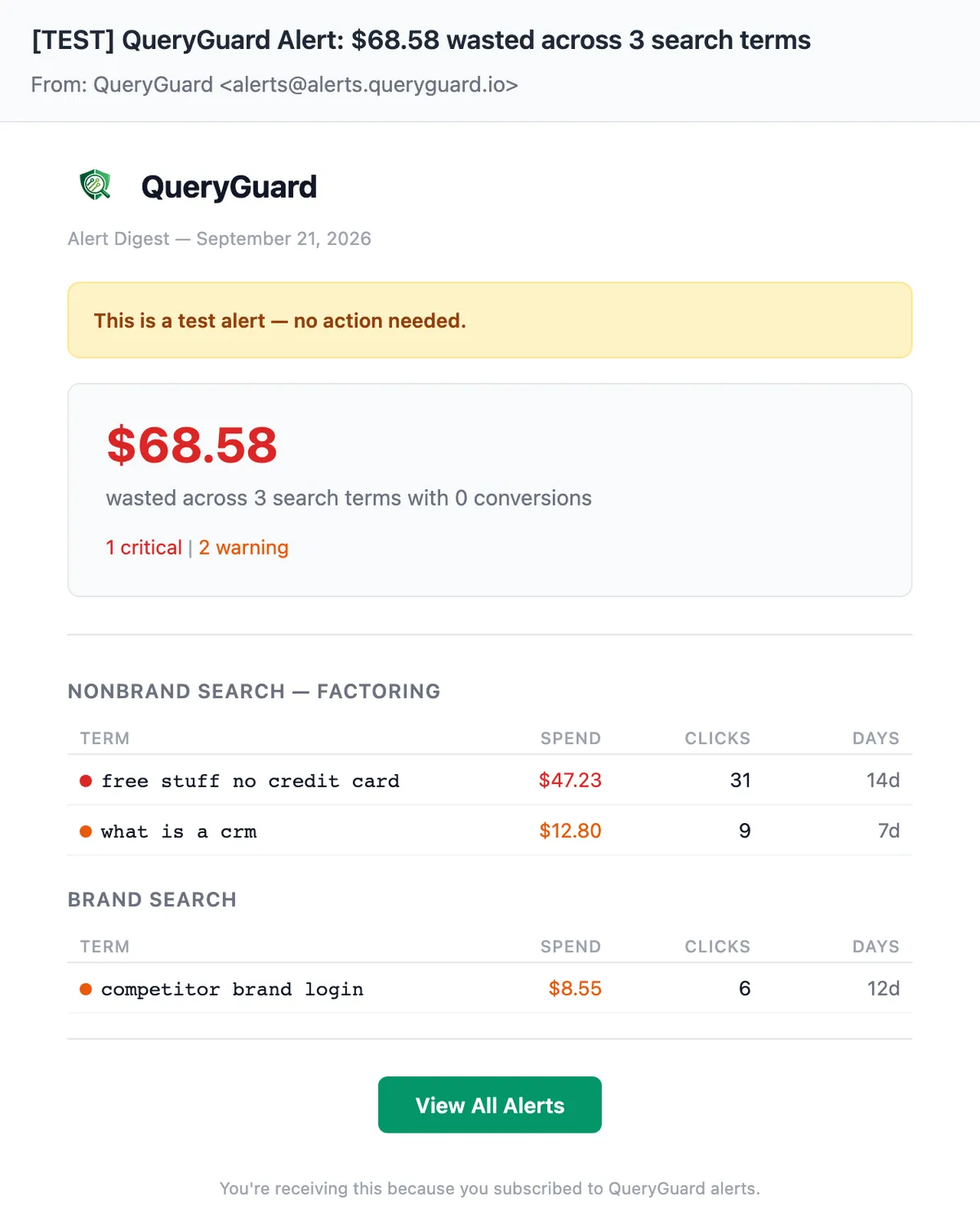
- The test alert is fixed sample data — $68.58 across 3 terms — never your account's real alerts. Use it to confirm delivery, not to review terms.
- No QueryGuard email has an unsubscribe link. Digest delivery is per account under My Alert Preferences; Team Emails are managed by the workspace owner.
- Your data is ready and Sync failed go to org admins only — there is no per-member toggle for them.
The emails
Alert digest
The working email — each night's roundup of new alerts for one account. It opens with the wasted-spend total and severity counts, then lists every flagged term grouped by campaign in Term / Spend / Clicks / Days tables. Each term is a deep link that opens the account's Alerts tab with that term's detail window already up.
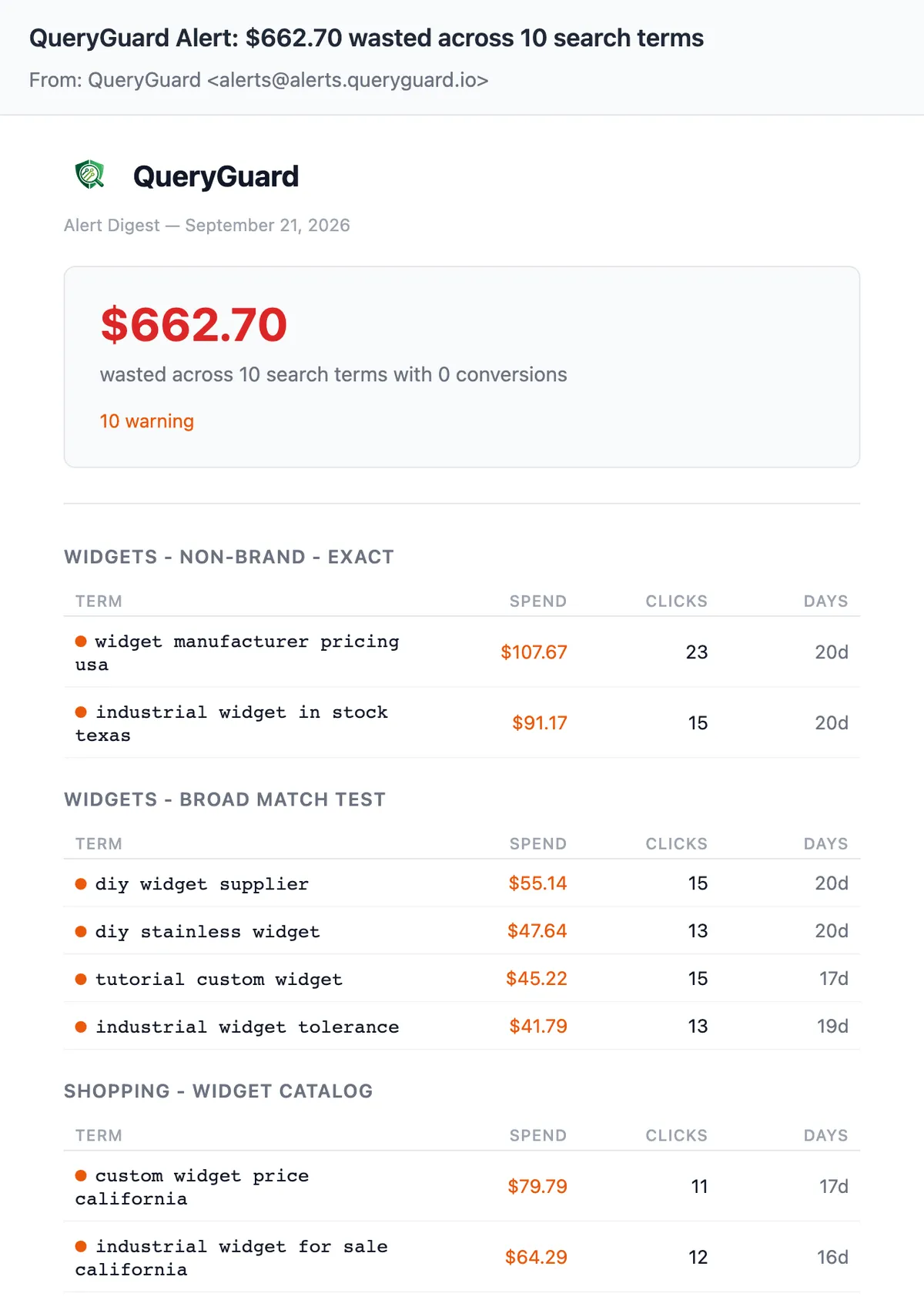
For the annotated tour see The alert digest email; for delivery setup see Alert notifications.
Test alert
The same template as the digest, with a [TEST] prefix on the subject and a yellow This is a test alert — no action needed. banner under the header. The figures are fixed sample data — three terms across two campaigns — so the term links open a detail window with nothing behind them.
The workspace owner sends it from Delivery Channels → Send Test Alert in workspace settings. It goes to every channel configured for the account — email subscribers, Team Emails and Slack — and the button reports the result as Sent to N/M channels. You can send up to five per minute.
Your data is ready
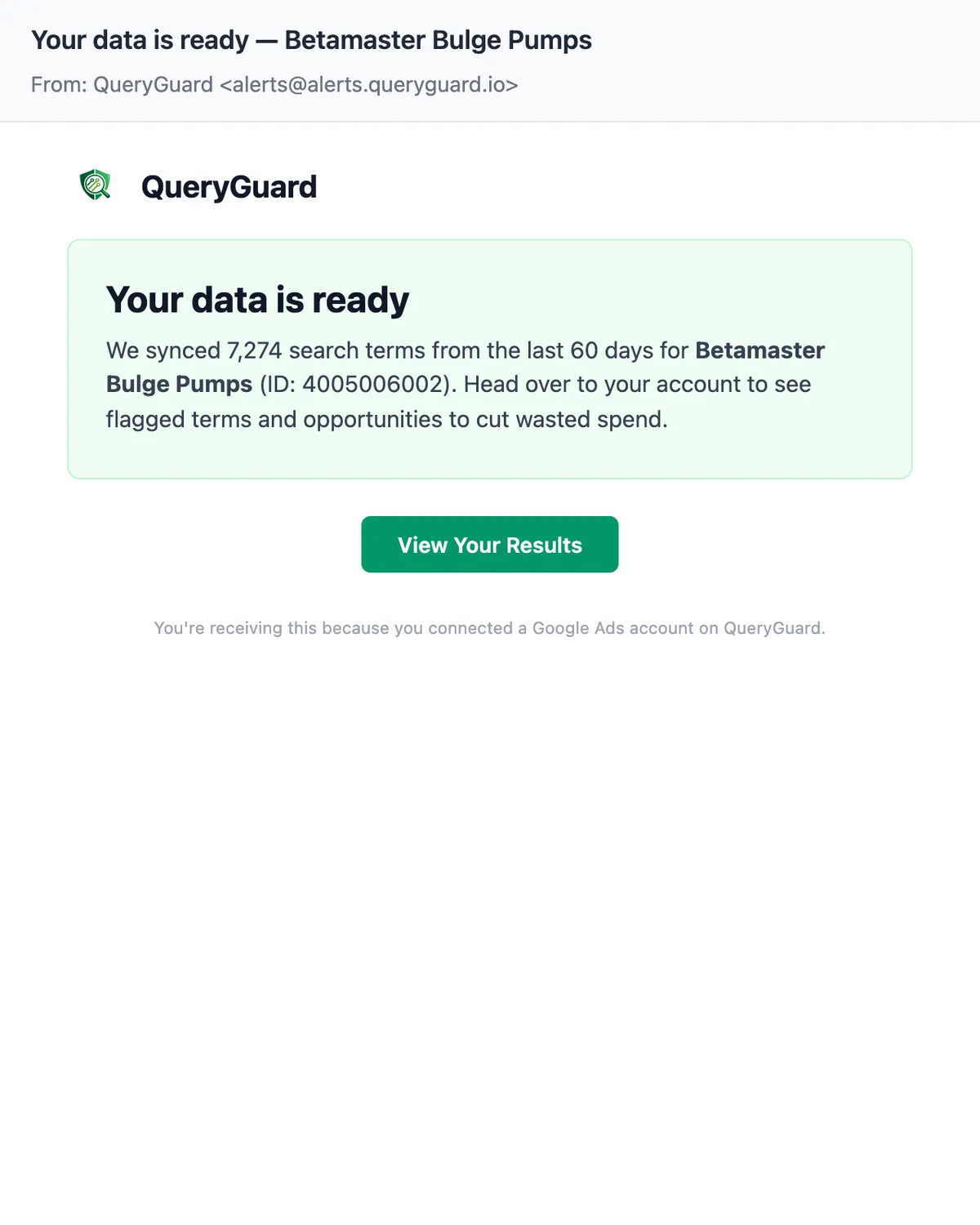
Sent once, to org admins, when a newly connected account finishes its first sync. A green panel reports how many search terms were synced — "We synced 7,274 search terms from the last 60 days" — and names the account and its customer ID.
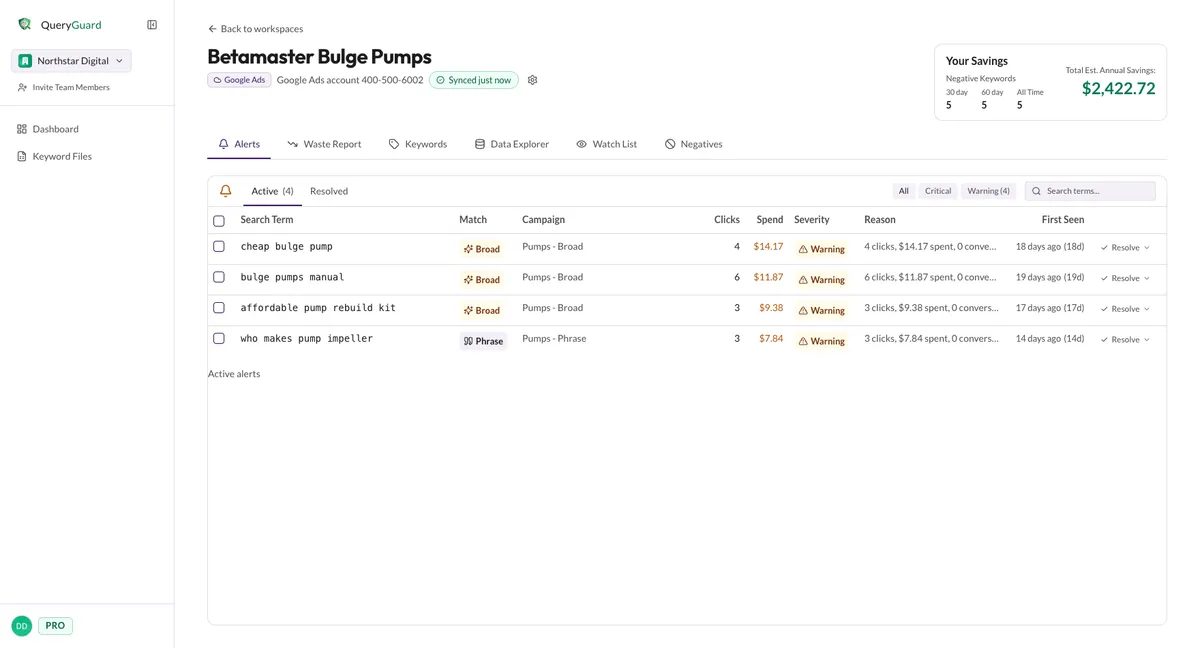
The View Your Results button opens the account page, landing on the Alerts tab.
Google Ads sync failed
A plain-text email to org admins when a sync fails because the stored Google Ads connection has expired. It sends only after the sync's retries are exhausted — transient failures don't produce it.
The body tells you the connection token has expired and links back to QueryGuard so you can reconnect. For what the account looks like in this state and how to reconnect, see Sync status and reconnecting.