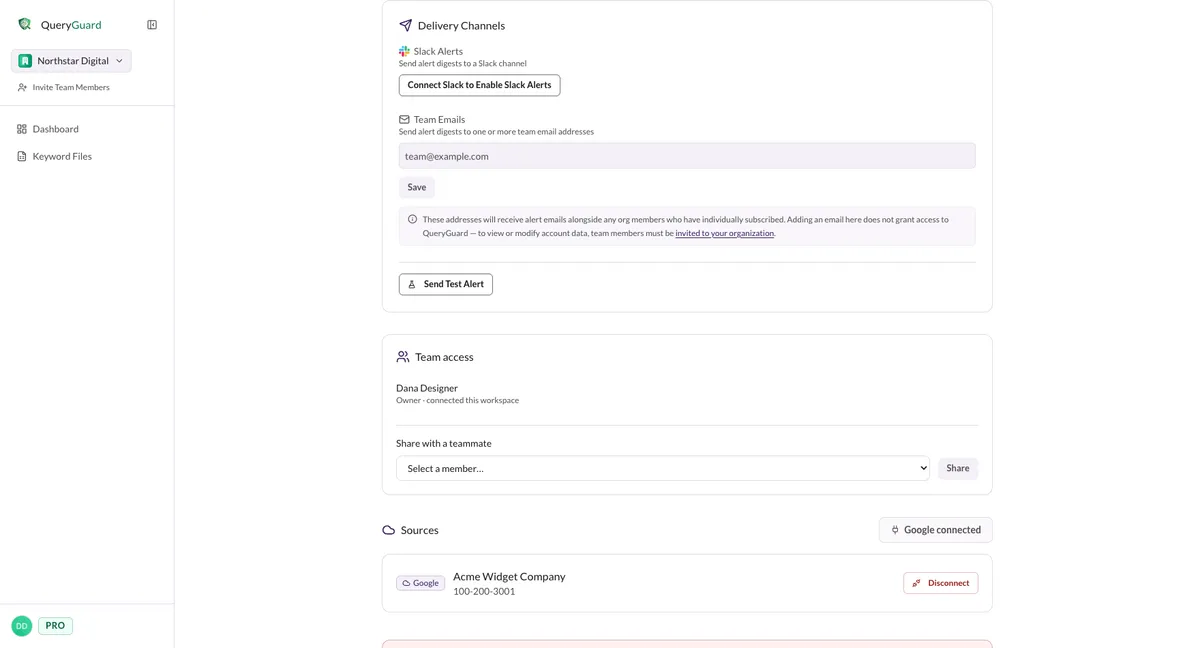
The alert digest email
The alert digest is the email QueryGuard sends after each night's sync — one per connected account that raised new alerts, with the wasted-spend total up top and every flagged term grouped by campaign.
Overview
When an account's nightly sync raises new alerts, QueryGuard collates them and emails one digest to everyone on that account's list. Only critical and warning alerts are included, and if nothing new fired, nothing is sent.
The subject carries the headline numbers, so the mail is scannable in an inbox:
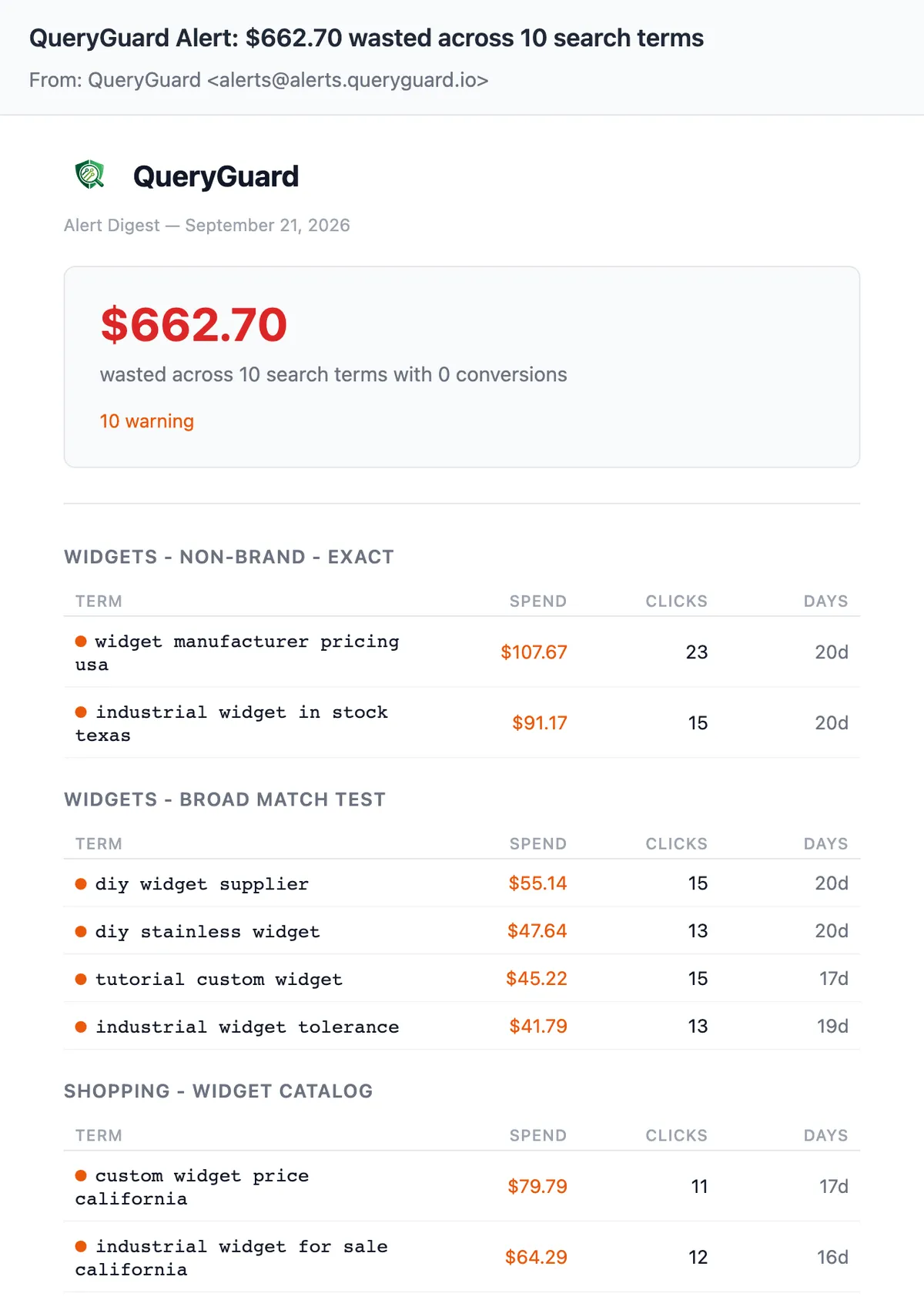
QueryGuard Alert: $662.70 wasted across 10 search terms
Who receives it:
| Recipient | How they got on the list |
|---|---|
| Subscribed members | Anyone who set Daily or Both under My Alert Preferences for that account — see Alert notifications. |
| Team Emails | Addresses the workspace owner added under Delivery Channels. Delivery only — no sign-in required. |
The same digest also posts to Slack when the workspace has it connected — see Slack alerts.
Quick Tips
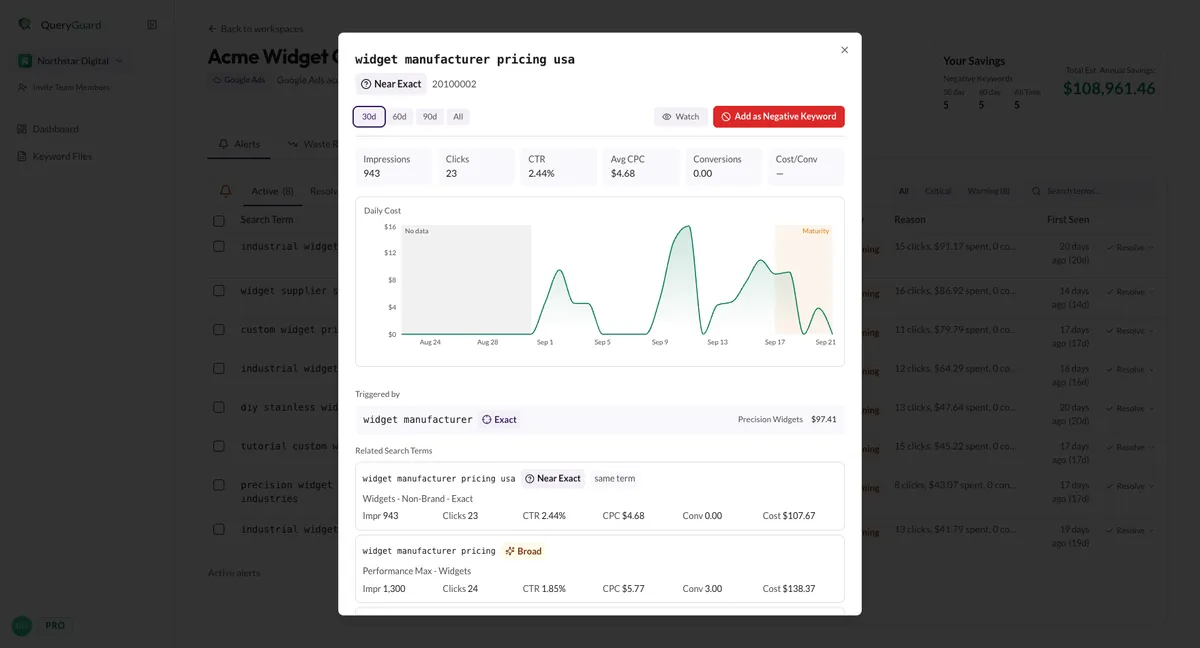
- Click any term in the email and QueryGuard opens the account's Alerts tab with that term's detail window already open.
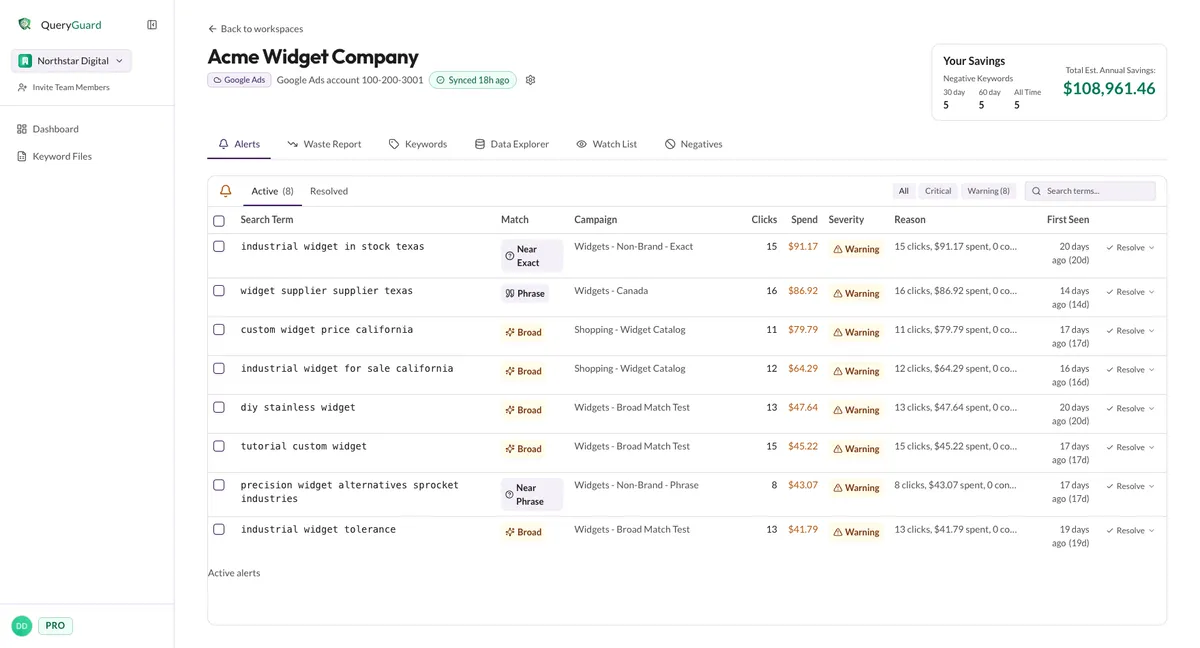
- View All Alerts lands on the same Alerts tab — useful when more terms fired than the email lists.
- One digest per account. With several connected accounts you get a separate email for each one that fired, and the links in each land on the right account.
- The email has no unsubscribe link. To stop it, set My Alert Preferences to None — or have the workspace owner remove your address from Team Emails.
- Severity is colour-coded throughout: red for critical, orange for warning — in the counts, the dot beside each term, and the spend figures.
Steps
1. Read the headline
The email opens with the date — Alert Digest — September 21, 2026 — then a summary card:
- The total wasted spend across all the alerts in this digest, in red.
- wasted across N search terms with 0 conversions — every term in the email spent without converting.
- A severity line: N critical in red and N warning in orange. Each count only appears when it is above zero, so an all-warning digest reads simply "10 warning".
2. Scan the campaign tables
Below the summary, the terms are grouped by campaign — the campaign name in capitals, then a table. Campaigns are ordered by total spend, so the worst offender is first. Each table has four columns:
| Column | What it shows |
|---|---|
| Term | The flagged search term, with a severity dot — red for critical, orange for warning. Clicking it opens the term in QueryGuard. |
| Spend | What the term has spent with no conversions — coloured by severity. |
| Clicks | Total clicks the term has collected. |
| Days | How many days the term has been active — the same figure the Alerts tab shows beside First Seen. |
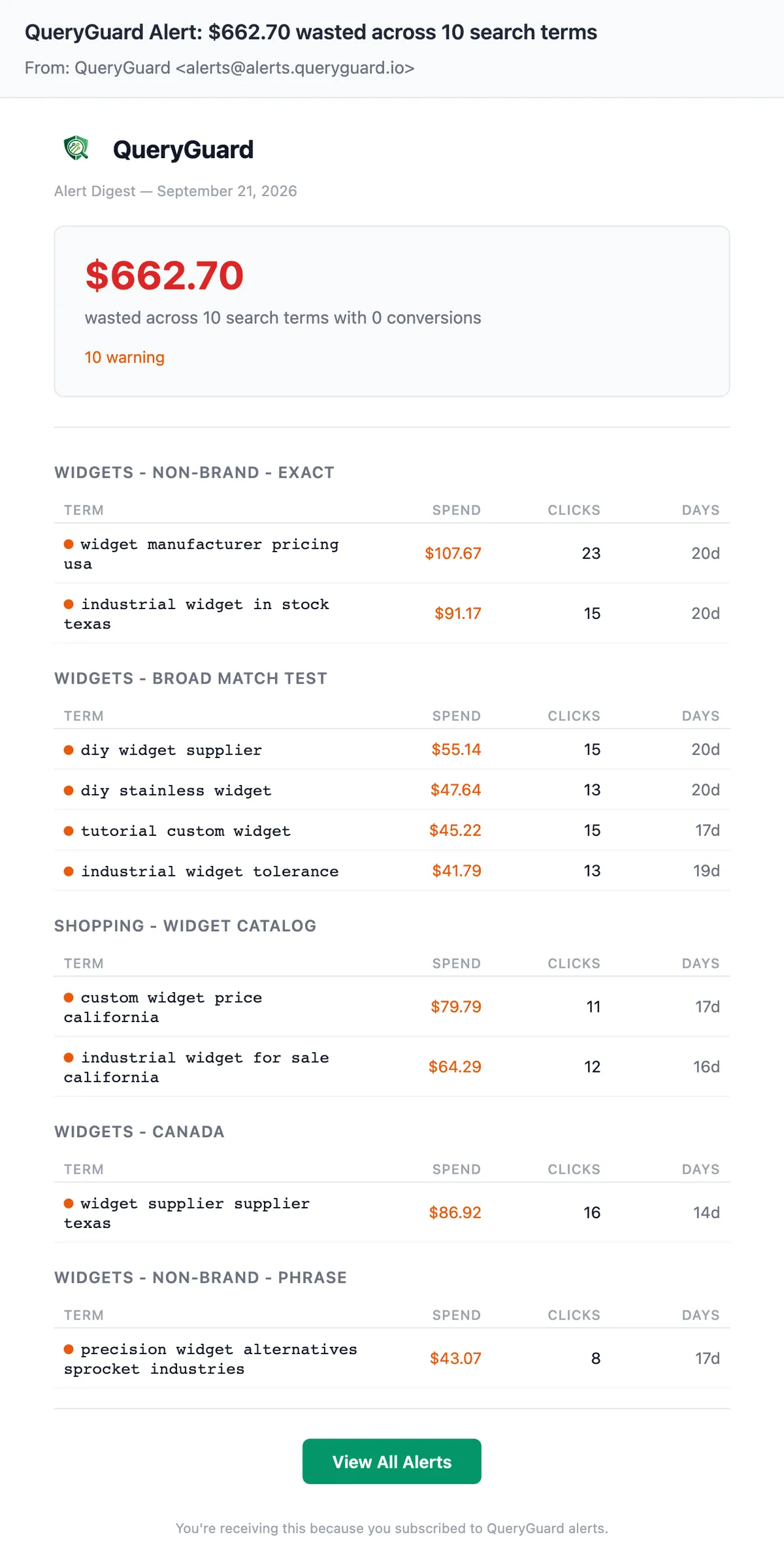
Within a campaign the most expensive terms come first. The email shows up to ten terms in total; when more fired, it ends the list with ... and N more totaling $X and a View All link to the rest.
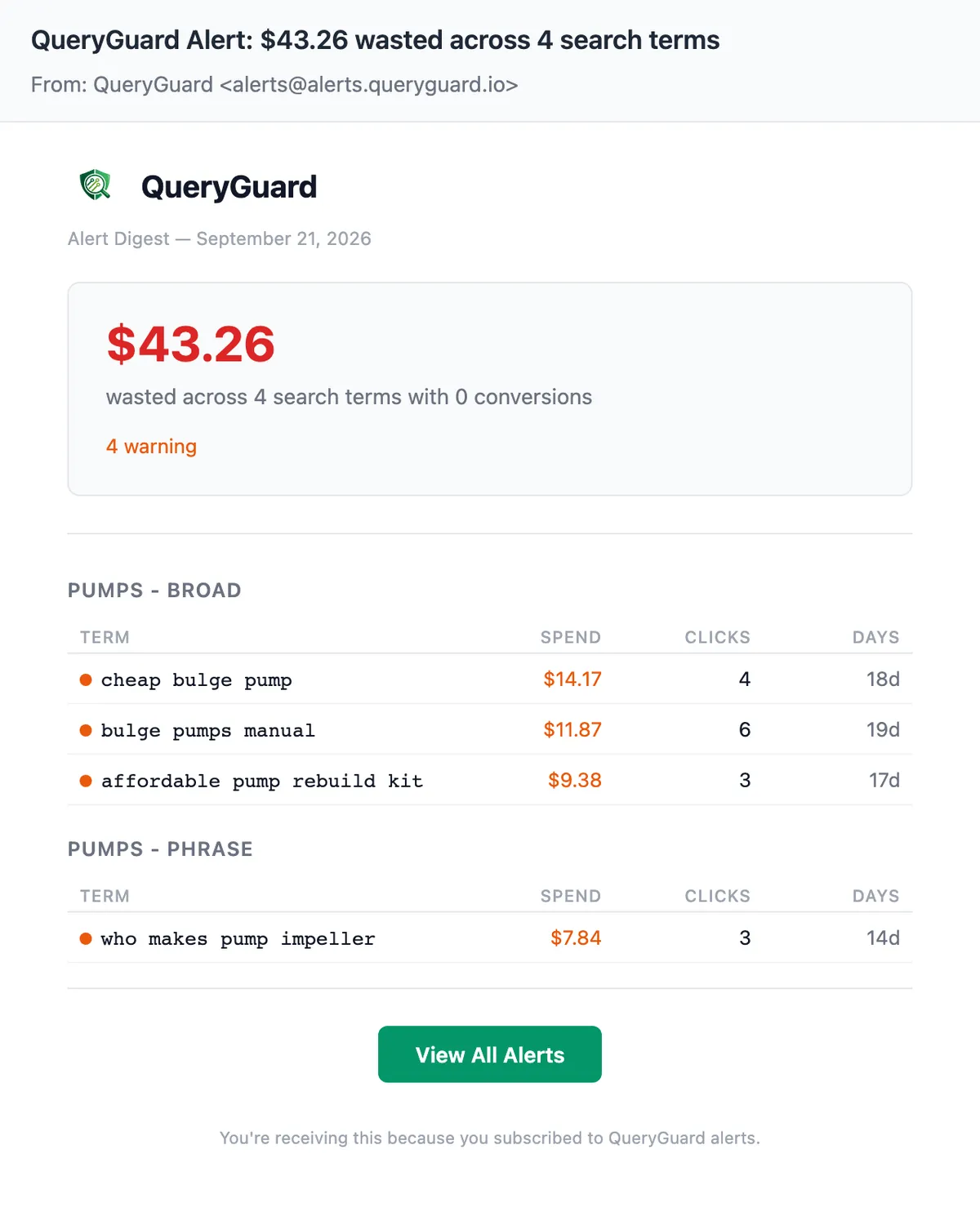
A quieter account produces a shorter email — same layout, fewer campaign groups:
3. Open a term in QueryGuard
Every term in the email is a deep link. Clicking one opens the account's Alerts tab and immediately opens that term's detail window — the same view you get by clicking a term anywhere in the app, with its stats, Daily Cost chart, and the Watch and Add as Negative Keyword actions.
The green View All Alerts button at the foot of the email opens the Alerts tab itself, where you can work through the whole queue — see Resolve alerts.
4. Start or stop the digest
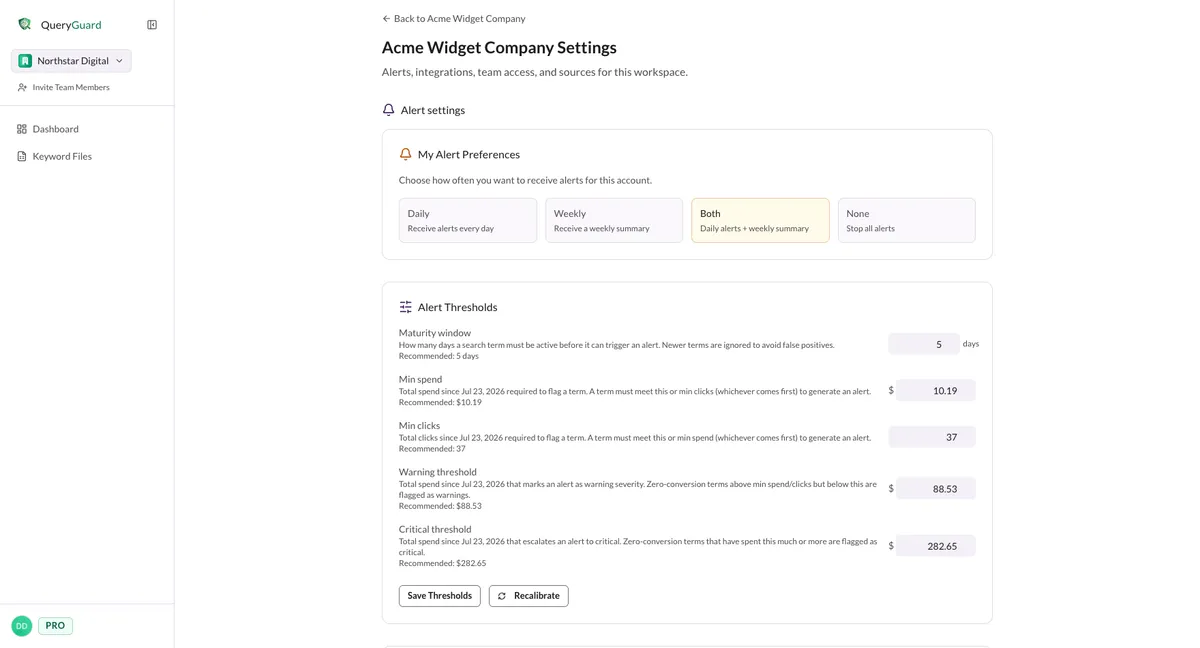
Delivery is controlled per account from workspace settings — open the gear icon in the account header. Under My Alert Preferences, choose Daily (or Both) to receive each day's digest, or None to stop alert emails to you. Choosing a card saves immediately.
To send the digest to people who never sign in — a shared mailbox, a client, a manager — the workspace owner adds addresses under Delivery Channels → Team Emails.
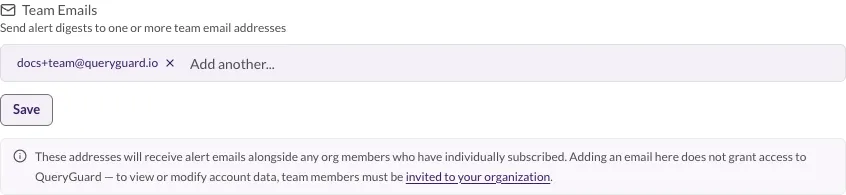
Team Emails and the Slack channel are managed by the workspace owner; everyone else sees them read-only. The full setup — including the opt-in banner on the account page and Send Test Alert — is in Alert notifications. For every other email QueryGuard sends, see Email reference.