
Resolve alerts
Resolving an alert records your decision on a flagged search term — exclude it, accept it, or snooze it — and moves it from the Active queue to the Resolved tab.
Overview
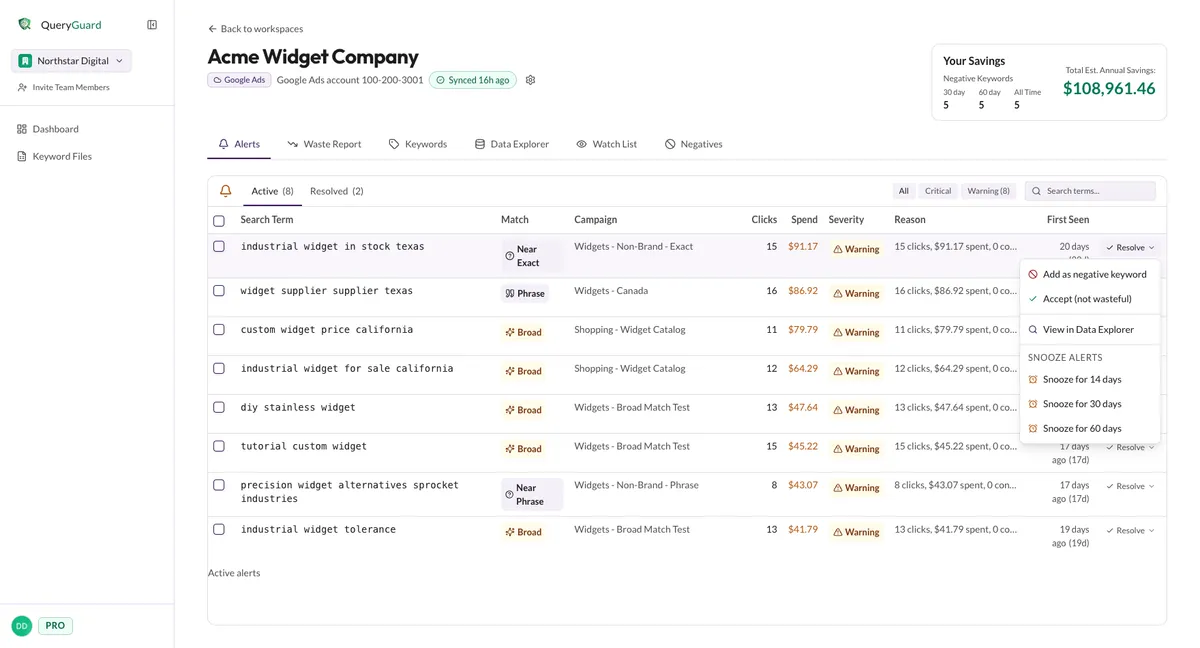
Every row on the Active tab ends with a Resolve menu holding four actions:
| Action | What it does | When to use it |
|---|---|---|
| Add as negative keyword | Writes a negative keyword to the term's campaign in Google Ads, then resolves the alert as Negative KW | The term is genuinely irrelevant — the usual fix for real waste |
| Accept (not wasteful) | Resolves the alert as Accepted without changing anything in Google Ads | The term belongs — it converts under another match type or campaign, or it's one you intend to keep buying |
| Snooze for 14 / 30 / 60 days | Resolves the alert as Snoozed and parks it for that long | The term needs more time — you're waiting on late conversions, or it's seasonal |
| View in Data Explorer | Opens the term in the Data Explorer | You want the full numbers before deciding — it doesn't resolve the alert |
What each resolution means for the future:
- Negative KW is final — while the resolution stands, the term can't alert again.
- Snoozed expires — once the snooze ends, the term can alert again after a later sync if it still qualifies.
- Accepted clears this alert only — a term that keeps spending without converting can alert again.
Direct link: Dashboard
Quick Tips
- Accept and Snooze apply the moment you click them — no confirmation step. If you resolve by mistake, Undo on the Resolved tab sends the alert back to Active.
- Accepting isn't permanent. To stop a term alerting for good, exclude it instead.
- Ticking rows also unlocks Watch (N) — park uncertain terms on your watch list rather than resolving them.
- Check the Reason column first: when it says the term "converts via" another match type or campaign, Accept is usually the right call.
Steps
1. Open the Resolve menu
On the account's Alerts tab, each Active row ends with a Resolve button. It opens the actions for that one term.
2. Choose the action
- Add as negative keyword opens the Exclude window — pick a match type and confirm. That's covered step by step in Add negative keywords.
- Accept (not wasteful) and the Snooze options resolve the alert immediately; the row moves to Resolved.
- View in Data Explorer leaves the alert open and takes you to the term's numbers.
3. Resolve several alerts at once
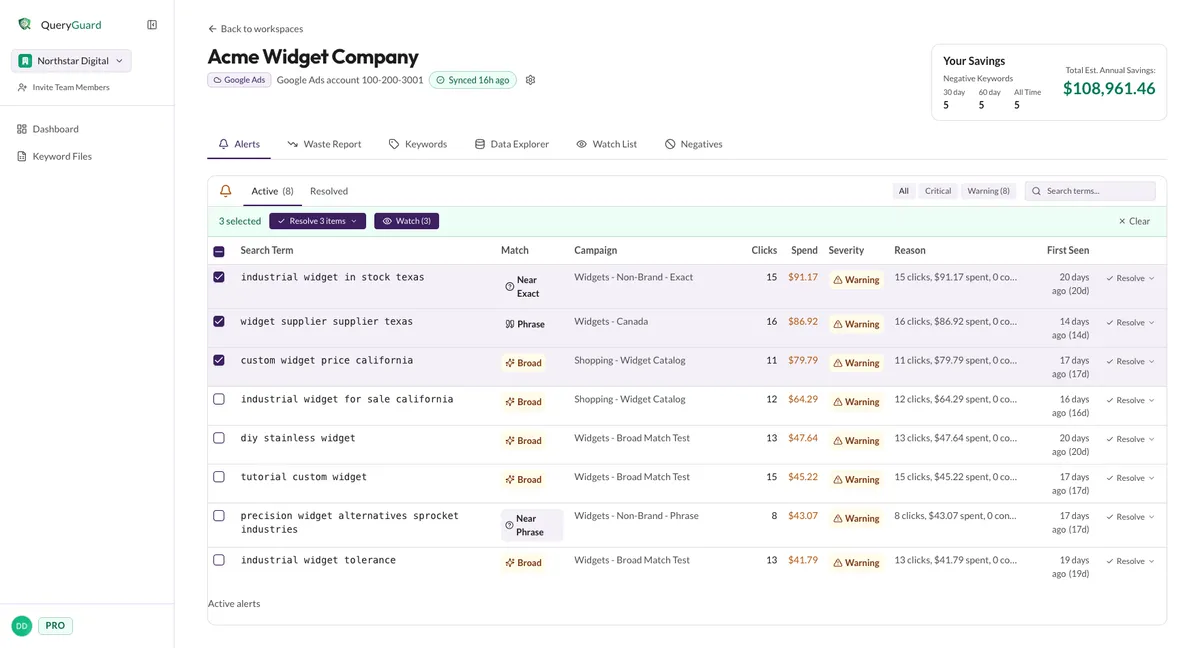
Tick the checkbox on each row you want to clear. A bar appears above the table with the count selected, a Resolve N items menu, Watch (N), and Clear.
The bulk menu offers the same resolutions minus View in Data Explorer:
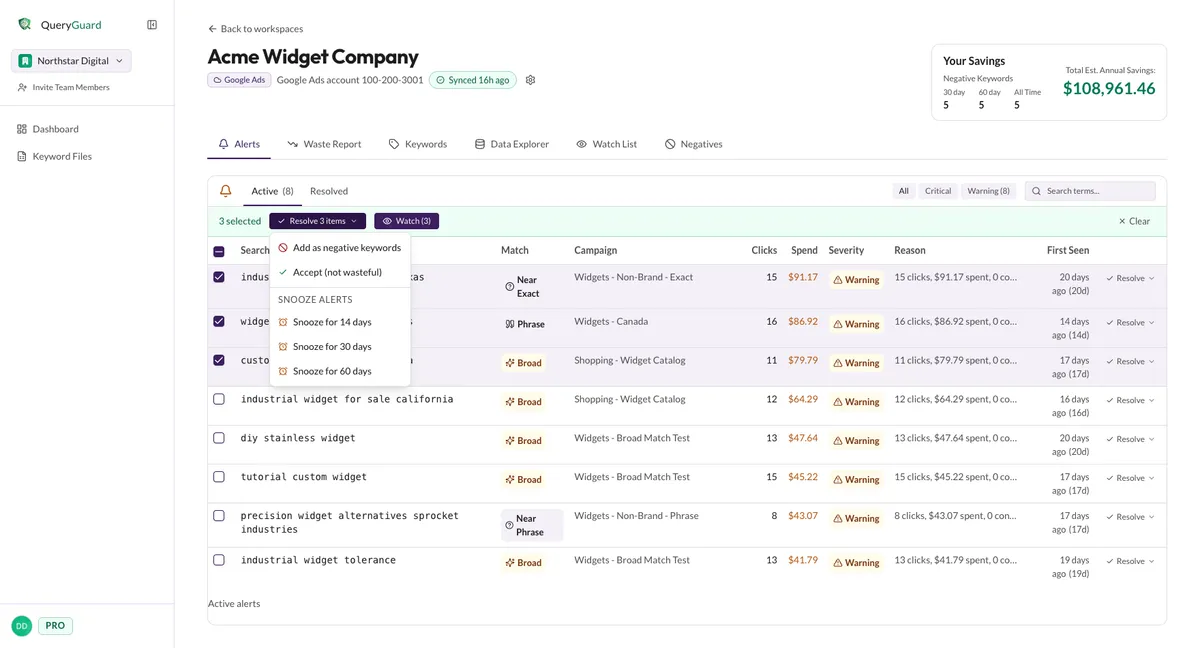
Add as negative keywords opens the Exclude window listing every selected term beside the campaign its negative will be written to — each term is excluded from its own campaign. Accept and Snooze apply to all selected rows at once.
4. Review the Resolved tab
The Resolved tab is the record of every decision. Its Resolution column shows how each alert was cleared:
| Badge | Meaning |
|---|---|
| Negative KW | The term was excluded — a negative keyword was written to its campaign |
| Accepted | Dismissed as not wasteful |
| Snoozed | Parked — it can return to Active once the snooze ends |
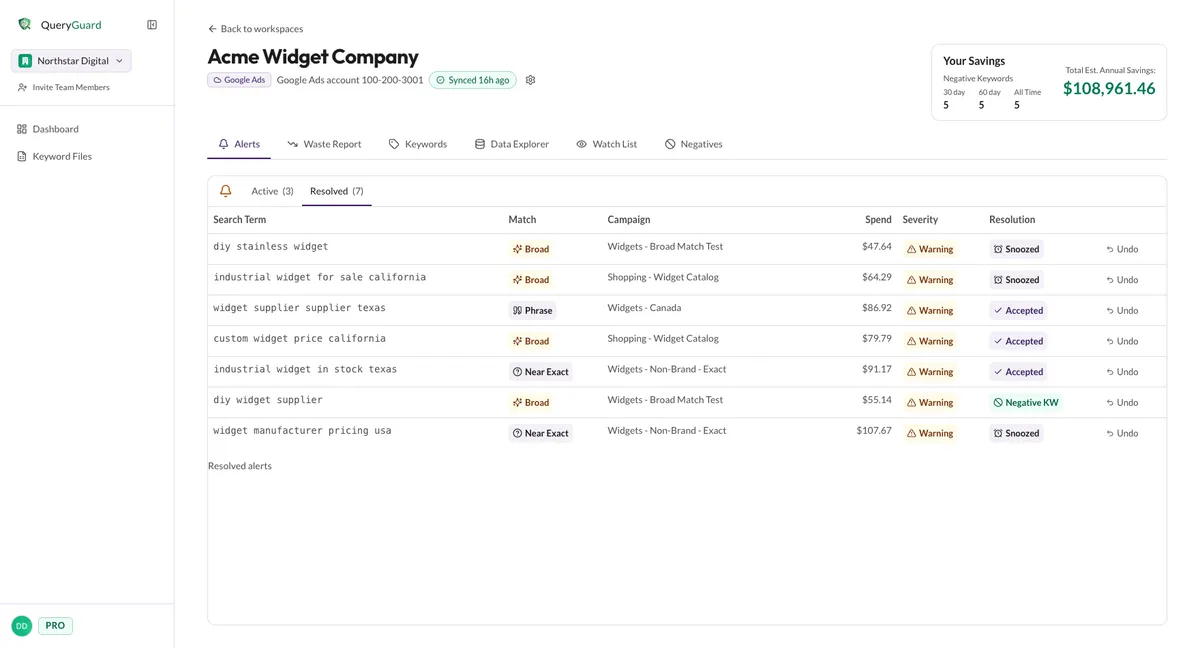
Every row ends with Undo, which returns the alert to the top of the Active list.