
Sync status and reconnecting
QueryGuard syncs every connected Google Ads account each night, and the sync pill on the account page tells you where the last run landed.
Overview
Each night QueryGuard pulls the last 60 days of search terms for every connected account, then re-runs the waste analysis and alert generation on the fresh data. The first sync starts by itself right after you connect an account; from then on the nightly run is the only trigger — there is no manual refresh.
Sync health surfaces in three places:
| Where | What you see |
|---|---|
| Account page header | A sync pill — "Synced 3h ago", "Syncing...", "Sync failed" or "Never synced" |
| Account page, under the header | A red Sync failed banner with the reason, shown only when the last run failed |
| Dashboard workspace card | An amber Reconnect pill when the Google Ads connection has lapsed |
A lapsed connection also emails your org's admins — see step 3.
Direct link: Dashboard
Quick Tips
- Syncs run each night and on demand only at connect time — you can't force a refresh. The pill tells you how fresh the data is, not how to change it.
- Each run retries on its own before it's marked failed, so "Sync failed" already means the retries didn't help.
- A failed sync keeps all previously synced data in place; the next successful run refreshes it.
- A lapsed connection drops the account out of the nightly run entirely until you reconnect — it won't fix itself.
- A run that stalls for more than 30 minutes is marked failed automatically, so a stuck "Syncing..." pill resolves itself.
Steps
1. Read the sync pill
Open the account from its workspace card on the dashboard. The pill sits in the page header, next to the account's customer ID.

| Pill | Meaning |
|---|---|
| Synced … ago (green) | The last sync finished — the time counts since completion: "just now", then minutes, hours, days and weeks. |
| Syncing... (amber) | A sync is running right now. |
| Pending... (amber) | A sync is queued — normal for a few minutes right after connecting an account. |
| Sync failed (red) | The last run failed after its retries. The pill shows the first words of the reason; the banner below it has the full message. |
| Never synced (gray) | No sync has run for the account yet. |
Until the first sync completes, the account page shows "No synced data yet. Data will appear after the first sync completes." instead of reports.
2. Handle a failed sync
When the last run fails, a red Sync failed banner appears under the header with the reason and, where relevant, what happens next.
| Message | What it means |
|---|---|
| "Connection lost — reconnect your Google Ads account" | The connection token expired or the grant was revoked in Google — reconnect (step 3). The banner adds "Action needed: Reconnect your Google Ads account in settings." |
| "Access denied — check account permissions" | The connected Google identity can no longer see the ad account — check its access in Google Ads, then reconnect. Same action line. |
| "Google Ads API rate limit reached — will retry automatically" | Google throttled the run — the next nightly run picks it up. |
| "Network error — retrying in a few minutes" | A connection problem on the way to Google — the banner adds "Action: This will retry automatically." |
| "Sync timed out — try syncing again" | The run stalled and was marked failed — the next nightly run is the retry. |
| "Sync failed — please contact support if this persists" | Anything else — leave it for the next nightly run, and contact support if it keeps failing. |
Transient failures — rate limits, network errors, timeouts — leave the account on the nightly schedule, so they usually clear on their own. Auth failures don't: see the next step.
3. Reconnect a lapsed connection
When the connection token expires or the grant is revoked on Google's side, the account stops syncing — nightly runs skip it — and three things flag it:
- The account page shows the red Sync failed state described above.
- On the dashboard, the workspace card's row ends in an amber Reconnect pill instead of the open chevron.
- Your org's admins get an email — subject "Google Ads sync failed — reconnection needed" — explaining the token expired, with a link back to the dashboard.
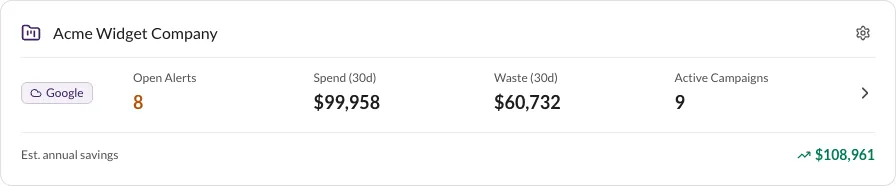
Choose Reconnect and sign in with Google again — it's the same authorization flow as Connect Google Ads, scoped to that workspace. Pick the same account and QueryGuard stores the fresh token, marks the connection healthy, and starts a sync immediately. From the next night the account is back on the regular schedule.
Reconnecting is not disconnecting — the account's search-term history, alerts, thresholds and team access all stay in place. Whoever completes the reconnect becomes the workspace's owner — the person shown as having connected the account.
A lapsed connection looks different from a source you disconnected yourself: that one is badged Disconnected in the workspace's settings, and its dashboard card shows "No Google Ads account connected" rather than Reconnect. See Create and manage workspaces.