
The Keywords tab
The Keywords tab turns the waste analysis around: instead of listing wasteful search terms, it ranks the keywords that triggered them, so you can see which keywords keep buying the wrong traffic.
Overview
You'll find it on the Keywords tab of a connected account. Where the Waste Report answers "which terms wasted money", this tab answers "which of my keywords keep triggering those terms" — the view to use when the same keyword generates waste no matter how many individual terms you exclude.
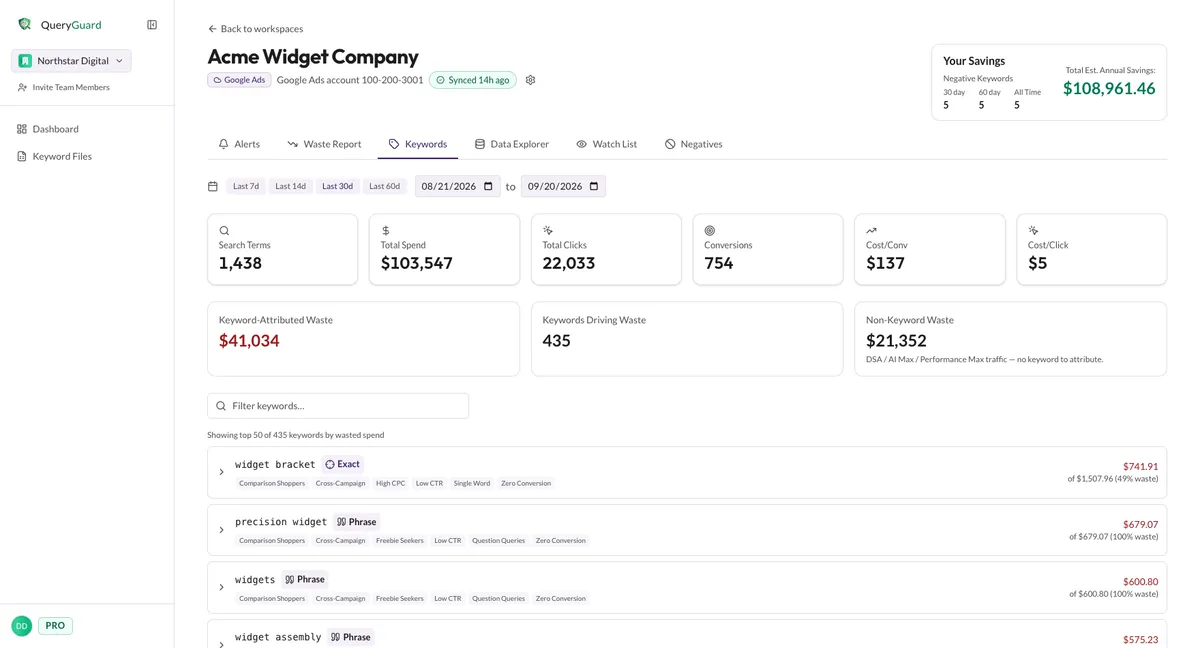
Three cards summarize the account:
| Card | What it means |
|---|---|
| Keyword-Attributed Waste | Flagged spend that traces back to a keyword |
| Keywords Driving Waste | How many distinct keyword + match type pairs triggered any flagged spend |
| Non-Keyword Waste | Flagged spend with no keyword behind it — DSA, AI Max and Performance Max traffic |
The two spend figures reconcile with the Waste Report: keyword-attributed plus non-keyword waste equals the flagged total over the same range.
Below the cards, each row is one keyword + match type pair, sorted by wasted spend. The same keyword text can appear several times — once per match type — so "widget bracket" as Exact, Phrase and Broad are three separate rows. A row shows:
- The keyword text and its match type badge.
- A chip for each waste category its terms fell into — Zero Conversion, Freebie Seekers, Broad Match and the rest, matching the Waste Report patterns.
- On the right, the wasted spend over the keyword's total spend — "$741.91 of $1,507.96 (49% waste)" means roughly half of everything that keyword spent went to flagged terms.
Direct link: Dashboard
Quick Tips
- The tab lists the top 50 keywords by wasted spend — there's no pagination. Filter keywords narrows that top 50 by keyword text; a keyword ranked below the cutoff can't be reached from here.
- The percentage is the share of all the keyword's spend that was flagged. 100% waste means every term it triggered was flagged.
- Only one row stays expanded at a time — opening a keyword collapses the previous one.
- Right after connecting, the tab reads No keyword data yet — keyword data appears after your next sync.
- Keyword files have no Keywords tab: a Search Terms report carries no keyword attribution, so the rollup only exists on connected accounts.
Steps
1. Open the Keywords tab
On a connected account, choose Keywords in the tab bar. The date presets — Last 7d through Last 60d — or a custom range set the window, and the cards and rows recalculate over it. See The account view for how the range works.
2. Check the keyword vs. non-keyword split
Compare Keyword-Attributed Waste with Non-Keyword Waste. A large non-keyword figure is spend from campaign types that don't use keywords — Dynamic Search Ads, AI Max and Performance Max — so it can't be fixed from a keyword list; the terms behind it still appear in the Waste Report and the Data Explorer. A large keyword-attributed figure means the rows below are where the budget is leaking.
3. Scan or filter the keyword rows
Rows are sorted by wasted spend, worst first. Type into Filter keywords to narrow the list — it matches keyword text only, case-insensitively, within the loaded top 50.
The category chips tell you the shape of the waste before you open the row: Broad Match on a broad keyword points at the match type; Cross-Campaign means its terms are triggering ads in more than one campaign; Freebie Seekers or Job Seekers mean the keyword attracts the wrong audience outright.
4. Expand a keyword
Click a row to expand it. You get the campaigns and ad groups the keyword lives in — campaigns before the bullet, ad groups after — then Wasteful search terms it triggered: up to the ten most expensive flagged terms, each with its wasted spend.
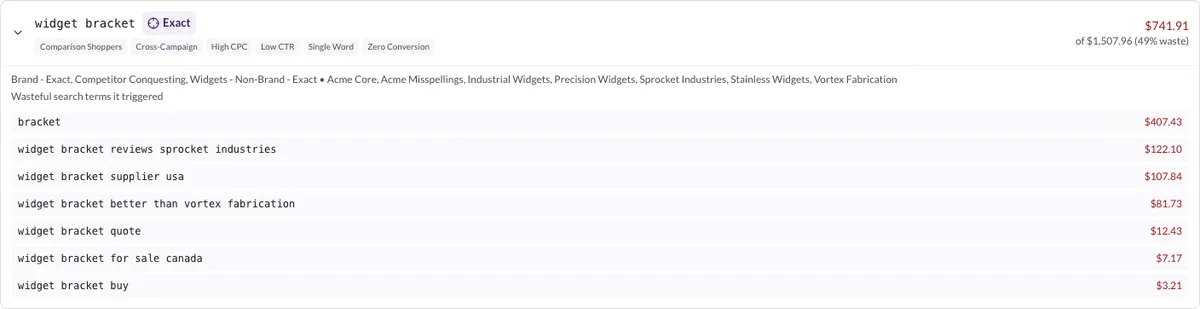
A term you've already excluded shows an Excluded pill here.
5. Open a term and act on it
Click a term to open its detail view — the daily cost chart, the full metrics, a Triggered by section naming the keyword that brought it in, and the actions: Watch and Add as Negative Keyword.
Add as Negative Keyword starts the exclusion flow for that term — see Add negative keywords. Once it lands, the term is marked Excluded in the expanded list. Watch adds the term to the Watch List tab so it stays visible without excluding it.