
What QueryGuard does
QueryGuard finds the search terms in your Google Ads account that spend money without converting, alerts you to the worst of them, and lets you exclude them as negative keywords without leaving the app.
Overview
QueryGuard is organized around three levels:
- Your organization is your company or agency. It holds your plan, your team, and everything below it.
- Inside it, a workspace groups the ad accounts for one product or client. An agency typically runs one workspace per client; an in-house team runs one per product or brand.
- A workspace's connected account — also called a source — is a Google Ads account linked to that workspace. Once connected, QueryGuard syncs its search-term data each night.
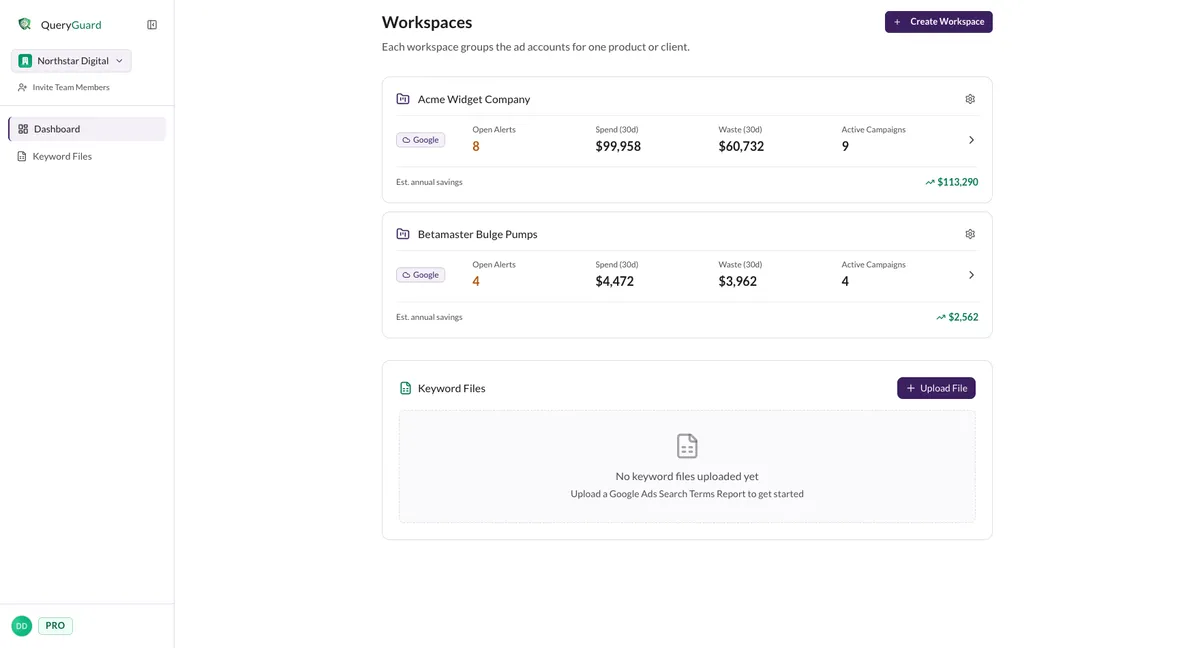
Each workspace card summarizes one connected account: Open Alerts waiting for a decision, Spend (30d) and Waste (30d) over the last 30 days, Active Campaigns, and an Est. annual savings total built up from the negative keywords you've applied through QueryGuard.
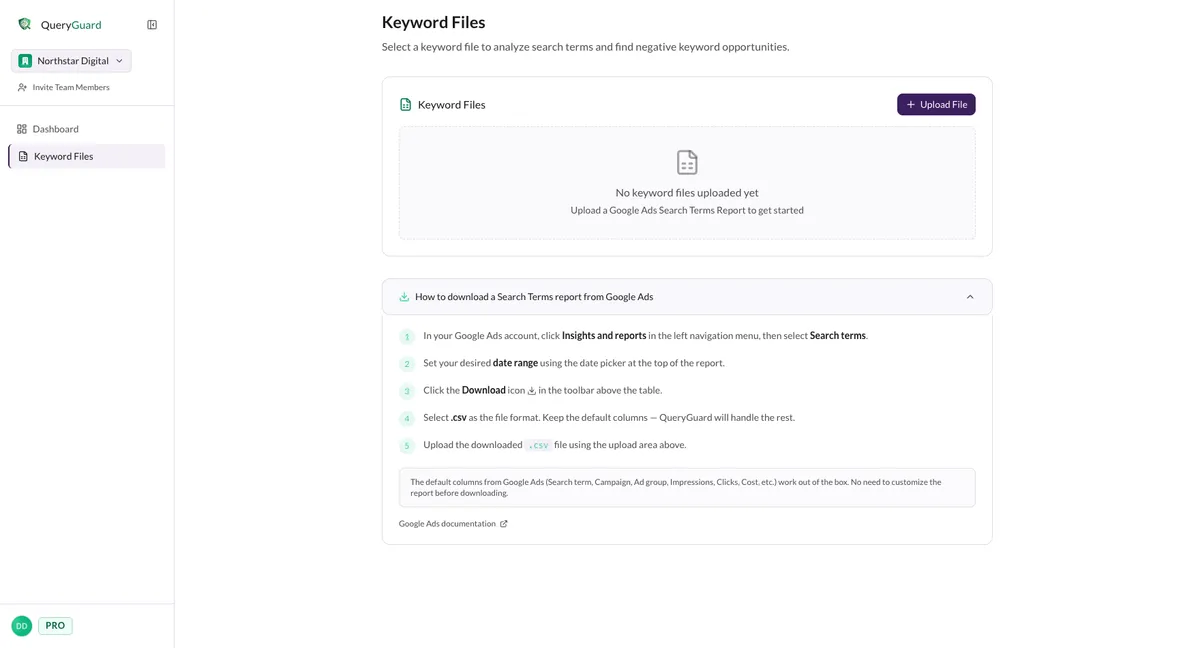
If you can't or don't want to connect Google Ads, upload a keyword file instead: a Search Terms report exported from Google Ads as a CSV. A keyword file gets the same Waste Report and Data Explorer analysis as a connected account, as a snapshot of the period you exported. See Keyword files (CSV upload).
Direct link: Dashboard
Quick Tips
- Dashboard Spend and Waste figures are rolling 30-day windows, so they drift day to day. Est. annual savings is all-time.
- There is no manual sync: connected accounts update each night, and a keyword file is a fixed snapshot — upload a fresh export for newer data.
- Alerts are ordered so the most expensive terms come first. Work top-down.
- Keyword files analyze but can't act: writing a negative keyword back to Google Ads needs a connected account.
Steps
1. Get your data in
Connect a Google Ads account to a workspace — Create Workspace on the dashboard, then connect the account — or choose Upload File in the Keyword Files section and drop in a Search Terms report CSV.
2. QueryGuard syncs and analyzes each night
Each night, QueryGuard pulls the latest search-term data for every connected account and re-runs its waste analysis across twelve categories, from Zero-Conversion Spend to Job Seekers and Cross-Campaign Duplicates. Terms that cross your workspace's alert thresholds become alerts.
3. Review what it found
Open the account from its workspace card. The Alerts tab lists the terms that need a decision, most expensive first — see Understanding alerts. The Waste Report groups all flagged spend by category so you can see where the money is going — see The Waste Report.
4. Exclude the waste
On any flagged term, Resolve → Add as negative keyword writes the negative straight to the campaign in Google Ads — see Add negative keywords. If a flagged term is actually fine, Accept (not wasteful) clears the alert without touching your campaigns — though a term that keeps spending can alert again, so exclude the ones you want gone for good.
5. Watch the savings add up
Every negative you apply carries an estimated annual savings figure. Those figures roll up to the account's Your Savings card and to the Est. annual savings line on its workspace card — a running total of what your exclusions are projected to save over the next year.
The vocabulary
| Term | What it means |
|---|---|
| Workspace | A grouping for one product or client's ad accounts, with its own alert thresholds and team access |
| Connected account / source | A Google Ads account linked to a workspace, synced each night |
| Keyword file | An uploaded Search Terms report CSV — the no-connection way to analyze an account |
| Alert | A search term that crossed your thresholds — real spend, no conversions — and needs a decision |
| Waste | Spend on search terms that produced no conversions, grouped into categories like Freebie Seekers and Job Seekers |
| Negative keyword | The fix: a term you exclude in Google Ads so it stops triggering your ads |
| Watch list | Terms you're keeping an eye on rather than excluding yet |
| Est. annual savings | The projected yearly saving from a negative keyword, worked out from what the matching terms recently spent |